The Authoring Workspace is where most of your actual proposal development takes place. Unlike the web portal, which handles administrative tasks like opportunity setup and document management, the Authoring Workspace brings GovEagle's AI capabilities directly into the tools you already use: Microsoft Word, Microsoft Excel, and Microsoft PowerPoint.
Why Work in Microsoft Office?
Proposal teams spend most of their time drafting, editing, and formatting content in Microsoft Office applications. Rather than requiring you to switch between the web portal and your documents, GovEagle integrates directly into your authoring environment through native Microsoft Office Add-Ins.
This approach provides several key benefits:
Stay in Your Flow Continue working in the familiar Word, Excel, and PowerPoint interfaces without context switching. The GovEagle AI Assistant appears as a side panel, ready to help whenever you need it.
Preserve Your Templates Use your organization's existing proposal templates, style guides, and formatting standards. When you insert AI-generated content, GovEagle automatically adopts your document's existing styles and formatting.
Collaborate Naturally Share documents with your team using your existing collaboration workflows. The documents remain standard Microsoft Office files that anyone can open, edit, and review.
Maintain Version Control Keep using your existing document management and version control processes. GovEagle doesn't require special file formats or proprietary storage systems.
How the Add-Ins Work
GovEagle provides a consistent experience across all three Microsoft Office applications through the GovEagle AI Add-In. Once installed (see Deploying Microsoft Office Add-Ins), the add-in appears in your toolbar and provides access to the GovEagle AI Assistant.

GovEagle AI Add-In
The Add-In Interface
When you open the GovEagle Add-In, a side panel appears showing the GovEagle AI chat interface. This interface is identical across Word, Excel, and PowerPoint, making it easy to work consistently across all three applications.

GovEagle Add-In UI
The add-in interface includes:
Opportunity Selector A dropdown at the top lets you select which opportunity you're working on. This connects the AI to the relevant solicitation documents, requirements, and Content Library Scope for that specific bid.
Search Opportunities Quickly find the right opportunity by typing in the search field.
No Opportunity Option Work with GovEagle without selecting a specific opportunity if you're doing general research or working on non-opportunity content.
New Opportunity Button Create a new opportunity directly from the add-in if needed.
Show Archived Toggle Include archived opportunities in your selection list.
Modes of Execution
For the all of the add-ins, users have the option to toggle the auto-accept mode on or off. This allows GovEagle to automatically apply the content blocks into the relevant document, slide, or sheet without user input. To set this you can click on the sliders panel and toggle the button.
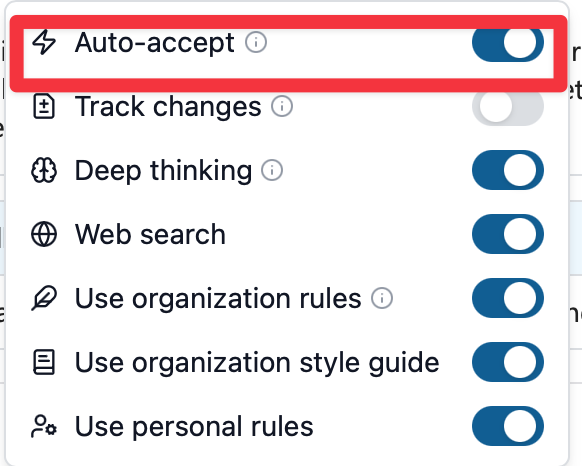
In addition, the Word Add-In also the ability to redline via the ‘Track changes’ mode described in the Track Changes Mode section inside Working with the Word Add-In.
Connecting to an Opportunity
When you select an opportunity, GovEagle provides context-aware assistance based on:
Solicitation documents and requirements for that opportunity
The Content Library Scope and selected folders relevant to the opportunity
Capture information collected for that opportunity
Company profiles and team composition
Your organization's rules and writing style guide
Once connected to an opportunity, you'll see suggested starter prompts tailored to common proposal tasks, plus a chat interface where you can type your own requests.
How to Use the Authoring Workspace
The basic workflow is simple:
Open your document in Word, Excel, or PowerPoint
Launch the GovEagle Add-In from the toolbar
Select the opportunity you're working on
Ask the AI to help with your task using natural language
Review the response the AI generates
Insert the content directly into your document with one click
The AI preserves your document's existing styles, formatting, and template structure when inserting content.
Reading Your Current Document
A powerful capability across all three add-ins is that GovEagle can read and understand the content already in your current document, workbook, or presentation. This allows you to:
Ask the AI to continue writing in the same style as existing content
Request that the AI fill out templates or tables you've already created
Have the AI review and edit content you've drafted
Ensure consistency between AI-generated content and your existing work
Simply tell GovEagle to "read this document" or reference the current content in your request, and the AI will analyze what you've already created.
Applications and Use Cases
Each Microsoft Office application serves different proposal development needs:
Microsoft Word
The primary environment for narrative proposal content, including:
Annotated outlines and response structures
Technical approach sections
Management approach narratives
Past performance write-ups
Executive summaries
Compliance responses
See Working with the Word Add-In for detailed guidance.
Microsoft Excel
The go-to tool for structured data and analysis, including:
Compliance matrices and cross-reference matrices
Gap analysis and competitive assessments
Pricing worksheets and cost tables
Staffing plans and resource loading
Requirements traceability matrices
Evaluation criteria scoring
See Working with the Excel Add-In for detailed guidance.
Microsoft PowerPoint
Essential for visual communication and presentations, including:
Capture strategy presentations
Orals preparation and presentation decks
Executive briefing materials
Technical approach diagrams and flowcharts
Solution architecture overviews
Win theme visualization
See Working with the PowerPoint Add-In for detailed guidance.
Working with Templates
Your organization likely has established templates for proposals, compliance matrices, briefing decks, and other deliverables. GovEagle is designed to work seamlessly with these templates, preserving your formatting, styles, and structure.
When you insert AI-generated content into a document that uses a template, GovEagle automatically adopts the appropriate styles from your template. You can also ask GovEagle to fill out existing templates by analyzing their structure and populating them with relevant content.
See Working with Templates for best practices on using GovEagle with your organization's templates.
Tips for Effective Use
Be Specific in Your Requests The more specific your prompt, the better the AI's response. Instead of "write about our cybersecurity capabilities," try "write a 2-page technical approach for the cybersecurity monitoring requirements in PWS Section 3.2."
Reference the Prompting Guide See the Prompting Guide article for detailed strategies on crafting effective requests to the GovEagle AI.
Iterate and Refine If the first response isn't quite right, ask the AI to revise it. You can request changes to tone, length, focus, or specific content elements.
Use Document Context Let GovEagle read your current document to ensure consistency. Say "continue writing in the same style as the content above" or "match the format of the existing table."
Select the Right Opportunity Make sure you've selected the correct opportunity before requesting content. This ensures the AI has access to the right solicitation documents and requirements.
Combine with Manual Editing Use GovEagle to create strong first drafts, then refine them with your subject matter expertise and proposal strategy.
Note
If you haven't yet installed the add-ins, see Setup GovEagle Add-Ins for installation instructions.