The GovEagle Word Add-In brings AI-powered proposal writing directly into Microsoft Word, enabling you to draft, edit, and refine narrative content without leaving your document. This is where most proposal teams spend the majority of their authoring time, working on technical approaches, management plans, past performance narratives, and other written sections.
For instructions on installing and opening the add-in, see Authoring Workspace Overview.
Common Word Add-In Use Cases
Creating Annotated Outlines
Ask GovEagle to analyze your solicitation and create a detailed proposal outline with requirements mapped to each section.
Example prompt: "Create an annotated outline for the Technical Approach volume based on Section L and M requirements"
Drafting Proposal Sections
Request first drafts of narrative sections, specifying the requirements to address and desired page length.
Example prompts:
"Draft a 3-page technical approach for Task 1 (SOW Section 3.1) addressing evaluation criteria M.2.1"
"Write an executive summary highlighting our key discriminators for this opportunity"
"Create a past performance narrative for our NASA ACES contract that addresses the relevancy criteria in Section M"
Editing and Refining Content
Ask the AI to review, improve, or revise existing content in your document.
Example prompts:
"Read this section and make it more concise while keeping all key points"
"Strengthen the win themes in the paragraph I've selected"
"Review this draft for compliance with requirement L.3.2.1"
Compliance Checking
Verify that your content addresses all required elements from the solicitation.
Example prompts:
"Check whether this section addresses all requirements in PWS 3.2"
"Review this technical approach against evaluation criteria M.2"
"Identify any missing requirements that should be addressed in this section"
Continuing Existing Content
Let GovEagle read what you've already written and continue in the same style and voice.
Example prompt: "Read this document and continue writing the next subsection in the same style and tone"
Reading Your Current Document
A powerful feature of the Word Add-In is GovEagle's ability to read and understand the content already in your document. This allows the AI to:
Match your existing writing style and tone
Maintain consistency across sections
Continue narratives without repetition
Edit specific passages while preserving surrounding context
To use this capability, include phrases like:
"Read this document..."
"Based on what I've written above..."
"Continue from where the current section ends..."
"Review the selected text..."
"Fill in the missing content for this section..."
When you select text in your Word document before making a request, GovEagle focuses specifically on that selection.
Modifying Content in Your Document
If you have auto-accept turned on, GovEagle will automatically modify your documents. If you have auto-accept turned off, you must manually apply the changes recommended by GovEagle. The details below show how to manually apply those changes.
Making Large Scale Changes
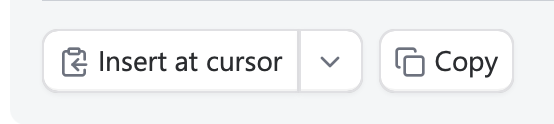
When generating large blocks of continuous content, GovEagle will display a gray block which can contain:
Content like an annotated outline, a compliance matrix, or tables
This content also can contain style metadata based on your message to ensure you get the styles you want. For instance, you can specify that you want all the headings to have the custom style of “Heading 3”, and GovEagle will embed that style as metadata for all heading content.
The option to insert either at cursor or at position. This is explained further below.
Insert at Cursor
To apply edits, you should:
Place your cursor where you want the content to be inserted
Click on the “Insert at cursor” button
Verify that GovEagle inserted the content into your document
Insert at Position
When you select Insert at Position, GovEagle will recommend an insert location based on selected text.
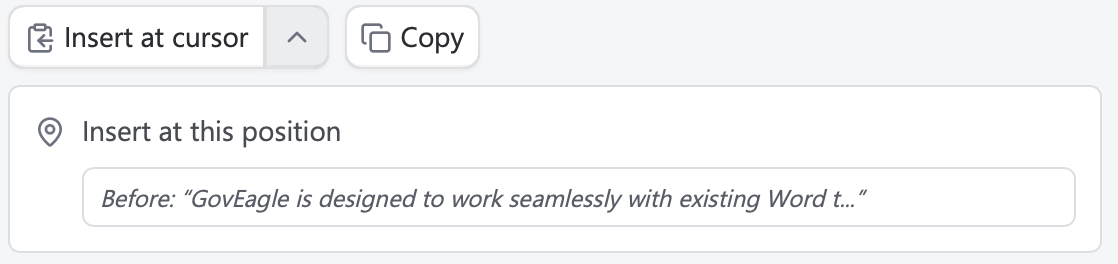
To apply edits, you should:
Click on the “Insert at this position” button
Verify that GovEagle inserted the content into your document
Making Small Scale Changes
For smaller changes, GovEagle will display a different set of blocks.
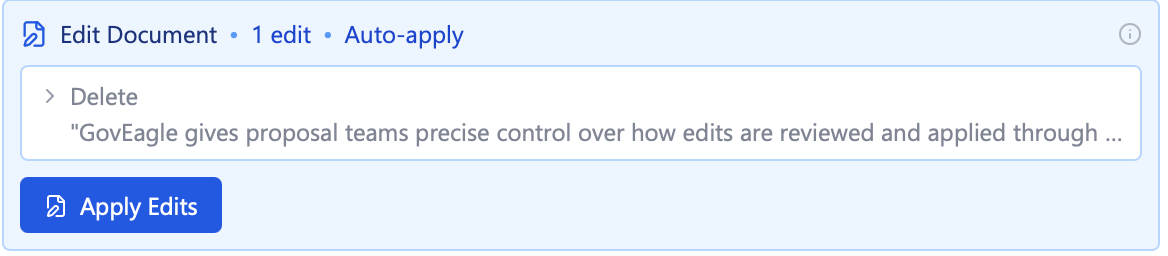
Delete Text
To delete text, highlight the desired text in the Word document and prompt GovEagle to delete the selected text. Then, you will see a block like the one below. Click “Apply Edits” to apply the deletion.
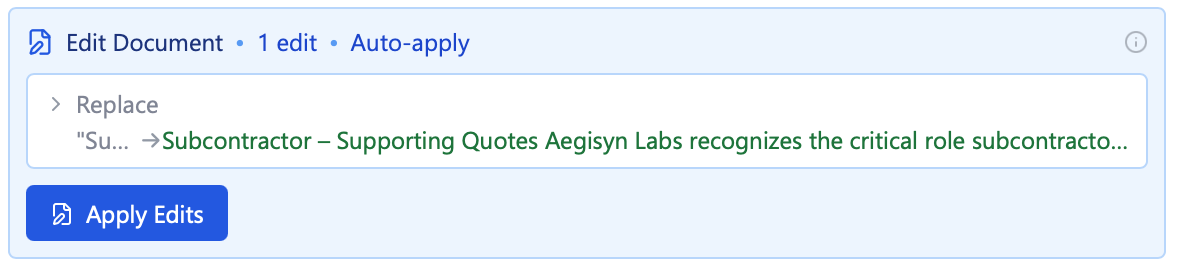
Replace Text
To replace text, highlight the desired text in the Word document and prompt GovEagle to replace it. Then, you will see a block like the one below. Click “Apply Edits” to apply the replacement.
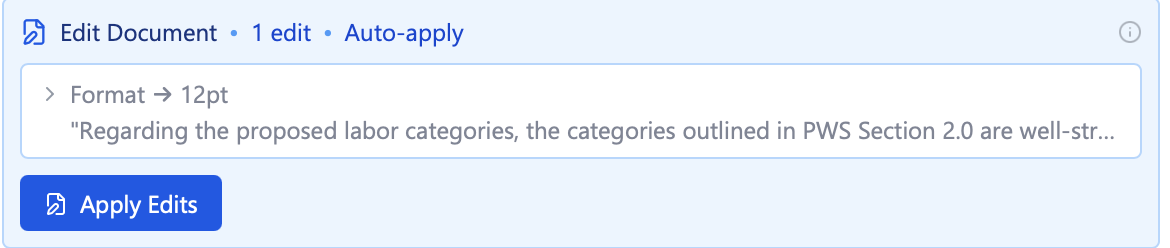
Format Text
To format text, highlight the desired text in the Word document and prompt GovEagle to format it in a certain style, font, or size. Then, you will see a block like the one below. Click “Apply Edits” to apply the formatting.
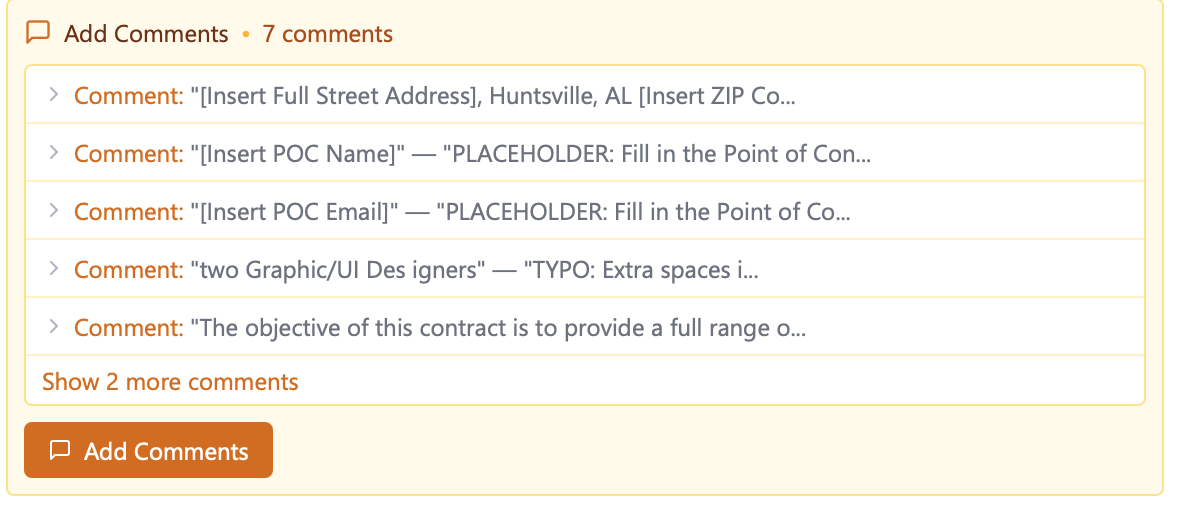
Write Comments
You can ask GovEagle to generate comments by prompting it to make comments.
Track Changes Mode
The Word Add-In provides a track changes setting that can be used in with the auto-accept setting. Enabling track changes allows GovEagle to redline your document rather than applying the changes directly.
You can toggle the track changes mode via the settings panel below the chat input box.
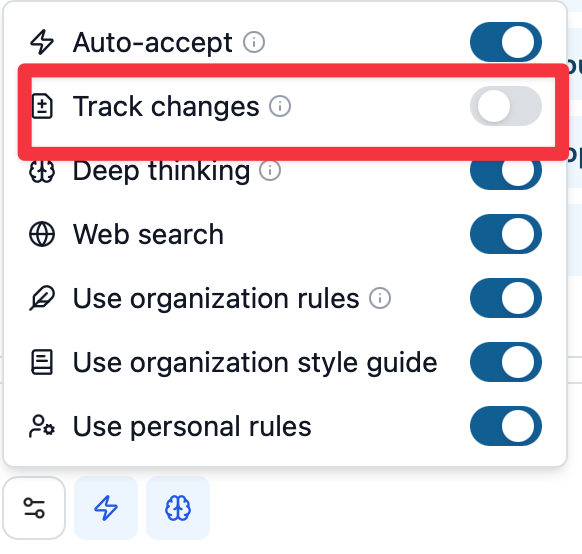
GovEagle’s editing behavior can change based on how track changes and auto-accept settings are set.
Edit blocks, as mentioned below, are rectangular items that appear from a GovEagle message that directly allows you to edit the word document. They often are labeled with Apply Edits.
Suggestion blocks, also mentioned below, are similar except that they will make redlines as described by this Microsoft documentation. They are labeled with Suggest Edits.
Track changes off | Track changes on | |
|---|---|---|
Auto-accept off |
|
|
Auto-accept on |
|
|
Helping the Agent Understand Your Custom Styles
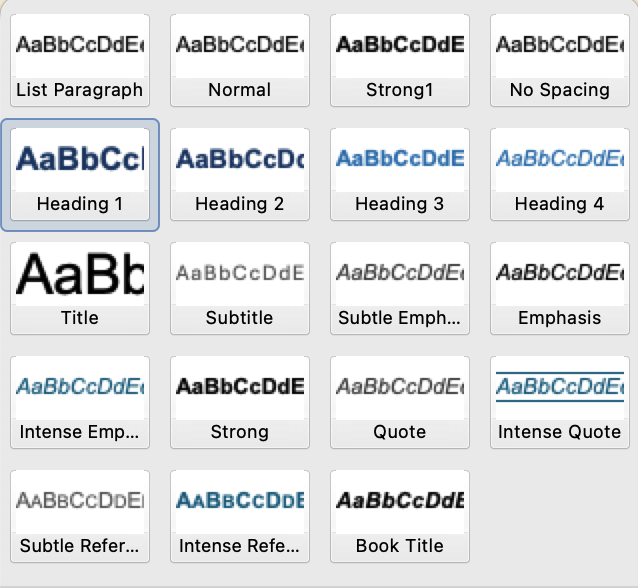
GovEagle can access and apply your custom styles by name. You can instruct GovEagle to insert text and specify which style to use.
You can also create a style mapping and include it in your prompt, or save it to your organization or personal rules. A style mapping tells the agent which custom style to apply to different types of text in your document. For example:
“Apply the following styles when formatting document content:
Document title → Title
Major sections (Executive Summary, Technical Approach, etc.) → Heading 1
Paragraphs / narrative → Normal
Figures/exhibits → Caption”
Additional instructions that can help the agent understand your style prefereneces might be:
“Don't skip heading levels (H1 → H2 → H3, not H1 → H3)”
“Break long text into headings, lists, tables, or short paragraphs”
Working with Templates
If you're using a Word template with predefined styles, headings, and formatting, GovEagle respects that structure when inserting content.
Example workflow:
Open your proposal template
Navigate to the section you want to populate
Ask GovEagle to draft content for that section
Insert the response, which will automatically use your template's styles
You can also ask GovEagle to fill in template sections:
See Working with Templates for more detailed guidance on template integration.
Iterating on Content
If the AI's first response isn't exactly what you need, continue the conversation to refine it.
Example iteration:
First request: "Draft a management approach for Task 2"
Follow-up: "Make it more focused on our team's qualifications"
Further refinement: "Add specific examples from our past performance"
Final adjustment: "Reduce to 2 pages while keeping the key discriminators"
Each iteration builds on the previous response, allowing you to guide the AI toward the exact content you need.
Best Practices for Word Add-In
Highlight Text for Targeted Changes To best show GovEagle what you are looking for, you can highlight the text as context.
Start with Clear Requirements Always reference specific solicitation sections, evaluation criteria, or task requirements in your prompts. This ensures the AI generates compliant, targeted content.
Specify Length and Format Tell GovEagle how long the content should be and any format requirements (page limits, paragraph structure, etc.).
Use Active Voice Ask for content written in active voice with specific examples. Example: "Write this using active voice and include quantifiable results from past performance."
Review Before Inserting Always review AI-generated content before inserting it into your document. Make sure it aligns with your strategy and accurately represents your organization.
Combine AI and Human Expertise Use GovEagle for first drafts and structural content, then apply your subject matter expertise, proposal strategy, and competitive insights to refine it.
Reference the Prompting Guide See the Prompting Guide for detailed strategies on crafting effective prompts and getting the best results from the AI.
Save Frequently As with any Word document, save your work regularly. The add-in works with standard Word files, so use your normal save and version control processes.
Tips for Common Scenarios
For Technical Approaches: "Draft a technical approach for [Task/Requirement] that demonstrates our solution using active voice and specific examples from our past performance. Address evaluation criteria [M.X.X]."
For Management Plans: "Create a management approach for [Task] that highlights our team structure, key personnel, and quality processes. Reference our organizational chart and relevant past performance."
For Past Performance: "Write a past performance narrative for [Contract Name] that demonstrates relevance to [Current Requirement]. Include contract details, our role, quantifiable outcomes, and client contact information."
For Executive Summaries: "Create a 2-page executive summary that highlights our top 3 discriminators, addresses all evaluation factors, and uses customer-focused language."
Troubleshooting
AI doesn't have enough context: Make sure you've selected the correct opportunity and that solicitation documents have been uploaded. Check that the documents you need are included in the opportunity's Content Library Scope.
Response is too generic: Provide more specific prompts with exact requirements, desired length, and references to your content library. Ask for concrete examples rather than general statements.
Content doesn't address the right requirements: Explicitly cite the solicitation sections, evaluation criteria, or task requirements in your prompt.