GovEagle integrates with GSA eBuy to automatically surface RFQ, RFI, and RFP notices from the GSA's electronic buying system. eBuy opportunities appear alongside SAM.gov and GovWin data in Opportunity Search, and can be imported into your pipeline.
There are two levels of integration:
- Email Forwarding - forwards GSA Consolidated Notice emails to GovEagle. Captures opportunity metadata such as title, request type, due date, agency, and buyer contact. No credentials required.
- Advanced Integration (optional) - stores your GSA FAS ID credentials so GovEagle can automatically log into the eBuy portal and download solicitation attachments (SOWs, pricing templates, requirements documents). Requires a GSA FAS ID with MFA.
Email Forwarding Setup
Email forwarding is the primary way that eBuy opportunities enter GovEagle. GSA sends Consolidated Notice emails to schedule holders when new RFQs are posted against their contracts. By forwarding these emails to GovEagle, each notice is automatically parsed and added to Opportunity Search.
Prerequisites
- GovEagle Admin access - only organization administrators can generate forwarding addresses
- eBuy feature enabled - this feature must be enabled for your organization by the GovEagle team. Contact us to get access.
Steps
- Navigate to Opportunity Search Email in the GovEagle web app
- Click generate a forwarding email address
- GovEagle will generate a unique forwarding email address for your organization
- Copy the forwarding address
- In your GSA account, add that email address to the corresponding email lists.
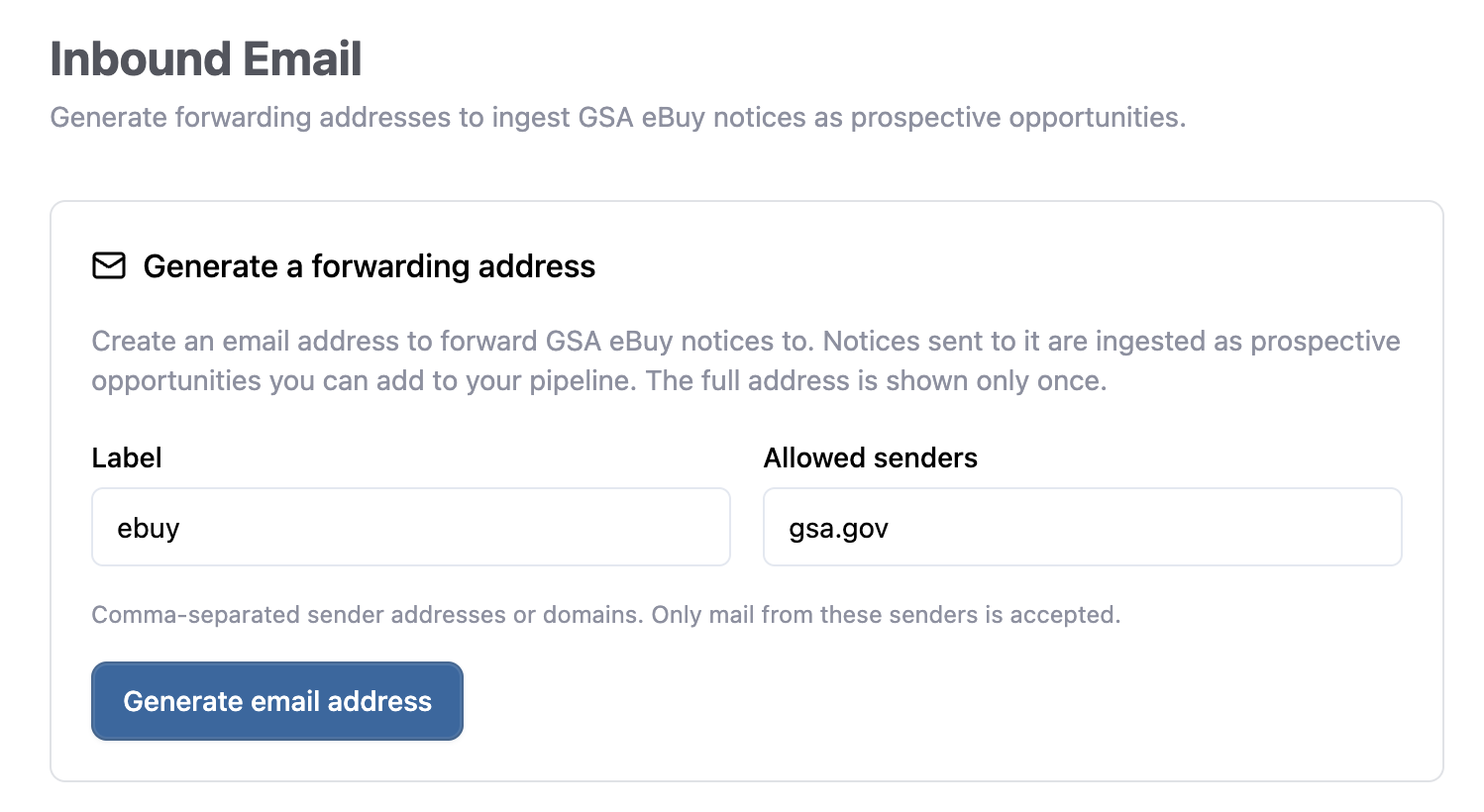
Once forwarding is active, new eBuy notices will appear in Opportunity Search. However, this functionality is quite limited because there are no details from the emails. This leads us to the advanced integration setup.
Advanced Integration Setup
The Advanced Integration enables us to automatically pull more data from eBuy. Without it, you receive metadata via email forwarding but must manually log into ebuy.gsa.gov to view actual documents.
Prerequisites
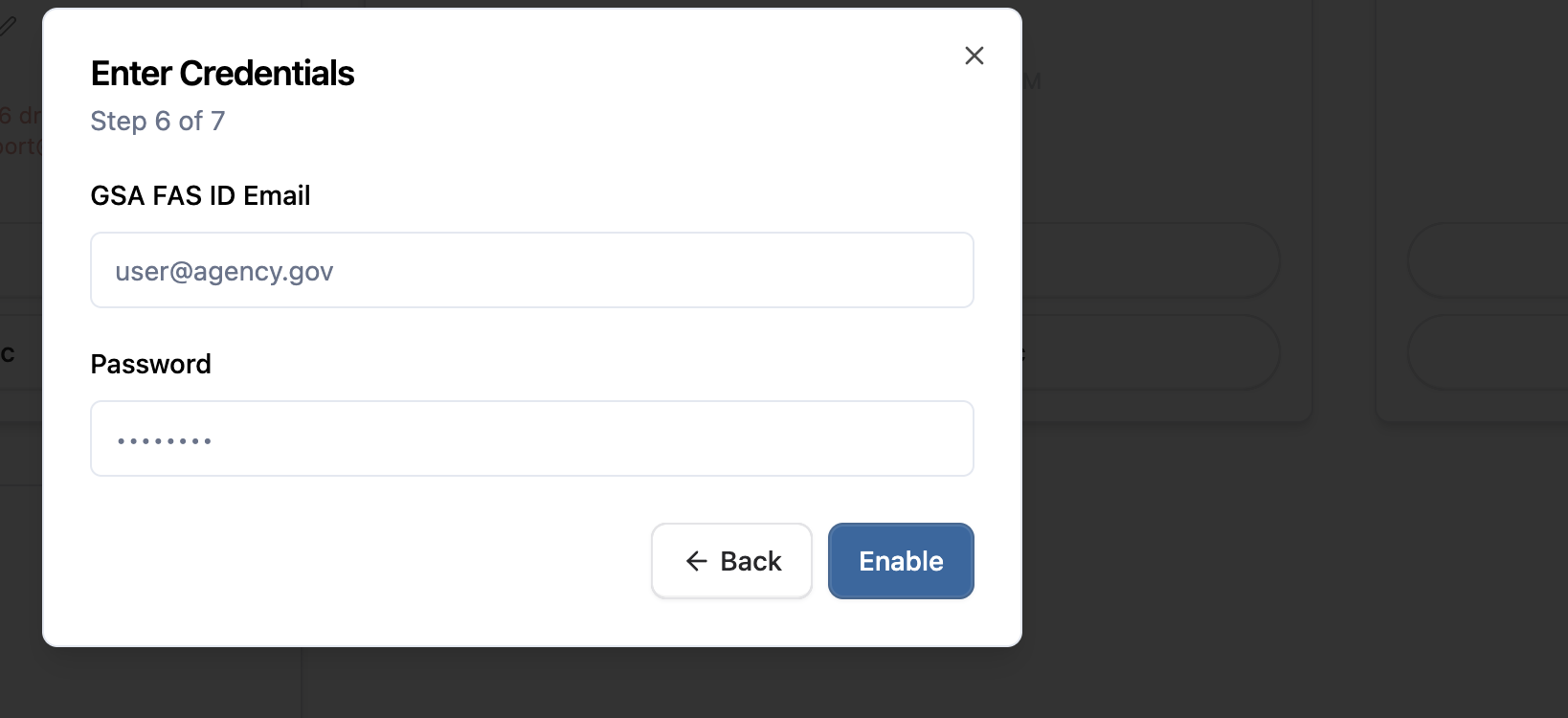
- GSA FAS ID credentials - the email and password you use to log into GSA systems (mfalogin.fas.gsa.gov)
- Email forwarding already configured - the advanced integration supplements email forwarding, it does not replace it
- GovEagle Admin access
Steps
- Navigate to Settings → Integrations in the GovEagle web app
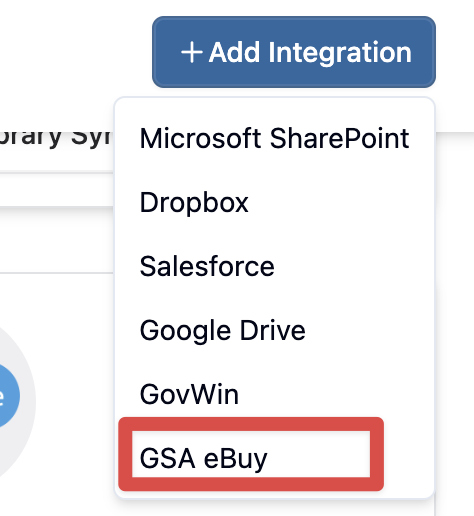
- Find the GSA eBuy card and click Enable Advanced Integration
- Walk through the setup wizard
- If your GSA account already has a TOTP authenticator enrolled, you will be prompted to provide your TOTP Secret Key manually (see below)
- After successful validation, GovEagle will display a one-time code to complete GSA authenticator enrollment
 {height="180" width=""}
 {height="" width=""}
TOTP Setup
GSA FAS ID uses multi-factor authentication. GovEagle needs your TOTP secret key to generate login codes on your behalf.
If your account does not have TOTP enrolled yet: GovEagle will automatically enroll it during setup. You will see a one-time code to finalize the enrollment on the GSA side.
If your account already has TOTP enrolled: The wizard will prompt you to provide the secret key manually. To retrieve it:
- Open a new browser tab and log into mfalogin.fas.gsa.gov
- Click the menu (top right) then Account Settings
- Scroll to Extra Verification and click Set up next to Google Authenticator
- Select Android (you do not need to install any app)
- Click "Can't scan?" to bypass the QR code
- Copy the Secret Key — save it somewhere safe (you will need it in the next step)
- Add the Secret Key to your authenticator app (Google Authenticator, Microsoft Authenticator, etc.) on your phone. Open the app, tap + to add an account, select Enter a setup key, and paste the Secret Key.
- Do not close the GSA tab. Click Next on the GSA page
- Open your authenticator app, copy the 6-digit code it generates, and enter it on the GSA page to complete activation. You should see "Remove" next to Google Authenticator when it is fully set up.
- Return to GovEagle and paste the Secret Key into the wizard
Important: You must complete the Google Authenticator setup on the GSA side (steps 7–9) before entering the key in GovEagle. If you close the GSA tab or skip the activation step, the setup will fail.
Important Notices
The Advanced eBuy Integration is not an official GSA eBuy integration and is not endorsed by GSA. GovEagle has not received formal GSA approval or certification for this feature.
eBuy Data in Opportunity Search
After connecting, eBuy opportunities appear in Opportunity Search alongside SAM.gov and GovWin listings. You can identify eBuy opportunities by the eBuy source badge on each row.
Filtering by Source
Use the Source filter in the left filter rail to show only eBuy opportunities, or combine with SAM.gov and GovWin results for a unified view.
Solicitation Documents
If the Advanced Integration is enabled, solicitation attachments (SOWs, requirements documents, pricing templates) are automatically downloaded and made available in the opportunity's Content Library for AI analysis.
Importing eBuy Opportunities to Your Pipeline
To add an eBuy opportunity to your pipeline:
- Find the opportunity in Opportunity Search or within a Bid Agent's matched results
- Open the opportunity detail view
- Click Add to Pipeline
Managing the Integration
Revoking Credentials
To disconnect the Advanced Integration:
- Navigate to Settings → Integrations
- Click Disconnect on the GSA eBuy card
- Confirm the deletion
Your stored credentials will be permanently deleted. Email forwarding will continue to work independently.
Troubleshooting
I don't see the eBuy option in Settings
The eBuy integration must be enabled for your organization by the GovEagle team. Contact your account representative to request access.
eBuy opportunities are not appearing
Verify that your email forwarding rule is active and that GSA Consolidated Notice emails are being forwarded to the GovEagle address. You can check the forwarding address in Settings → Integrations → GSA eBuy.
TOTP verification failed - check your secret key
This error usually means Google Authenticator was not fully activated on the GSA side. Go back to mfalogin.fas.gsa.gov → Account Settings → Extra Verification and confirm that Google Authenticator shows "Remove" (not "Set up"). If it still shows "Set up", you need to complete the enrollment by clicking Next and entering a verification code. Then retry the GovEagle setup.