GovEagle can sync opportunities from your Salesforce CRM, allowing you to manage your opportunity pipeline in one place while keeping Salesforce as your source of truth for opportunity metadata.
Overview
Once configured, the Salesforce integration:
Syncs opportunities from Salesforce to GovEagle automatically
Maps Salesforce stages to GovEagle workflow statuses
Keeps key fields in sync (name, stage, dates, amounts, etc.)
Updates only what has changed during each sync to minimize processing time
Allows you to add proposal content (solicitation documents, outlines, drafts) to Salesforce opportunities in GovEagle
Prerequisites
Before you begin, ensure you have:
Salesforce Administrator access to create and configure external client apps
GovEagle Admin role to add and configure integrations
Part 1: Salesforce Setup
You'll need to create an external client app in Salesforce and generate OAuth credentials for GovEagle to connect.
Step 1: Navigate to Salesforce Settings
Log into your Salesforce instance
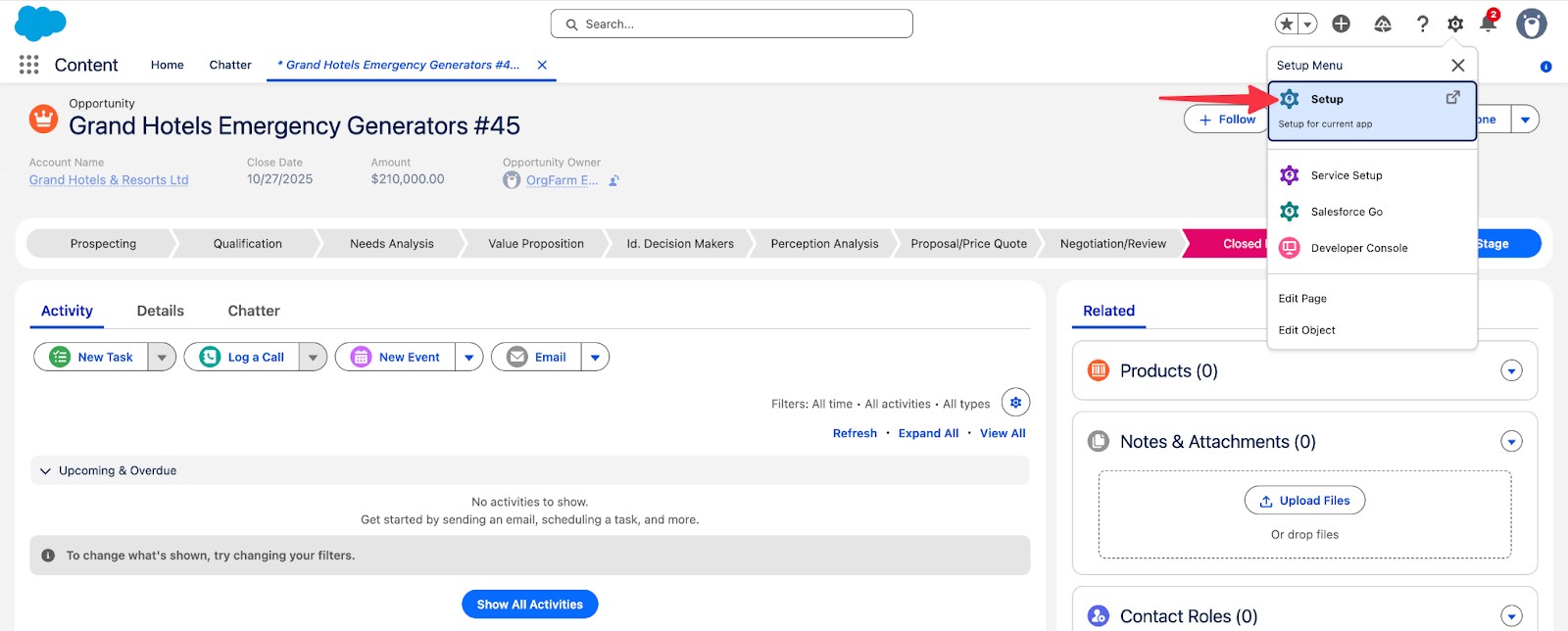
Click Setup (gear icon in upper right)
Step 2: Navigate to External Client Apps
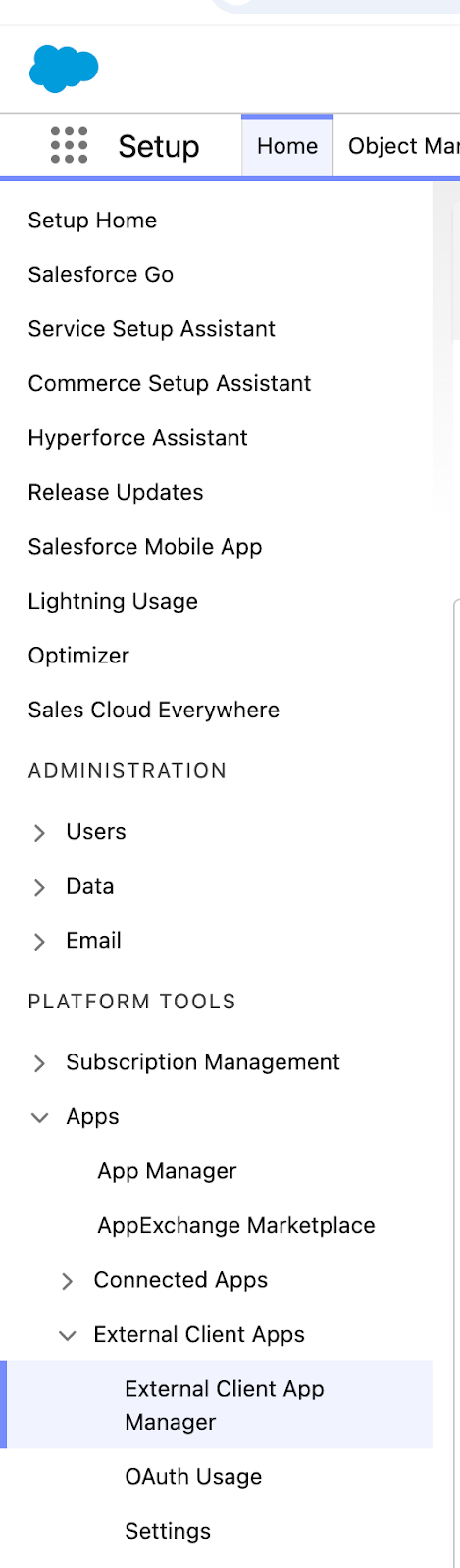
In the Quick Find box, search for "External Client App Manager" or navigate to: Platform Tools → Apps → External Client Apps → External Client Manager
Step 3: Create New External Client App
Click New External Client App

Step 4: Select Authentication Type
Select Consumer Key and Secret as the authentication type
Fill in the basic information:
External Client App Name: GovEagle Integration (or your preferred name)
Contact Email: Your admin email
Step 5: Configure OAuth Scopes
Underneath API (Enable OAuth Settings), check off the box next to Enable OAuth

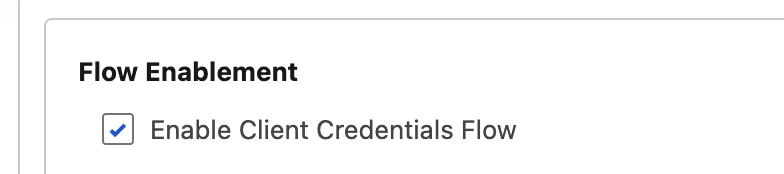
Underneath Flow Enablement, check off Enable Client Credentials Flow
Configure security settings as required by your organization

Enter Callback URL as
https://localhostNote, we don’t use the Callback URL, but Salesforce requires this field.
Click Create
In the Selected OAuth Scopes section, add the following scopes:
Manage user data via APIs (api)Perform requests at any time (refresh_token, offline_access)
.png)
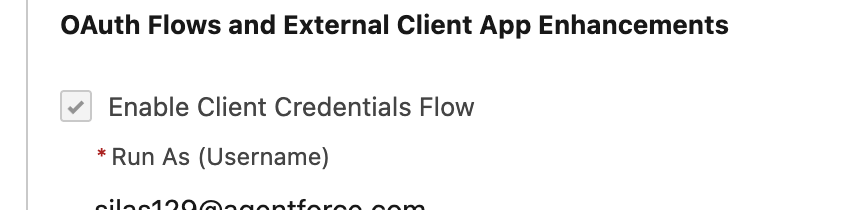
Select the “Enable Client Credentials Flow” option
Go ahead and then create.
Step 6: Retrieve Consumer Key and Secret
After saving, you'll be able to view your credentials. This should be located underneath OAuth Settings inside the Settings tab.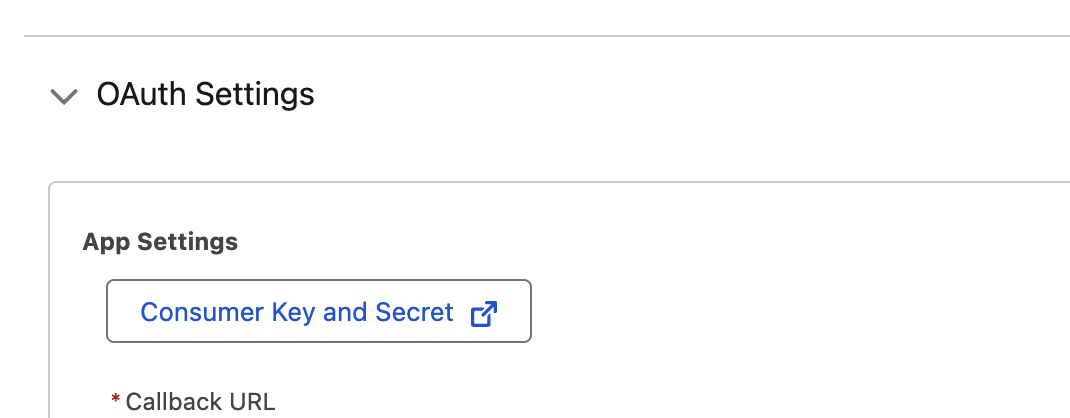
Copy and save both:
Consumer Key
Consumer Secret
You'll need these credentials to configure the integration in GovEagle.
Part 2: GovEagle Configuration
Now you'll connect GovEagle to Salesforce using the credentials you created.
Step 1: Add Salesforce Integration
In GovEagle, navigate to Settings (click your profile icon at bottom left → Settings)
Click the Integrations tab
Click Add Integration
Select Salesforce

Salesforce Integration
Step 2: Enter Salesforce Credentials
Enter your Salesforce credentials:
Salesforce Instance URL: Your Salesforce domain (e.g., https://yourcompany.salesforce.com)
Consumer Key: Paste from Part 1, Step 7
Consumer Secret: Paste from Part 1, Step 7
Click Connect

Salesforce Configuration Dialog
Step 3: Choose a Sync Mode
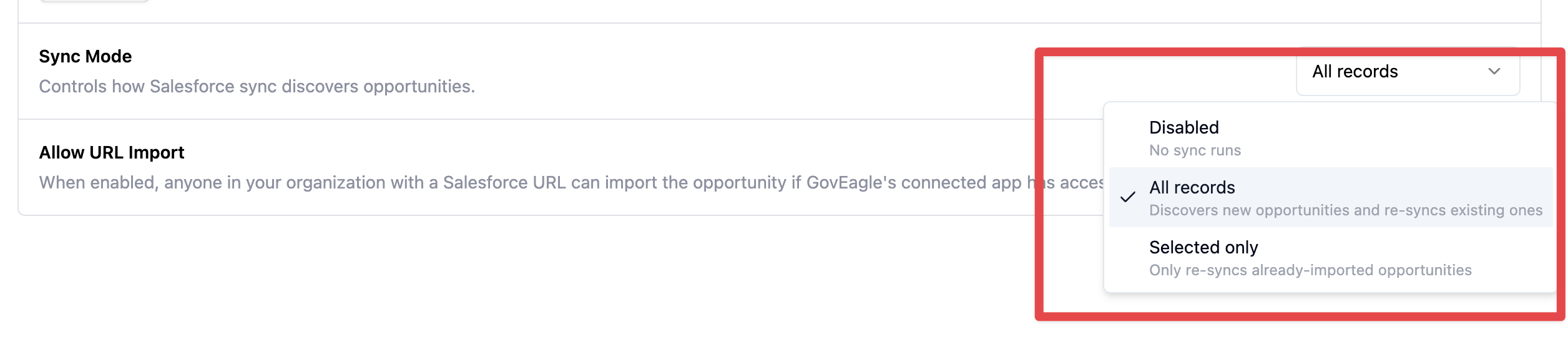
There are three sync modes to choose from.
Mode | Behavior |
|---|---|
All records | Discovers new opportunities in Salesforce and re-syncs existing ones on each sync. |
Selected only | Only re-syncs opportunities that have already been imported into GovEagle. New opportunities are not automatically discovered. This mode works best if you want to only import individual opportunities. |
Disabled | No automatic sync runs. The “Sync Now” button is also disabled. |
You can change the sync mode at any time from the instance management page.
Step 4: Configure the Opportunity and Related Objects
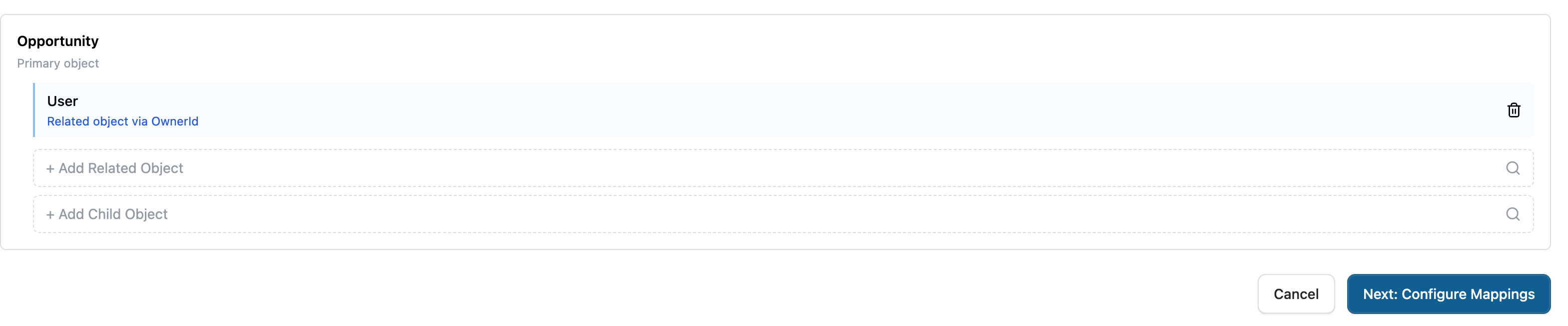
When syncing opportunities from Salesforce, you can pull data from multiple Salesforce objects not just the primary object (e.g., Opportunity).
GovEagle supports two types of object relationships to bring in richer, more complete data:
Related Objects: for 1-to-1 lookup relationships (e.g., the Account linked to an Opportunity)
Child Objects: for 1-to-many relationships (e.g., Line Items under an Opportunity)
The mapping wizard walks you through this in two steps: first you select which objects to include, then you configure how each object's fields map to GovEagle.
How to add related object
Click + Add Related Object
Select the lookup field you'd like to follow (for example, AccountId → Account)
How to add a child object
Click + Add Child Object
Select one of the available child relationships
Step 5: Configure Field Mappings
After connecting, you'll configure which Salesforce fields to sync and how to map them.
Enable or Disable Fields:
You can choose which Salesforce opportunity fields to sync to GovEagle. Common fields include:
Opportunity Name
Account Name
Stage
Close Date
Amount
Description
Owner
Check or uncheck the fields you want to enable for syncing.

Example Salesforce Field
Map Salesforce Stages to GovEagle Statuses:
You must map Salesforce opportunity stages to GovEagle workflow statuses.
Select a default status (required) - This will be used if a Salesforce stage doesn't have a specific mapping
Map individual stages:
For each Salesforce stage (e.g., "Prospecting," "Qualification," "Proposal/Price Quote," "Closed Won"), select the corresponding GovEagle status (e.g., "Capture," "Drafting," "Review," "Won")
You can leave some stages unmapped - they'll use the default status
See Customizing Opportunity Statuses to change the GovEagle statuses.

Mapping the pipeline stages
Click Save
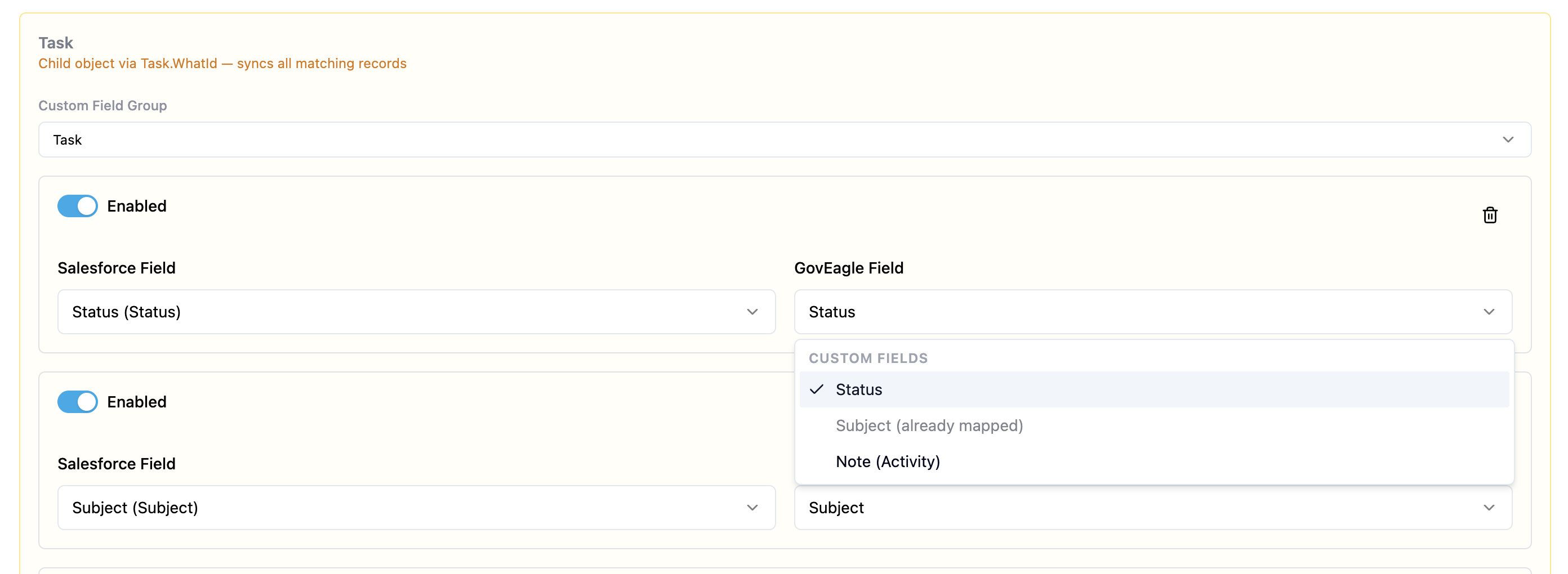
Because there can be multiple child records, child object fields can only map to GovEagle fields that support multiple values. Supported destinations include
Note
Creates one note for every matching child record.Custom Fields
Custom Fields configuration is located underneath Opportunity Management in Settings. Once you create a custom field/group, you will be able to map the fields to them. See below for more details and also this article for creating custom fields.
Step 6: Initial Sync (For all records)
Click Sync Now to perform your initial sync
The integration status will show as "Syncing"
Wait for the sync to complete (you can navigate away during this process)
Step 7: Verify Sync (For all records)
Navigate to the Opportunities page in GovEagle
You should see your Salesforce opportunities appear with a Salesforce icon
Click into an opportunity to verify the details synced correctly

Opportunities synced from Salesforce
Importing Individual Opportunities from Salesforce
Prerequisites
In order to import individual opportunities, an admin must fully setup the Salesforce instance. They also must turn on the Allow URL Import toggle for their desired Salesforce instance.

Steps
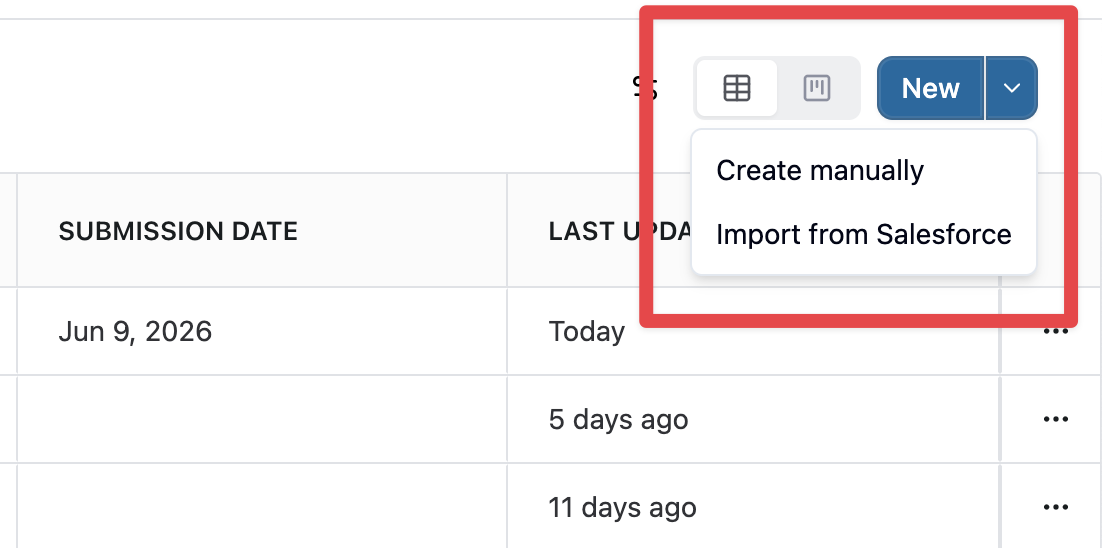
On the Opportunities page, click the New dropdown button.
Select Import from Salesforce.
In the drawer that opens, paste the Salesforce Opportunity URL into the URL field.
The URL should look like: /https://yourorg.lightning.force.com/lightning/r/Opportunity/006.../view
GovEagle automatically detects which connected Salesforce instance the URL belongs to by matching the subdomain.
If the URL doesn’t match any connected instance, an error message appears: “Could not match this URL to a connected Salesforce instance. Check your Salesforce integrations in Settings.”
If the opportunity has already been imported into GovEagle:
GovEagle shows an info message: “This opportunity was already imported by [name]. Opening the existing one.”
You will be automatically redirected to the existing opportunity and no duplicate is created.
Click Import from Salesforce to create the opportunity in GovEagle.
Working with Salesforce Opportunities in GovEagle
Identifying Salesforce Opportunities
Opportunities synced from Salesforce are marked with a Salesforce icon on the opportunities page and within the opportunity details.
Uploading Solicitation Documents
You can upload solicitation documents to Salesforce opportunities just like any other opportunity:
Click into the Salesforce opportunity
Navigate to Solicitation in the top menu
Click Upload Documents
Select your solicitation files

Upload solicitation package
Note: For Salesforce opportunities, GovEagle extracts metadata from solicitation documents, but Salesforce field values take precedence and will not be overwritten by extracted data.
Chatting with Salesforce Opportunities
GovEagle's AI is aware that Salesforce opportunities may not have solicitation documents initially. You can:
Select a Salesforce opportunity in chat even without solicitation documents
Upload solicitation documents later as needed
Chat about opportunity details pulled from Salesforce
Managing the Integration
Viewing Sync Status
On the Integrations page, you can view:
Last sync timestamp - When the most recent sync occurred
Sync status - Whether a sync is in progress or complete
Manual Sync
To manually trigger a sync at any time:
Navigate to Settings → Integrations
Find the Salesforce integration
Click Resync
Note: Syncs update only what has changed in Salesforce since the last sync, not all opportunities.
Enable or Disable Syncing
You can temporarily pause syncing without disconnecting the integration:
Navigate to Settings → Integrations
Find the Salesforce integration
Set the sync mode to be “disabled”
Set it back to the original value to resume syncing.
When sync is disabled, you won't be able to manually trigger syncs, and automatic syncs will not occur.
Updating Field Mappings
To change which fields are synced or update stage mappings:
Navigate to Settings → Integrations
Click Configure on the Salesforce integration
Update your field selections or stage mappings
Click Save
Changes will take effect on the next sync
Disconnecting Salesforce
To disconnect the Salesforce integration:
Navigate to Settings → Integrations
Find the Salesforce integration
Click Manage Opportunity Sync
Set the sync mode to be “Disabled”.
Note: Disconnecting will stop syncing, but existing opportunities that were synced will remain in GovEagle.
How Syncing Works
Automatic Syncing
Once configured, GovEagle automatically syncs with Salesforce on a regular schedule (every 10 minutes).
What Gets Synced
From Salesforce to GovEagle:
New opportunities created in Salesforce
Updates to mapped fields (name, stage, dates, amounts, etc.)
Deleted opportunities in Salesforce will be unlinked in GovEagle
Best Practices
Initial Setup
Start with a few stage mappings and add more as needed
Verify the initial sync thoroughly before relying on the integration
Communicate with your team about which fields are controlled by Salesforce vs. editable in GovEagle
Troubleshooting
Opportunities not syncing:
Check that the integration is enabled (Enable Sync toggle is on)
Verify your Salesforce credentials are still valid
Check the sync status for any error messages
Ensure the opportunities meet any filter criteria you may have configured
Fields not updating:
Verify the field is included in your field mapping configuration
Check that the field has actually changed in Salesforce
Wait for the next automatic sync or trigger a manual sync
Some fields may have a delay if Salesforce caching is involved
Cannot edit fields in GovEagle:
This is expected for fields synced from Salesforce - edit them in Salesforce instead
Look for the Salesforce icon or tooltip indicating the field source
Fields controlled by Salesforce maintain data integrity with your CRM
Authentication errors:
Verify your Consumer Key and Consumer Secret are correct
Check that the External Client App is still active in Salesforce
Ensure your Salesforce user account has appropriate permissions
Verify the OAuth scopes are correctly configured
Need help?
For questions or issues with Salesforce integration, contact your GovEagle Customer Success team or email support@goveagle.com.