GovEagle integrates with Deltek GovWin IQ to bring market intelligence data directly into your opportunity pipeline and discovery workflow. Once connected, GovWin opportunities appear alongside SAM.gov and GSA eBuy data in Opportunity Search, and can be imported into your pipeline with enriched metadata.
Overview
Once configured, the GovWin integration:
Ingests GovWin opportunities into Opportunity Search automatically alongside SAM.gov and GSA eBuy listings
Enriches opportunity details with GovWin-specific fields such as estimated value, award type, duration, CMMC requirements, contract types, and analyst procurement notes
Syncs milestones, contacts, and places of performance from GovWin so you can view key dates, agency contacts, and location data without leaving GovEagle
Maps GovWin fields to your pipeline using configurable field mappings that automatically populate opportunity details when you import a GovWin opportunity
Mirrors GovWin attachments so solicitation documents are available in your Content Library for AI analysis
Tracks changes over time All the mutable fields like status, value, and analyst notes are refreshed on each sync, and changes appear in the opportunity Activity feed
Prerequisites
Before you begin, ensure you have:
A Deltek GovWin IQ subscription with Web Service API (WSAPI) access
GovWin API credentials - your GovWin username and password used to authenticate with the WSAPI
GovEagle Admin access - only organization administrators can configure integrations
GovWin feature enabled - the GovWin integration must be enabled for your organization by the GovEagle team. Contact us to get access.
Follow these steps to connect your GovWin account:
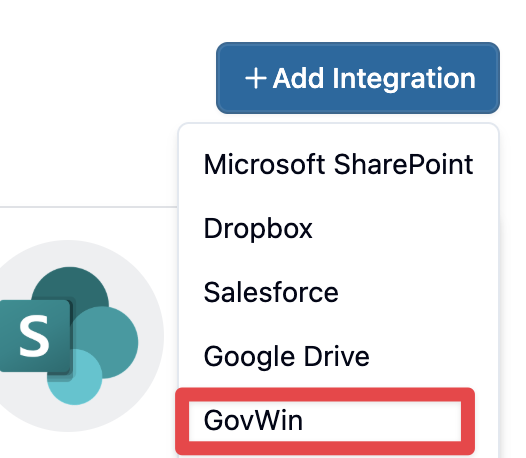
Navigate to Settings → Integrations in the GovEagle web app
Find the GovWin card and click Connect
Enter your GovWin WSAPI credentials (username and password) along with the client ID and secret
Click Save
Once connected, you will be able to import GovWin opportunities. In addition, we will pull GovWin opportunities daily if you have access to Opportunity Search. Those opportunities will only be visible to your organization.
GovWin Data in Opportunity Search
After connecting, GovWin opportunities appear in Opportunity Search alongside SAM.gov and eBuy listings. You can identify GovWin opportunities by the GovWin source badge on each row.
Filtering by Source
Use the Source filter in the left filter rail to show only GovWin opportunities, or combine with SAM.gov and eBuy results for a unified view.
Importing GovWin Opportunities to Your Pipeline
To add a GovWin opportunity to your pipeline:
Find the opportunity in Opportunity Search or within a Bid Agent's matched results
Open the opportunity detail view
Click Add to Pipeline
When imported, GovEagle will:
Create the opportunity in your pipeline
Apply any configured field mappings to populate opportunity details from GovWin data
Mirror available GovWin attachments into the opportunity's Content Library
You will also be able to manually add a particular GovWin opportunity by clicking Import from GovWin 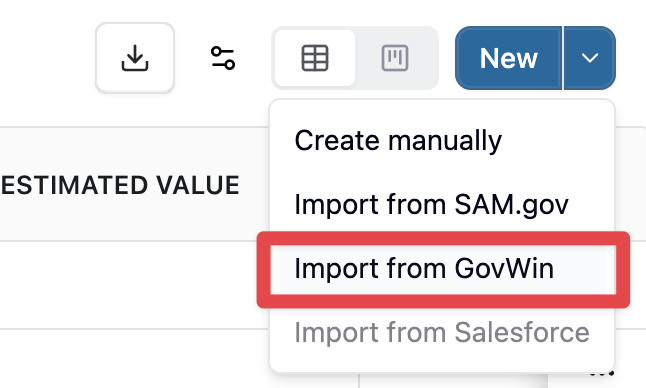
This will pull all the mapped details into the opportunity. Below, you can learn how to map GovWin fields and groups into a GovEagle opportunity.
Field Mappings
Field mappings let you control how GovWin data populates your opportunity details when a GovWin opportunity is imported to your pipeline. You can map GovWin fields (like Status, Estimated Value, or Duration) to your GovEagle opportunity fields, including custom fields.
To configure field mappings:
Navigate to Settings → Integrations → GovWin
Open the Field Mapping tab
Map GovWin fields to your desired GovEagle opportunity fields
Save your mappings
Mapped fields are automatically populated when a GovWin opportunity is added to your pipeline. Changes to mapped GovWin fields are also synced on subsequent refreshes.
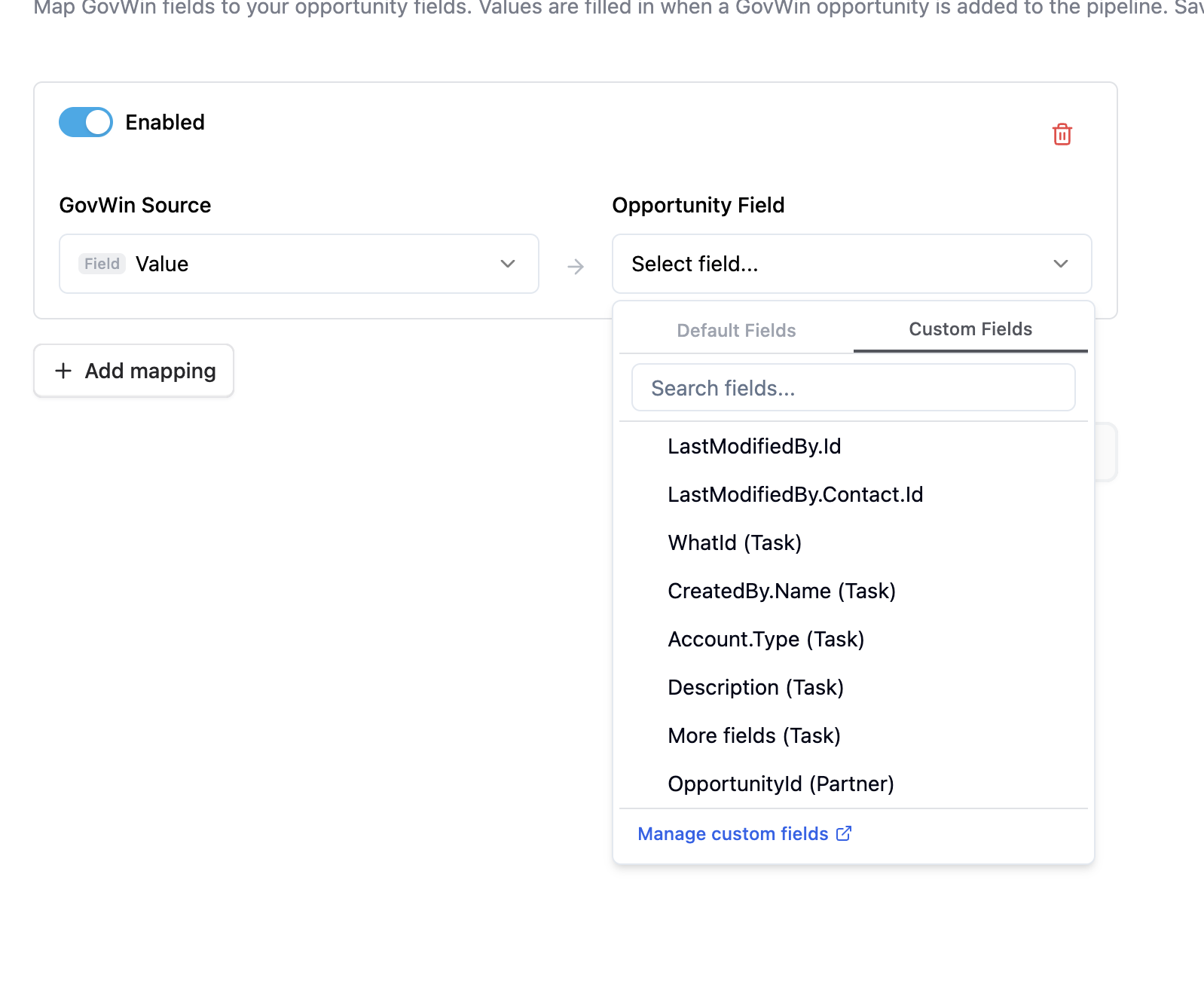
To create Custom Fields for mapping purposes, you can go into Opportunity Management and create fields, groups, subfields, and subgroups. For more information, please check out Custom Opportunity Fields.

Troubleshooting
I don't see the GovWin option in Settings
The GovWin integration must be enabled for your organization by the GovEagle team. Contact your account representative to request access.
GovWin opportunities are not appearing in Opportunity Search
Verify that your GovWin credentials are valid and that your GovWin subscription includes WSAPI access. You can re-enter your credentials in Settings → Integrations → GovWin. If the issue persists, contact GovEagle support.