This article collects fixes for common issues in GovEagle. Work through the steps in each section in order — they are listed from the quickest fix to the most involved.
Login Issues
Here are some things to try when you encounter login issues. For background on how GovEagle accounts and sign-in methods work, see Login Credentials and Roles and Setting up Single Sign-On (SSO).
Re-enter your email address
First, try Sign in as different user on the sign-in screen and retype your email address by hand. Leading or trailing spaces in the email address can cause login issues, and pasted addresses often carry one.
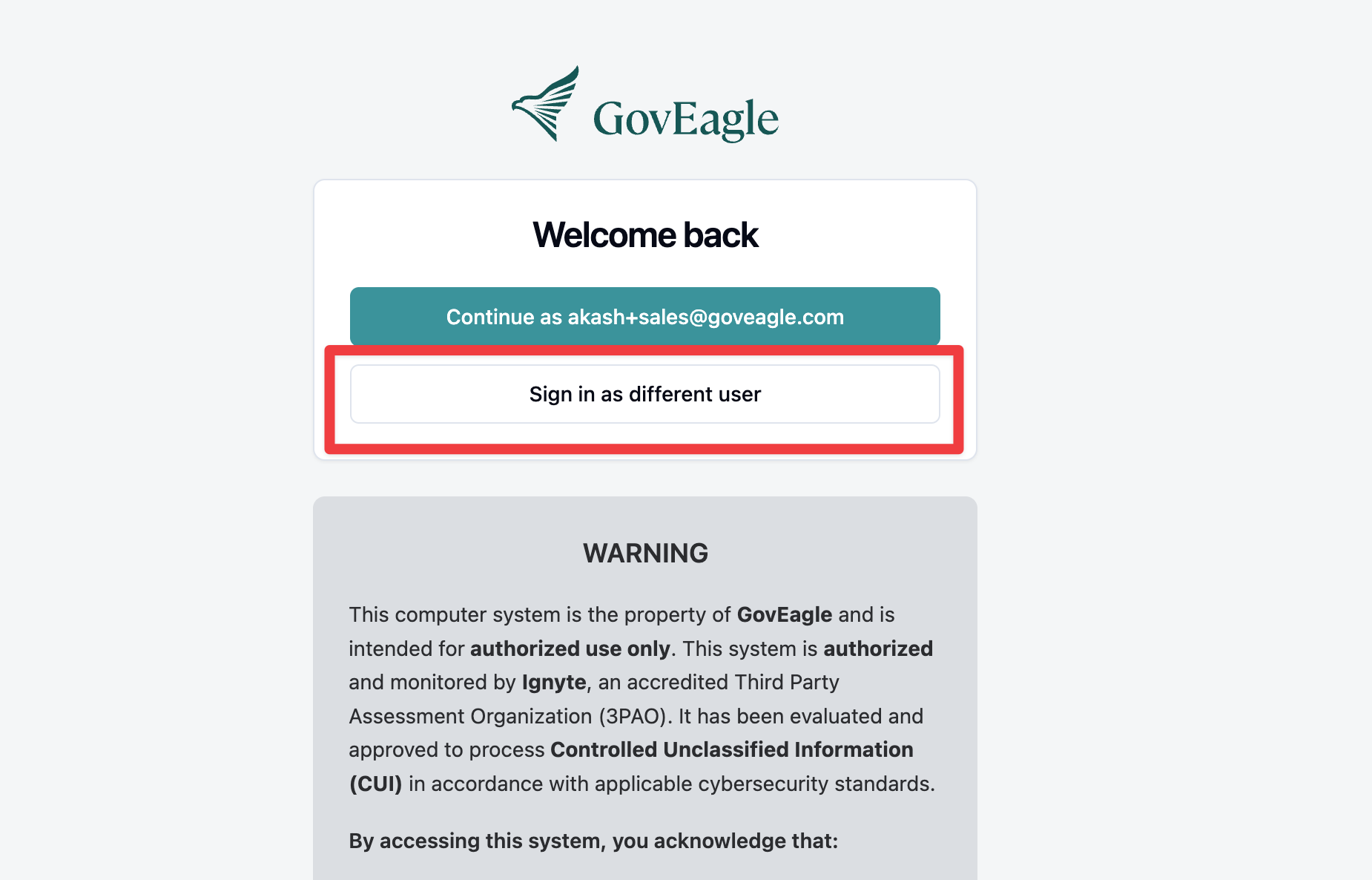
Cannot log in for the first time
If this is your first time signing in and you see the error Unable to sign in, your invitation may have expired. Please reach out to your GovEagle admin and ask them to resend your activation email.
If your organization uses Single Sign-On, there is no activation link to expire and no GovEagle password to set. Go to https://app.goveagle.com, enter your work email, and sign in through your company's sign-in page. If that page returns you to GovEagle with an Access Denied message, your IT team still needs to assign you to the GovEagle application in your identity provider.
Try logging in to a different app
Next, try logging in to a different GovEagle app. For example, if you can't log in to the web application, try logging in to the Word add-in. This helps narrow down the cause:
If you can't log in anywhere, the issue is likely with your account; asking your admin to reset your password may help
If you can log in elsewhere, the issue is likely with that specific browser or Microsoft application
Login issues with the web application
Try logging in with a different browser
Try logging in with an incognito or private window
Clear your cookies and cache, then try again
Restart your machine and log in again
Login issues with the add-ins (Word, Excel, PowerPoint)
Close and reopen the add-in, then log in again
If possible, log out of the add-in explicitly, then log back in
Quit and reopen the Microsoft application, then log in again
Try logging in to your GovEagle account from a different Microsoft application
Restart your machine and log in again
If you have tried everything above and still cannot sign in, reach out to GovEagle at support@goveagle.com.