Custom fields let you capture opportunity data that is unique to your organization's workflow - beyond the standard fields GovEagle provides out of the box. Define your own fields and field groups, then fill them in manually or have them populated automatically from Salesforce or GovWin integrations.
Overview
With custom fields you can:
Define scalar fields to store single values like a tracking number, internal priority, or contract vehicle
Create field groups (tables) to store structured, multi-row data such as team assignments, line items, or subcontractor details
Organize with sub-groups — nest a table inside a group to mirror parent-child relationships (for example, a Contacts group with an Addresses sub-group)
Map integration data - route Salesforce fields and GovWin data into custom fields so imported data lands exactly where you want it
Track every change - each field edit records who made the change, when, and whether it came from a user, Salesforce, or GovWin
Permissions
Managing the custom field schema (creating, renaming, deleting, and reordering fields) requires the same permission as managing opportunity stages. Organization admins have this by default.
Any user who can edit an opportunity can fill in custom field values on that opportunity.
Managing Custom Fields
Accessing the Settings Page
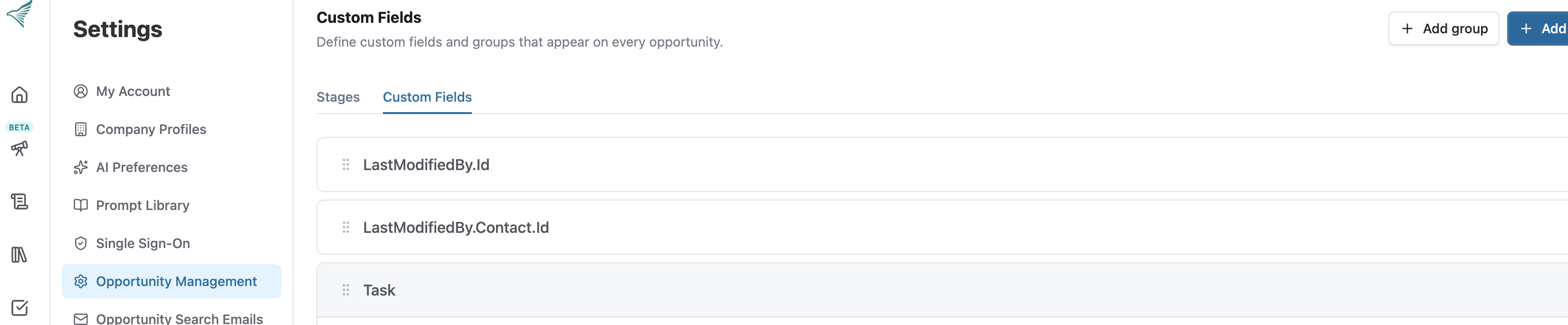
Navigate to Settings → Custom Fields in the GovEagle web app. Here you'll see your organization's full custom field schema — individual fields and field groups listed in the order they appear on opportunities.
Creating a Field
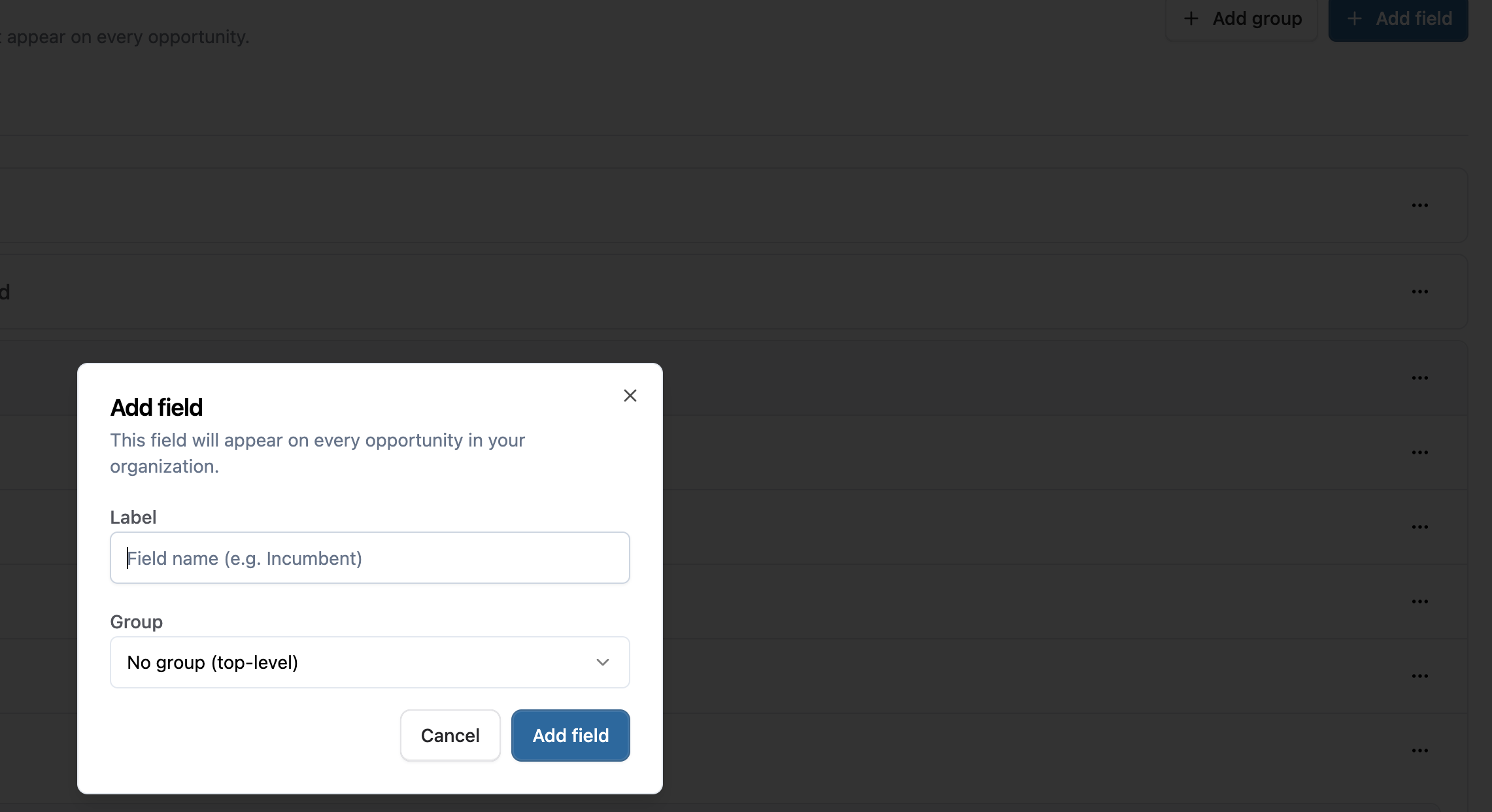
Click Add Field at the top of the Custom Fields settings page
Enter a label for the field (e.g., "Internal Priority", "BD Lead", "Contract Vehicle")
Click Create
The field immediately becomes available on all opportunities in your pipeline. Custom fields are text-based.
Creating a Field Group
Field groups let you store multi-row, tabular data on an opportunity. For example, you might create a "Key Personnel" group with columns for Name, Role, and Clearance Level.
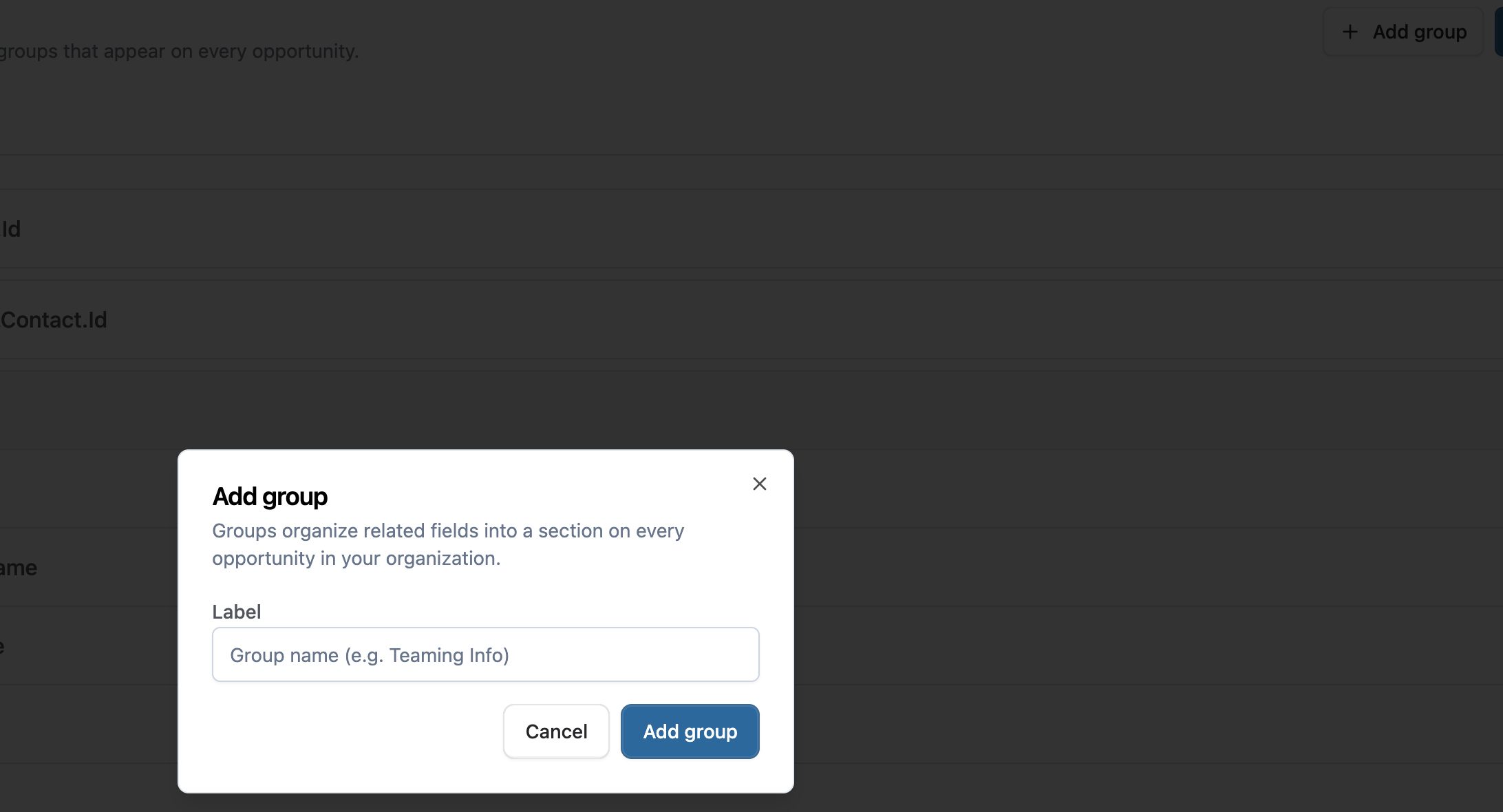
Click Add Group at the top of the Custom Fields settings page
Enter a name for the group (e.g., "Key Personnel")
Click Create
Expand the group and click Add Field within it to add columns
Creating a Sub-Group
Sub-groups add a second level of nesting inside a group — useful for parent-child relationships. For example, a "Contracts" group could contain a "Task Orders" sub-group. Sub-group rows are linked to their parent row.
Expand the group where you want to add a sub-group
Click Add Sub-Group
Enter a name and add fields (columns) to the sub-group

Renaming Fields, Groups, and Sub-Groups
Click the edit icon next to any field, group, or sub-group name to rename it. The rename takes effect immediately across all opportunities.
Reordering
Drag and drop fields and groups in the settings page to change their display order. Within a group, you can also reorder columns. The order you set here is reflected on the opportunity detail page and in exports.
Deleting Fields
Click the delete icon next to a field, group, or sub-group. A confirmation dialog will show how many opportunities currently have values for that field. Deleting a field permanently removes all its values from every opportunity.
Deleting a group removes the group and all of its fields and sub-groups, including all row data on every opportunity.
Using Custom Fields on Opportunities
Viewing and Editing Values
Custom fields appear on the opportunity detail page in a Custom Details card. Each field shows its current value and can be edited inline:
Open an opportunity from your pipeline
Scroll to the Custom Details section
Click on any field value to edit it
Press Enter or click away to save
Audit Trail
Every change to a custom field is tracked with:
Who made the change (user name, or "Salesforce" / "GovWin" for integration syncs)
When the change was made
Source — whether the value was entered manually by a user or populated by an integration
Integration-sourced values are marked with a colored badge — purple for GovWin and blue for Salesforce — so you can quickly see where each value came from.
Changes to custom fields are also logged in the opportunity's Activity feed, providing a full timeline alongside other opportunity events.
Salesforce Integration
When configuring your Salesforce field mappings, you can route Salesforce fields directly into custom fields instead of the standard opportunity fields.
Scalar Field Mappings
In Settings → Integrations → Salesforce → Field Mapping, each Salesforce field mapping has a target selector. Choose a custom field as the target to have that Salesforce field's value written to your custom field on each sync.
Child Object Mappings (Tables)
Salesforce child objects (e.g., Contact Roles, Line Items) can be mapped to custom field groups. Each child record becomes a row in the group table, with individual Salesforce fields mapped to specific columns.
This supports up to two levels of nesting - Salesforce grandchild objects can be mapped to sub-groups within a group.
GovWin Integration
If your organization has the GovWin integration enabled, you can map GovWin data into custom fields as well.
Scalar Field Mappings
In Settings → Integrations → GovWin → Field Mapping, GovWin fields like Status, Estimated Value, Duration, Procurement notes, and others can be mapped to custom fields. Mapped values are populated when a GovWin opportunity is added to your pipeline and refreshed on subsequent syncs.
Sub-Resource Mappings
GovWin sub-resources like Contacts, Milestones, and Contract Vehicles can be mapped to custom field groups. Each sub-resource record becomes a row in the corresponding group table, with individual fields mapped to specific columns.
Sync Behavior
GovWin-sourced values are refreshed on each daily sync
Sub-resource table rows are replaced atomically, preserving any user-added rows in the same group
Changes to GovWin-sourced fields are logged in the Activity feed as system syncs attributed to "GovWin"
AI Assistant
The GovEagle AI assistant can read your custom field values during chat conversations. When chatting about an opportunity, the assistant has access to all custom field data to pull from.