Customize your personal experience, adjust organization settings, and manage users from the settings page. To access Settings, click on your user profile button at the bottom of the left menu and select Settings.
Note: You may not have access to all Settings functionality based on the role assigned to you by your Admin. Prompt Library and Workflows also require a license.
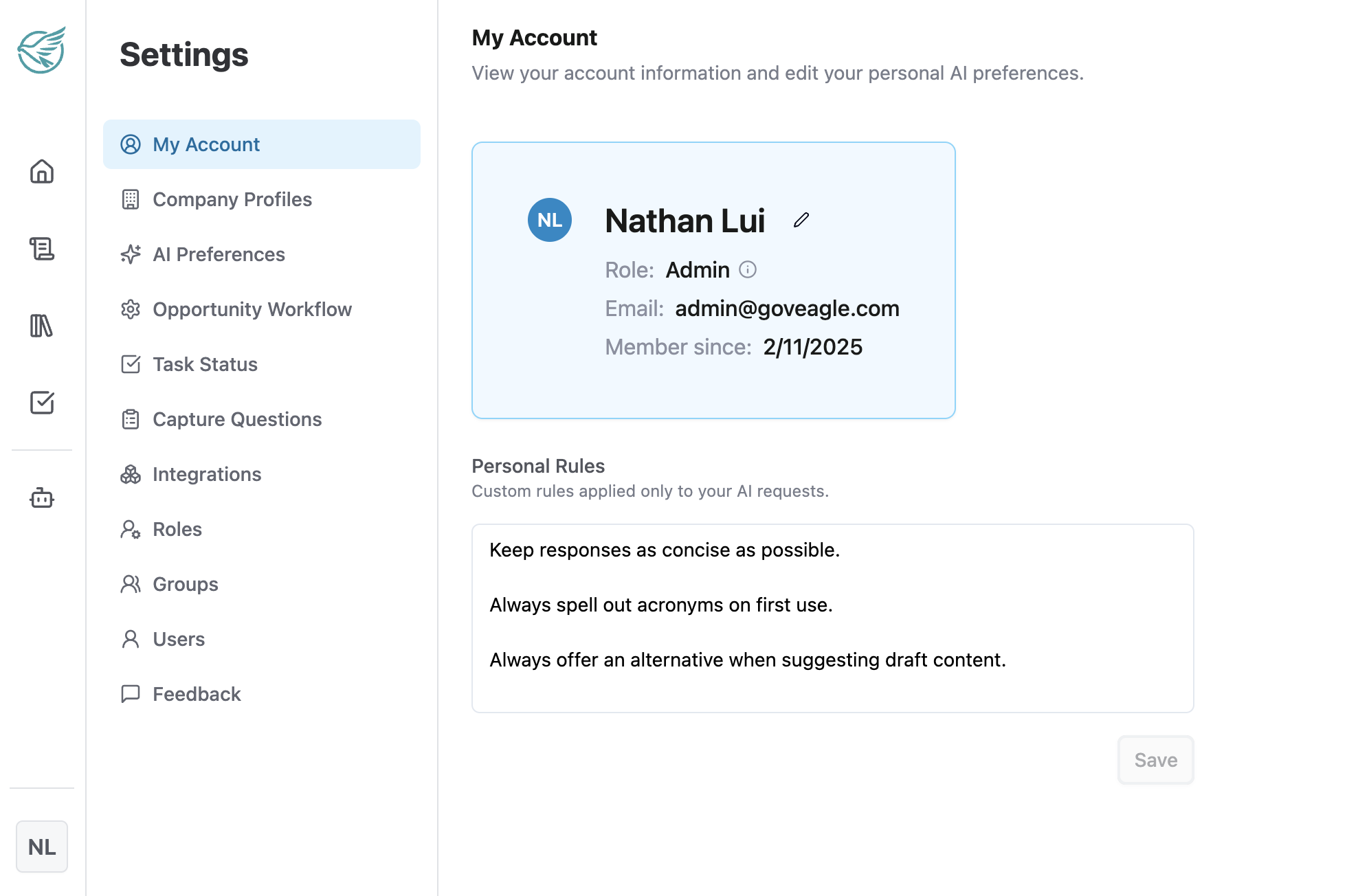
My Account
Personal Rules/Preferences
Customize personal AI interactions from the Personal Preferences tab. Any rules or guidance that you provide here will apply only to your chats, not to other users’ chats.
Examples of personal preferences:
"Always offer an alternative when suggesting content"
“Keep answers as concise as possible”
“Always spell out acronyms on first use, then use the acronym in parentheses. Example: 'Request for Proposal (RFP)’”
Save Chat Uploads To
By default, files uploaded to a chat go to your private personal folder (e.g., "Nathan's personal library"). The agent can access these files in any chat you start. Enable Chat Only uploads if you'd like a file to stay in the chat where you uploaded it instead — available there and nowhere else.
Identity Providers
If your admin has chosen to sync your SharePoint permissions with GovEagle, you will see SharePoint accounts that you can link. Your permissions will only be synced once you have linked your GovEagle account to its corresponding SharePoint account.
.png)
Company Profiles
Provide key information about your organization (summary, mission, designations, etc.) and all of your teaming partners to help GovEagle deliver more relevant, personalized responses. From any opportunity, you can define the team of companies that is working on the proposal.
AI Preferences
Customize organization-wide AI preferences from this tab.
Organization Rules
Set organization-wide guidelines for how the AI assists your team with proposal development. Organization rules apply to all users and help maintain consistency across your proposals.
Writing Style Guide
Define your organization's preferred writing style, tone, and formatting standards for proposal content. This can include:
Tone and Voice - Professional, conversational, technical, etc.
Formatting Preferences - Heading styles, bullet point usage, paragraph length
Terminology Standards - Preferred terms, acronym definitions, words to avoid
Proposal-Specific Guidance - How to structure executive summaries, technical approaches, past performance narratives
GovEagle will reference your style guide when drafting and reviewing content to ensure consistency across all proposals.
Default Chats to Deep Thinking
Turns on Deep Thinking by default for all new chats. Deep Thinking can be used for long-running, complex tasks.
Default New Opportunities to Private
When enabled, new opportunities will only be visible to the creator by default. The creator can share the opportunity with any member of the organization.
Prompt Library
Build a shared library of prompts for your organization or just for yourself.
Admins with the Manage Organization AI Preferences permission can create, edit, and order prompts here to make them instantly available to all users. Team members can insert these prompts into conversations from the + menu rather than writing them from scratch each time.
A Organization Prompt Library can valuable for organizations that want to:
Standardize best practices: Share prompts that have proven effective across multiple proposals
Reduce repetitive work: Give users ready-made prompts for common tasks instead of writing them from scratch
Onboard new users faster: Help new team members leverage AI effectively and quickly
Maintain quality standards: Ensure prompts produce outputs that meet your organization's quality expectations
All users have the ability to create and manage personal prompts that are only available to them.
Single Sign On
Configure SSO for your organization. See Setting up Single Sign-On (SSO).
Opportunity Stages
Customize the stages that an opportunity progresses through. See Customize Opportunity Stages.
Asset Templates
Add company templates from Word, Excel, and Powerpoint to be used in opportunities. See Managing Assets.
Tasks
Task ID Prefix
Choose a common prefix that is used with the identifier that is created with each new task. E.g. the prefix ACME will create task IDs like ACME-477.
Task Statuses
Create custom statuses for GovEagle tasks.
Capture Questions
Define the capture questions that appear in the Capture module for all opportunities. The answers to these questions will be referenced by GovEagle AI when working on this opportunity. See Capture and Win Strategy.
Integrations
Manage GovEagle integrations with data sources like Sharepoint. See Connecting SharePoint.
Roles
Create and customize roles that define what users can access within GovEagle. See Roles.
Groups
Create groups of users that can then be given access to shares resources like opportunities and content library folders. See Groups.
Users
Admins can add, delete, and manage users and their licenses from the Users tab. See Role Based Access Control to understand different user roles in GovEagle.
Adding New Users
To add a new user to your workspace:
From the Users tab of Settings, click the + Create user button to open a new user form
Fill out the new user’s name, email, role, and license
Click Create user
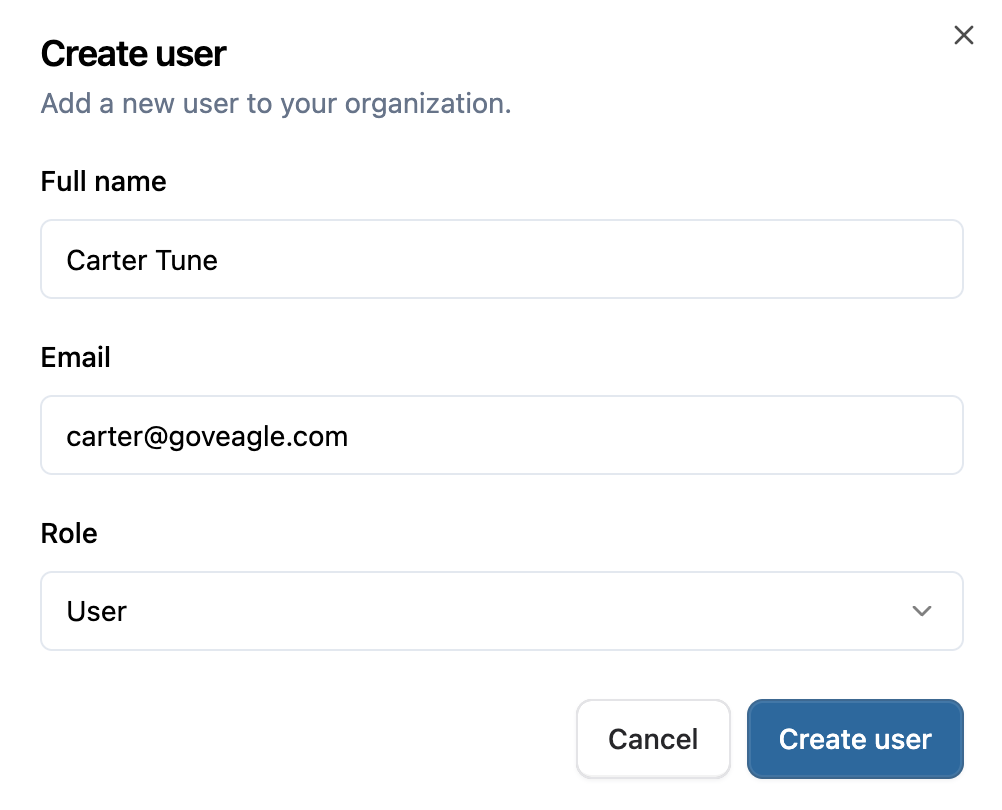
The newly created user will receive an email with login instructions.
Manage User Licenses
Every user has one license: Core, Light touch, or Unlicensed. To change a user’s license, use the License dropdown in their row, or select several users and use Assign license…. The counts at the top of the tab show how many seats are in use. See Understanding Licenses.
Manage User Roles
To adjust a user’s role, find the user and change their role using the dropdown menu at the right of the row.

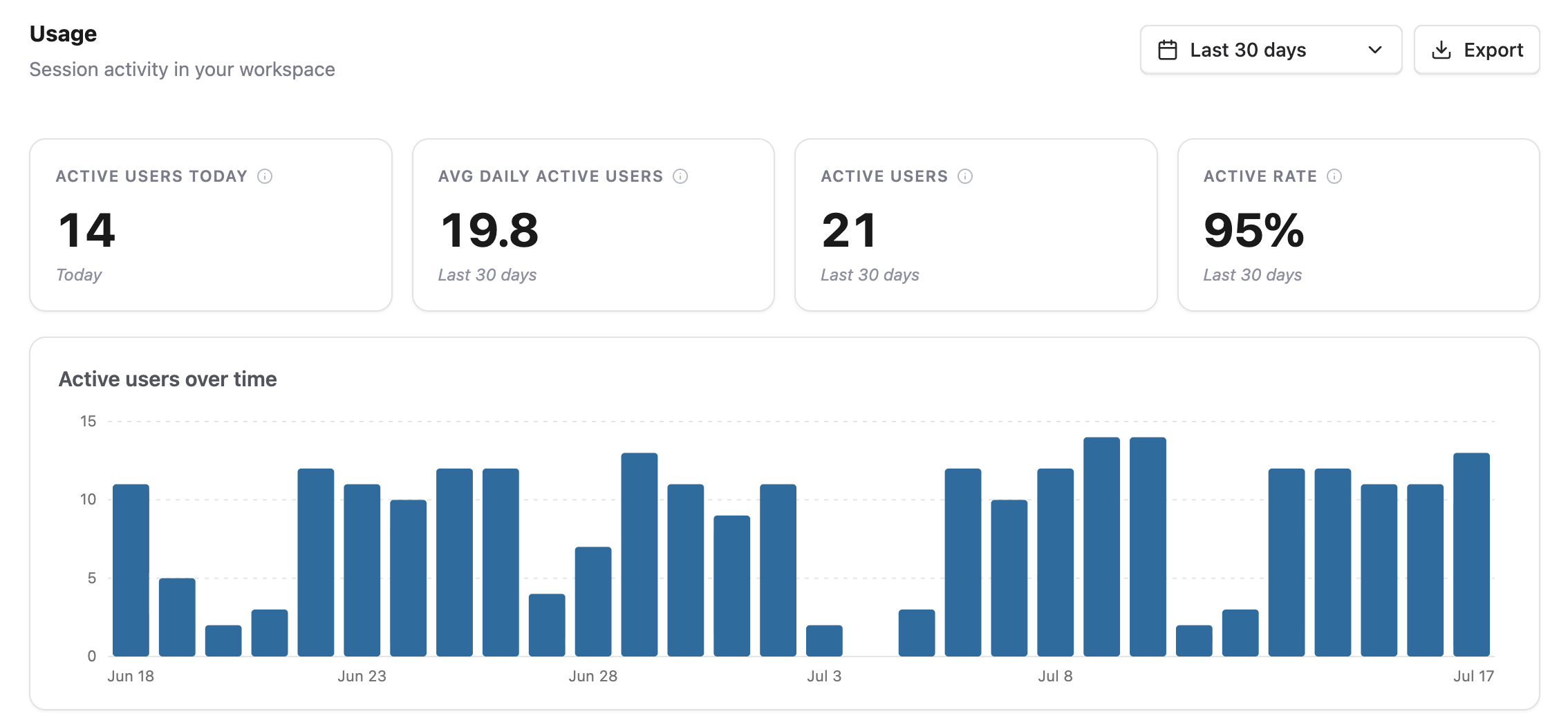
Usage
Admins with the ability to manage users can view and export usage analytics within the workspace.
Feedback
View and analyze user feedback on AI responses to identify opportunities for refining your organization's settings and rules.