One of GovEagle's core capabilities is using your past content to influence and draft new proposals. Teams can bring content into GovEagle by uploading files manually, connecting to SharePoint, or connecting to other knowledge management solutions.
This guide covers how to connect SharePoint to GovEagle from an IT perspective. Before getting started, here are a few things to know:
GovEagle supports Commercial, GCC, and GCC High SharePoint tenants.
You can connect to multiple SharePoint sites or document libraries within the same tenant, or even across different tenants.
GovEagle can connect to both commercial and government tenants within the same instance.
Connecting gives GovEagle permission to read. It does not add anything to your Content Library by itself. Admins choose which sites and document libraries to add under Manage Content Library Sync, and users can link individual folders to an opportunity through Opportunity Assets. See Where your documents live.
Content Library sites sync every night. Folders linked through Opportunity Assets update in near real time.
GovEagle connects to SharePoint using a Service Principal managed by your IT team. During setup, your team registers an application in Microsoft Entra ID, grants Microsoft Graph application permissions, and provides the tenant ID, client ID, and client secret to GovEagle.
GovEagle uses application permissions rather than delegated user permissions. This allows GovEagle to sync SharePoint content automatically each night without depending on an individual user's login session.
Connected earlier through GovEagle's admin-consent app?
Some tenants were connected before this method existed by granting admin consent to GovEagle's own application. Those connections keep syncing and nothing needs to change for day-to-day use. That method is no longer offered for new tenants, and it cannot enable inherited permissions or write-back for Opportunity Assets. To use either, connect your own app registration by following the steps below.
Service Principal Setup
The Service Principal method involves two parts: registering an app in Microsoft Azure, then connecting that app to GovEagle. During setup, you'll choose one of two permission levels depending on how much control your IT team wants.
Requirements
You must have access to Azure Portal and the ability to create app registrations.
You must be able to grant admin consent for API permissions in your Azure tenant.
You must have a GovEagle Admin account.
Part 1: Create an App Registration in Azure
Step 1: Register the Application
Go to the Azure Portal (or portal.azure.us for GCC High tenants) and navigate to Microsoft Entra ID → App registrations → New registration.
Give the application a name (e.g., "GovEagle SharePoint Integration").
Select the appropriate supported account type for your organization.
Click Register.
.png)
Step 2: Create Client Credentials
Choose how GovEagle will authenticate to SharePoint: a client secret (default) or a certificate (required for Inherited permissions).
Option A: Client secret
In your new app registration, navigate to Certificates & secrets.
Click New client secret.
Add a description and set an expiration period.
Click Add, then immediately copy and save the secret value — you will not be able to see it again.
Option B: Certificate (required for Inherited permissions)
Generate a certificate and key with the commands below, then upload the certificate under Certificates & secrets → Upload certificate. You will provide certificate.crt and privatekey.key to GovEagle in Part 2.
openssl genrsa -out temp.key 2048
openssl pkcs8 -topk8 -inform PEM -outform PEM -in temp.key -out privatekey.key -nocrypt
openssl req -new -key privatekey.key -out request.csr
openssl x509 -req -days 365 -in request.csr -signkey privatekey.key -out certificate.crt
rm temp.key request.csr
.png)
Step 3: Configure API Permissions
Navigate to API permissions in your app registration, then click Add a permission → Microsoft Graph → Application permissions.
Select the application permission for the level of access you want to grant. Every option lets GovEagle list your SharePoint sites so admins can browse, select sites, and choose individual document libraries for the Content Library.
Permission
What it enables
Sites.Read.AllContent Library sync from the sites you choose. Folders linked through Opportunity Assets are read-only mirrors of SharePoint.
Sites.ReadWrite.All(recommended)Everything above, plus write-back for Opportunity Assets: when a SharePoint folder is linked to an opportunity, GovEagle can create subfolders and save generated or templated files into it. Write-back applies to Opportunity Assets only. The Content Library is always read-only.
Inherited permissions set
Everything above, plus mirroring each user's SharePoint access inside GovEagle. See Permission Modes for the full list.
Click Add permissions.
Click Grant admin consent for your organization and confirm.
.png)
Once approved by an administrator, GovEagle can list your SharePoint sites so admins can choose which ones to add to the Content Library, and users can link folders to opportunities, without additional IT involvement.
You're done with Azure setup — skip ahead to Part 2.
Need inherited permissions?
To mirror each user's existing SharePoint access (Inherited from SharePoint mode), grant these additional Microsoft Graph application permissions:
Sites.FullControl.All,Files.ReadWrite.All,User.Read.All,GroupMember.Read.All,Member.Read.Hidden, andReports.Read.All. This also requires certificate authentication and SSO. See Permission Modes below.
Need fewer permissions?
See FAQ below.
Part 2: Connect in GovEagle
Log in to GovEagle at app.goveagle.com.
Click on the Profile icon at the bottom left → Settings → Integrations.
Click Add Integration at the top right, then select Microsoft SharePoint.
Enter your Azure Tenant ID (Directory/tenant ID from the app registration overview). If connecting to an Azure Government (.gov) tenant, toggle Government Cloud on.
Enter your Client ID (Application/client ID).
Choose an Authentication Method:
Client Secret: paste the secret value you saved earlier.
Certificate (required for Inherited permissions): upload your
certificate.crtandprivatekey.key, or paste the PEM contents (see Step 2 to generate them).
Optionally, enter a Tenant Name (e.g., "Main Tenant" or "Production") to help identify this connection.
Under Permissions Mode, choose GovEagle-managed or Inherited from SharePoint (see Permission Modes).
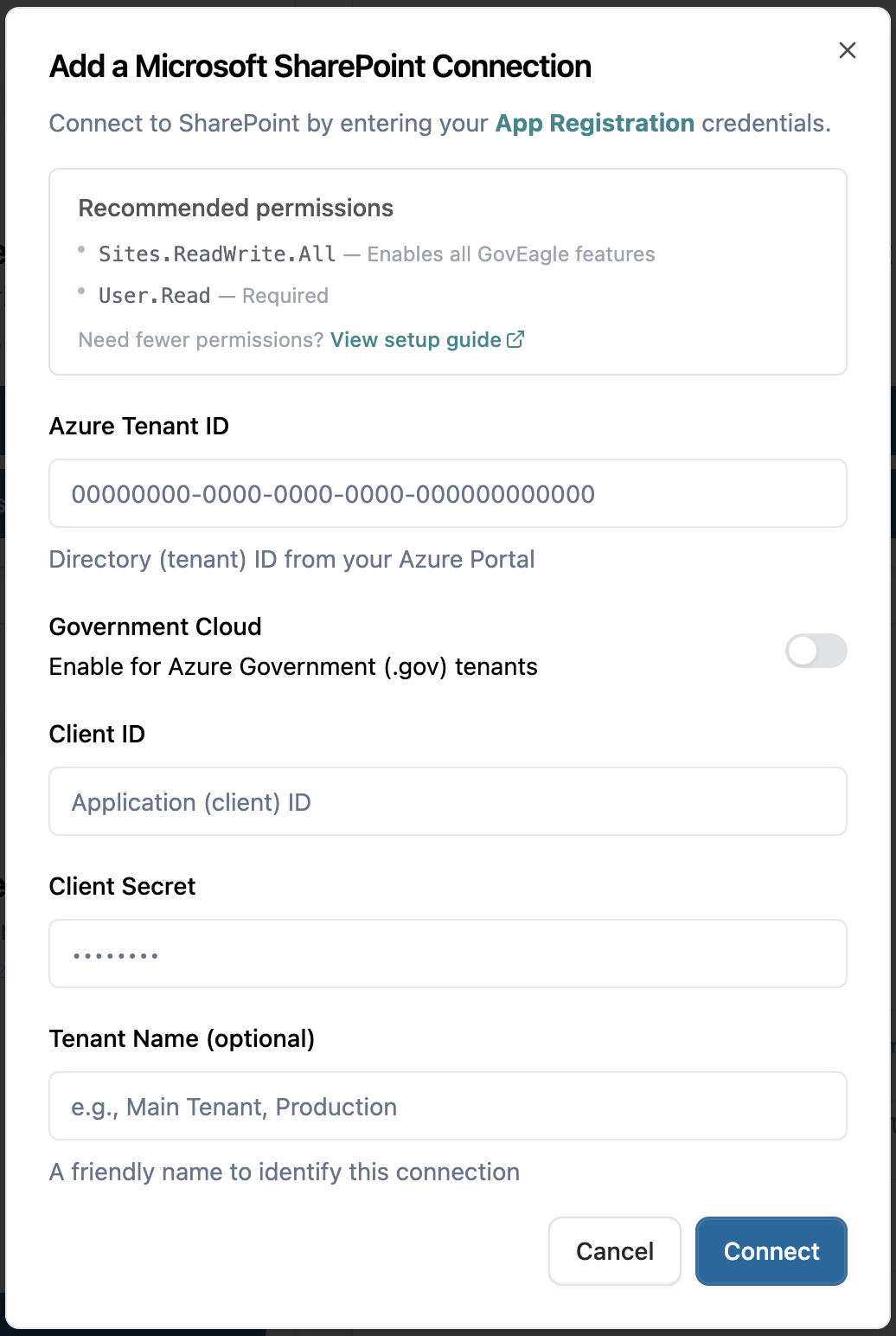
Click Connect.
Click Manage Content Library Sync to choose which sites and document libraries to add to the Content Library.
.png)
Select the sites you want to add to the Content Library. You can click the arrow at the end of each row to select individual document libraries rather than entire sites. Sites you leave unchecked stay out of the Content Library, but users can still link a folder from them to an individual opportunity through Opportunity Assets.
To configure SharePoint metadata tags, see SharePoint Metadata Tags.
Click Resync Files and Folders to begin your first SharePoint sync or to resync your content at any time.
Managing Your Connection
Use Manage Content Library Sync to change which SharePoint content syncs to your Content Library. You can add or remove entire sites, individual document libraries, or selected folders within a library.
You need a GovEagle Admin account or a role with permission to manage integrations. If you have multiple SharePoint connections, make these changes on the connection that contains the content you want to update.
1. Open your existing connection
Click your profile icon at the bottom left, then go to Settings → Integrations.
Find the Microsoft SharePoint connection you want to change and click Manage Content Library Sync.
The management page shows your current selections. Use Manage Content Library Sync for content selection. Edit Connection is for changing the connection's permission mode.
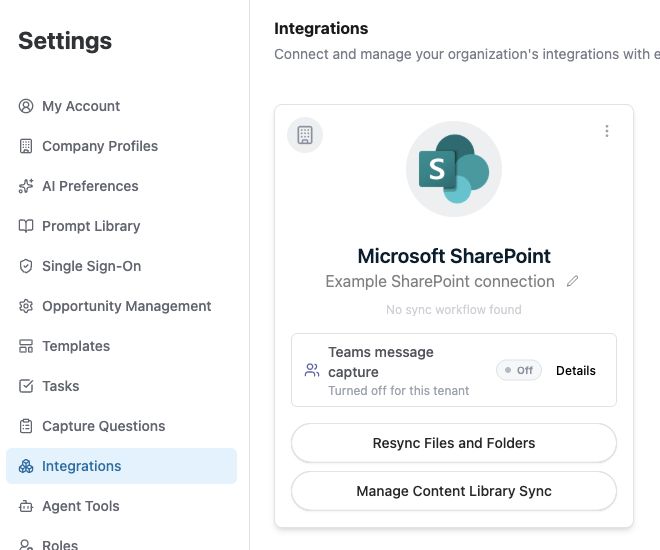
Open the existing connection with Manage Content Library Sync.
2. Add or remove sites and document libraries
Find the site you want to change. Use the search field if needed.
Click the arrow on the site row to show its document libraries. GovEagle also refers to a document library as a drive.
Select the checkbox beside a library to include it in the sync. Clear its checkbox to stop syncing that library. Use the site checkbox to select or clear the site's libraries together.
Keep the checkboxes selected for any content you still want to sync, then click Update SharePoint at the top right to save your changes.
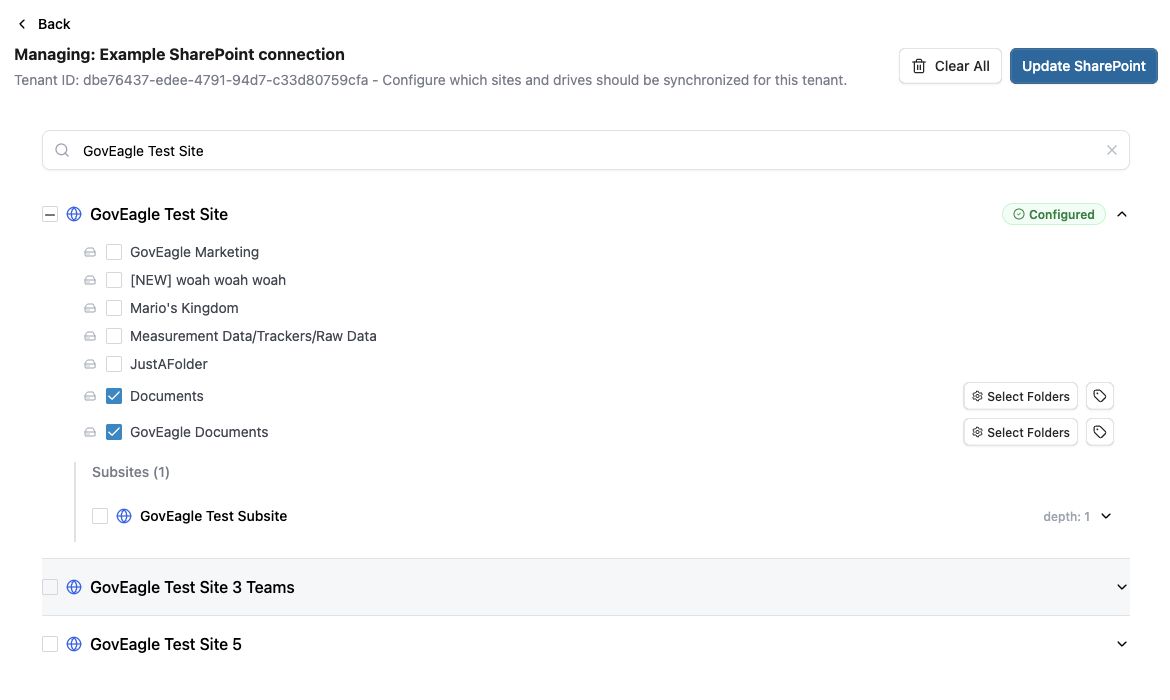
Expand a site to add or remove individual libraries, then save with Update SharePoint.
Sites.Selected connections: If you see Add a SharePoint Site instead of a site search, enter the site URL and click Add Site. Your IT team must first grant the app access to that site. When you remove a configured site, GovEagle asks you to confirm. To restore it later, add it again by URL.
3. Choose specific folders within a library
To sync only part of a document library, leave the library selected and click Select Folders beside it.
Select the folders you want to include. Use the arrow beside a folder to browse its subfolders, and Back or Drive Root to return.
To add content, select another folder. To remove content, clear that folder's checkbox and keep the folders you still need selected.
Click Sync [number] Folders to save the folder selection. The dialog closes.
Click Update SharePoint to save any remaining changes on the management page.
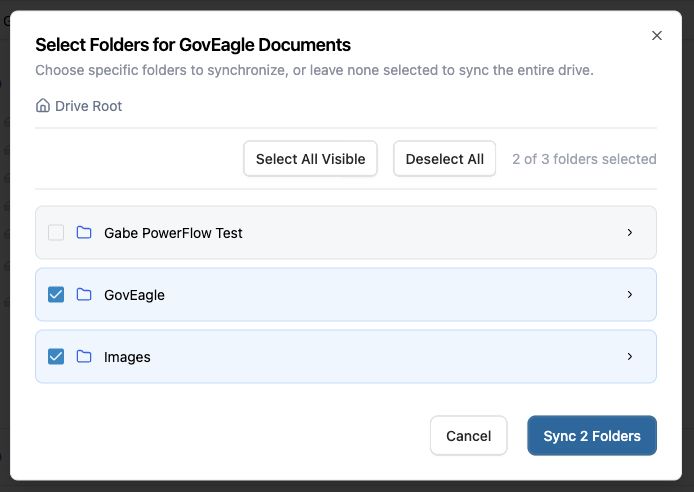
Keep only the folders you want to sync selected. The button shows how many folders you are saving.
No folders selected means the entire library. When no folders are selected, the button changes to Sync Entire Drive. To stop syncing the library altogether, cancel the dialog and clear the library's checkbox on the management page. Clearing all folder checkboxes does not stop the sync.
Folder selections save when you click Sync [number] Folders or Sync Entire Drive. Use Cancel to leave the dialog without saving its changes.
4. Refresh and check your content
After saving, return to Settings → Integrations.
Click Resync Files and Folders on the same SharePoint connection to apply the new selection now. Otherwise, the Content Library refreshes during the nightly sync.
Wait for the sync to finish, then open the Content Library and check the content you added or removed.
Removing a site, library, or folder from the sync removes its synced content from GovEagle when the sync processes the change. It does not delete the original files in SharePoint.
These settings control the Content Library. To manage a folder linked to a specific opportunity, use that opportunity's Assets tab. See Opportunity Assets.
Permission Modes
When you connect SharePoint, you choose how document access is controlled after syncing.
GovEagle-managed. You control who can access synced documents by configuring permissions in GovEagle. All SharePoint-synced content is shared org-wide unless you restrict it.
Inherited from SharePoint. Permissions are synced from SharePoint automatically. Users see exactly the content they already have access to in SharePoint, with no manual setup. GovEagle resolves SharePoint site groups and user membership to mirror access.
Inherited mode requires all three:
Microsoft Entra ID (formerly Azure Active Directory) SSO configured for the same tenant. See Setting up Single Sign-On (SSO).
Certificate authentication (not client secret).
The expanded permission scopes listed in Step 3.
FAQ
Can I use more restrictive permissions to setup SharePoint?
Option 1: Sites.Read.All
Allows GovEagle to list available SharePoint sites in the UI so admins can browse, select sites, and choose individual document libraries to sync.
GovEagle will function normally but opportunity asset connections will be read-only.
Option 2: Sites.Selected
Limits GovEagle to only the SharePoint sites your IT team explicitly approves.
Sites will not automatically appear in GovEagle. Instead, your IT team must grant the app access to each site and new sites must be approved individually before they can be connected.
Only choose this option if your organization requires site-by-site approval and tighter control over what your application can access.
For the content library sync into GovEagle, read access is sufficient. If your organization plans to use Opportunity Assets with write-back, use the corresponding write permission model instead.
To learn more about the Sites.Selected option, please see Granting Per-Site Permissions in SharePoint.
Note:
With Sites.Selected, an IT admin grants GovEagle access to each SharePoint site individually. Inherited permissions are not available with this option, and the Assets tab works only for the sites you have granted.
What's the difference between Sites.Read.All and Sites.Selected in the Service Principal method?
With Sites.Read.All (or Sites.ReadWrite.All), GovEagle can automatically list all your SharePoint sites in the UI so users can browse and select which ones to sync. With Sites.Selected, sites don't appear automatically — an IT admin must manually grant access to each site through Microsoft Graph Explorer before it becomes available in GovEagle. Sites.Read.All is easier to set up; Sites.Selected offers tighter control.
Can I connect to both Commercial and Government tenants?
Yes. GovEagle supports connecting to both commercial and government tenants within the same instance.
How often does GovEagle sync with SharePoint?
Content Library sites sync every night to pull the latest content. Folders linked to an opportunity through Opportunity Assets update in near real time using change notifications from SharePoint. With Sites.Selected, all content refreshes nightly or when you click Resync Files and Folders.
Can I select individual document libraries instead of full sites?
Yes. When selecting content to sync, click the arrow at the end of any site row to expand it and select individual document libraries.
Does connecting SharePoint put everything GovEagle can see into the Content Library?
No. The permission grants access. The Content Library only contains the sites and document libraries an admin checks under Manage Content Library Sync. Folders linked to an opportunity through Opportunity Assets are available to that opportunity only and never enter the Content Library. See Where your documents live.
Can GovEagle mirror SharePoint permissions so users can only access content they're already authorized to see in SharePoint?
Yes. Use Inherited from SharePoint permissions mode, which mirrors each user's existing SharePoint access. See Permission Modes for setup and prerequisites.