Continuous Monitoring keeps an eye on the opportunities in your pipeline so you do not have to re-read them every week. You create a watchlist, pick the opportunities to track, and add monitors: questions you want answered about every opportunity, such as "What is our probability of win?" or "Is our capture plan on track?" GovEagle answers each question for each opportunity, re-checks on the schedule you choose, and shows you what changed and why.
Note: Continuous Monitoring is enabled on request. If you do not see Continuous Monitoring in your sidebar, email support@goveagle.com to have it turned on. It can be enabled for your whole organization or for specific people, so some of your colleagues may see it before you do.
How it works
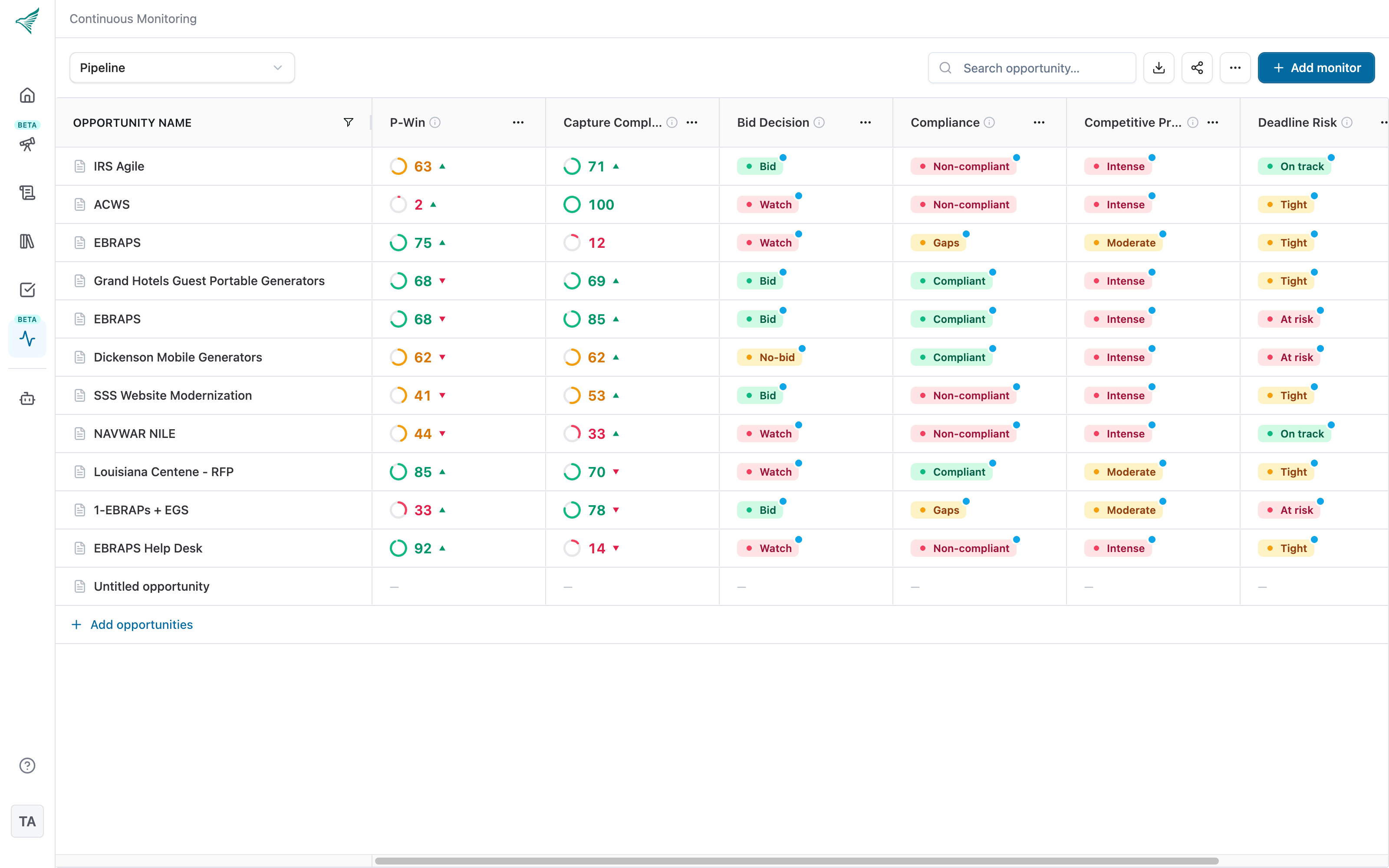
A watchlist is a table. Each row is an opportunity you already have in GovEagle. Each column is a monitor. Each cell is GovEagle's current answer for that monitor and that opportunity, along with a short rationale.
When a monitor runs, GovEagle re-reads the opportunity, including its solicitation documents, milestones, tasks, notes, and win strategies, and pays special attention to anything that changed since the last run. It then updates the answer and writes a What's changed note if something meaningful moved. Monitors run on a cadence you set: daily, weekly, or only when you ask. If you would rather not check the table, an email report can send you what changed after the monitors run.
Creating a watchlist
Click Continuous Monitoring in the left sidebar, then New watchlist.
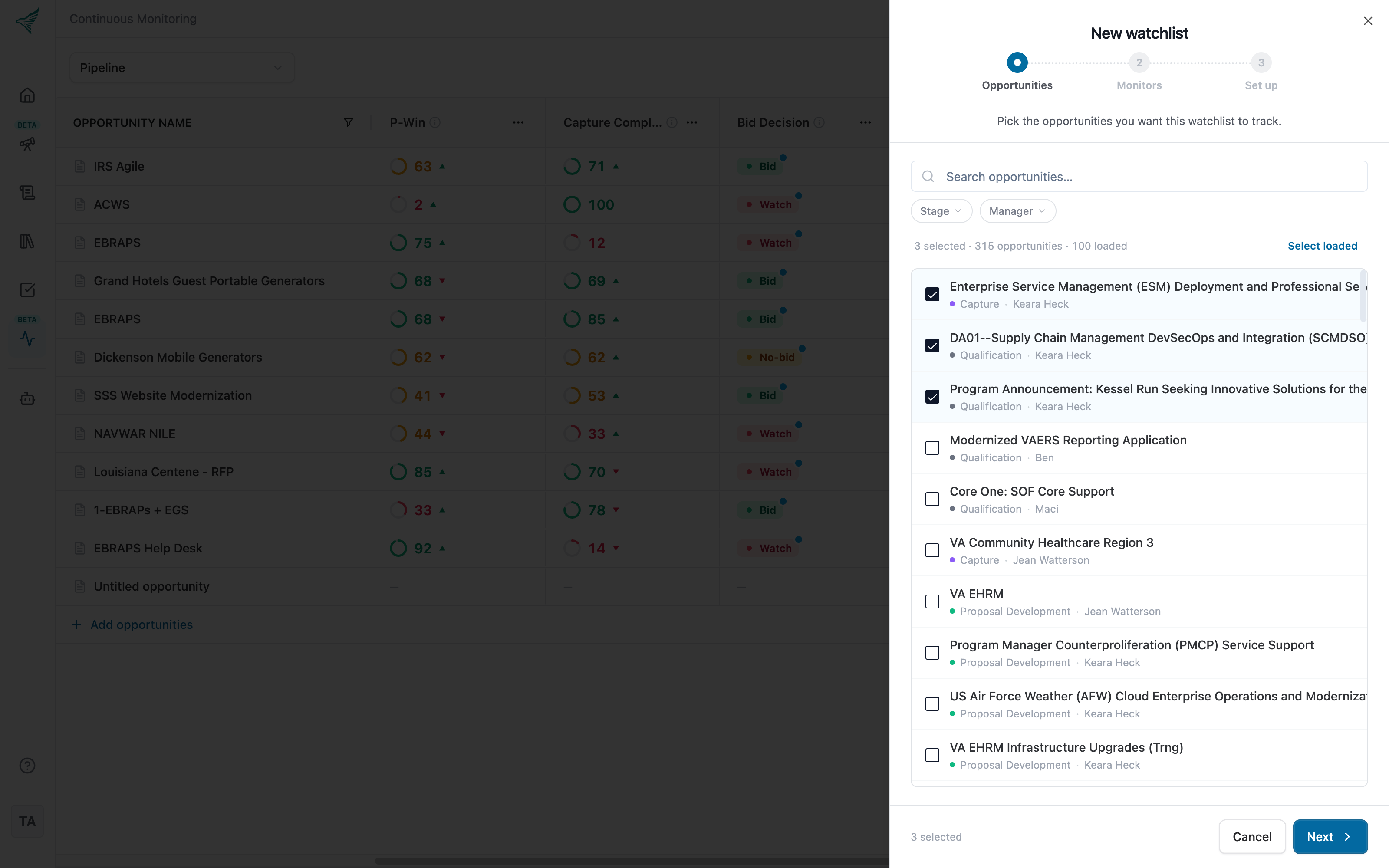
Opportunities. Search and select the opportunities you want to track. Use the Stage and Manager filters to narrow the list. Click Next.
Monitors. Add one or more monitors. Start from a preset or build your own (see below). You can add more later. Click Next.
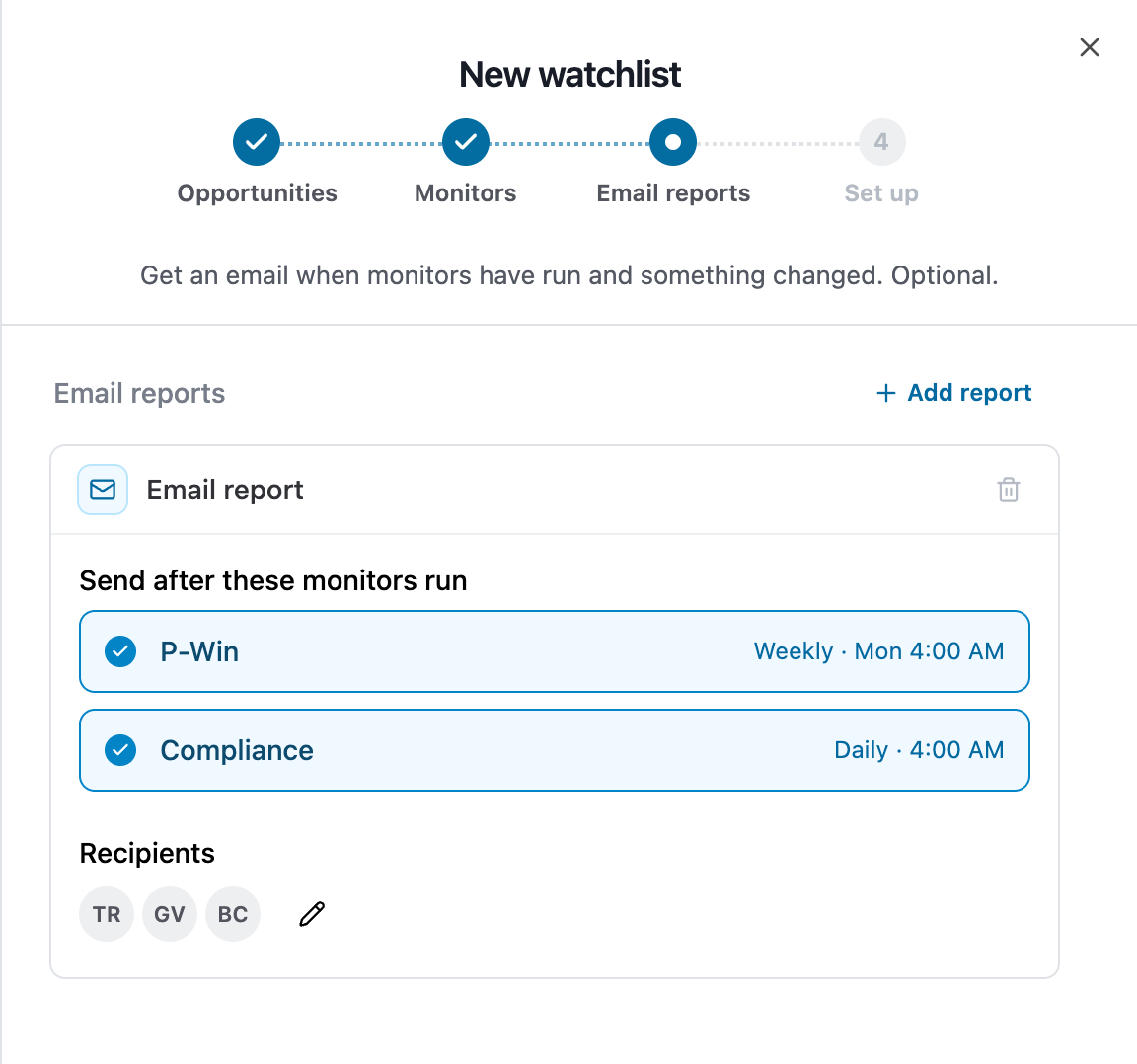
Email reports. Optionally set up an email that tells you what changed after your monitors run. Click Add report, choose the monitors it should wait for, and pick who receives it (see Email reports below). You can skip this and add a report later. Click Next.
Set up. Give the watchlist a name, such as "Federal Q3 pursuits." Optionally choose people or groups to Share with. Click Create watchlist.
GovEagle scores every opportunity against every monitor right away. Cells show a spinner while they run and fill in as results arrive, usually within a minute or two per cell.
Monitors
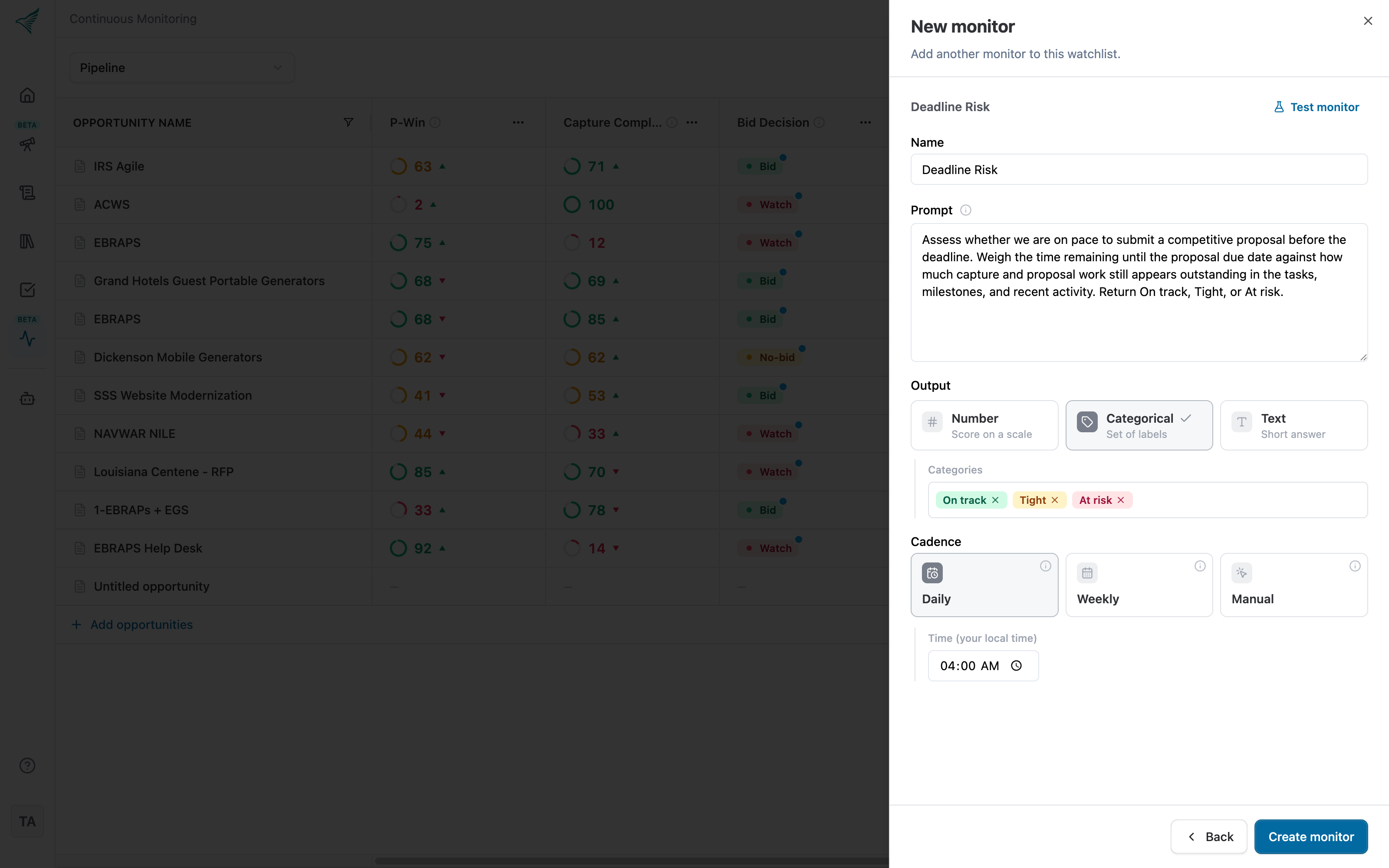
A monitor is a question GovEagle asks about every opportunity in the watchlist. Each monitor has:
Name, for example "P-Win."
Prompt: how GovEagle should judge each opportunity. The opportunity's solicitation, milestones, and recent notes are provided automatically, so focus the prompt on what you want assessed and how.
Output: Number for a score on a scale you define, Categorical for a fixed set of labels such as Bid / No-bid / Watch, or Text for a short answer.
Cadence: Daily at a time you pick, Weekly on a day and time you pick, or Manual to run only when you click Run now.
Presets
To get started quickly, pick a preset and adjust it:
Preset | Answers | Default cadence |
|---|---|---|
P-Win | Probability of win, 0 to 100 | Weekly |
Bid Decision | Bid, No-bid, or Watch | Weekly |
Compliance | Compliant, Gaps, or Non-compliant | Daily |
Deadline Risk | On track, Tight, or At risk | Daily |
Capture Completeness | How complete the capture plan is, 0 to 100 | Weekly |
Competitive Pressure | Weak, Moderate, or Intense | Weekly |
Momentum | A short note on whether the pursuit is gaining or losing momentum | Daily |
Adding or editing a monitor
Click Add monitor at the top right to add a column. Choose a preset or Start from scratch, fill in the form, and click Create monitor.
To change a monitor, open the ⋯ menu in its column header and choose Edit.
Click Test monitor before saving to try your prompt against the real opportunities in the watchlist. Results appear as they finish and nothing is saved until you click Create monitor or Save changes.
Note: Changing a monitor's prompt or output type re-scores every opportunity in that column and discards any run in progress. Use Test monitor to experiment first.
Reading the results
Numbers appear as a colored ring with the score. Categories appear as a colored chip. Text answers appear as a few words.
A green or red triangle next to a number shows which way it moved since the last run. A blue dot on a category or text answer means the value changed.
Hover a cell to see the before-and-after values, the rationale, and what changed.
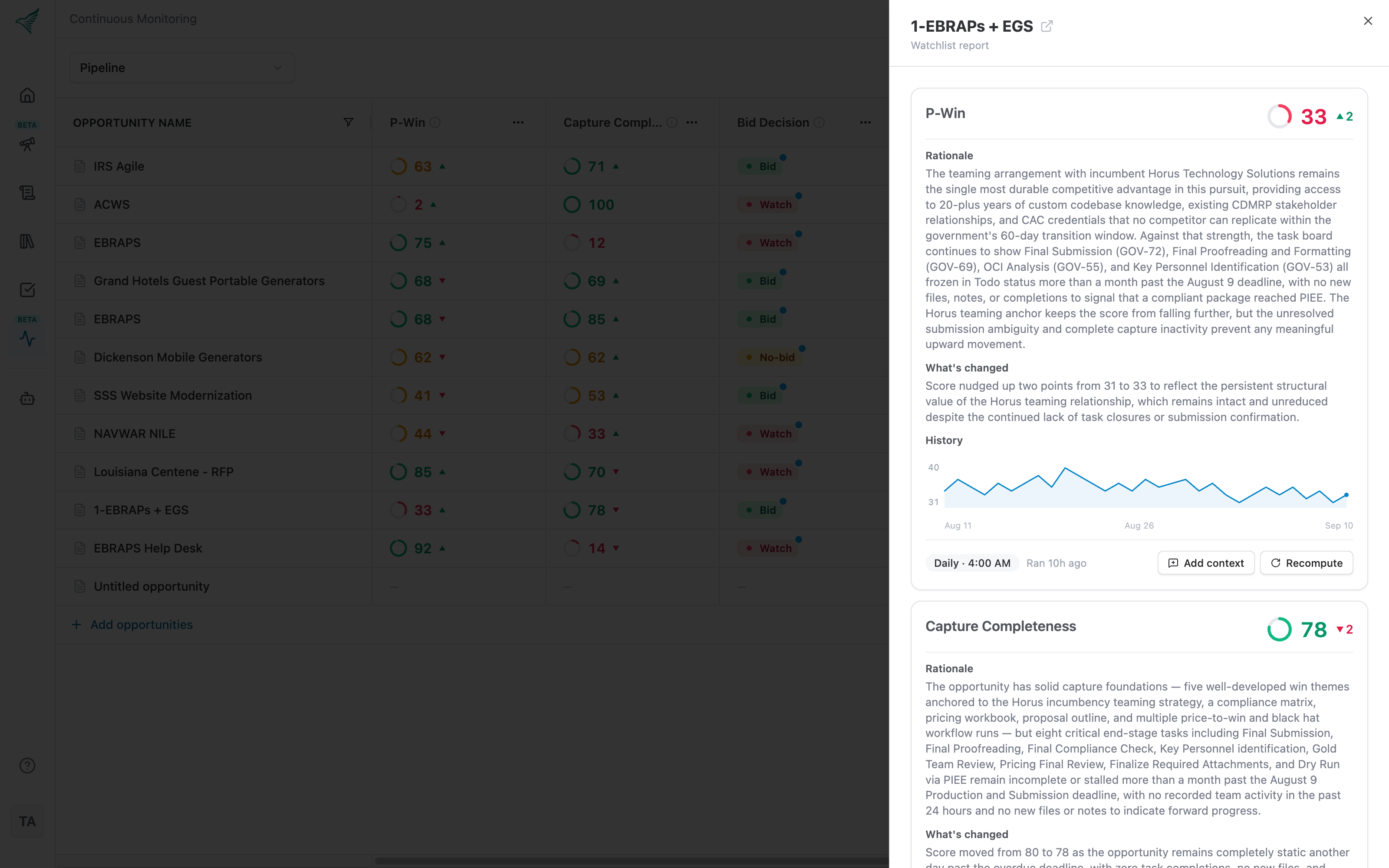
Click a row to open the full Watchlist report for that opportunity: every monitor's current answer, its Rationale, What's changed, and a History of past results.
Click a column header to sort, and use the column visibility button to hide monitors you are not interested in right now.
Adding guidance
If GovEagle keeps missing something about a specific opportunity, open its report and click Add context under the monitor. Write a short note, such as "Do not rely on the outdated CPARS report when scoring this," and mention any documents it should read with @. The note is used on every future run of that monitor for that opportunity.
Running monitors manually
To re-run one monitor for every opportunity, open the ⋯ menu in the column header and choose Run now.
To re-run one cell, open the row's report and click Recompute under that monitor.
Scheduled monitors also run automatically at the time you set, and newly added opportunities are scored as soon as you add them.
When a cell fails
Occasionally a run does not finish. If there is no earlier result, the cell shows Failed. If there is an earlier result, it stays in place with a small red warning triangle beside it. In either case, open the report and click Recompute to try again, or ask a watchlist editor to do so if you only have view access.
Email reports
An email report sends a summary of what changed on a watchlist, so you can follow it from your inbox instead of opening the table. Each report is tied to a set of monitors. Once every one of those monitors has finished its scheduled run, GovEagle emails the recipients a list of every score that moved, grouped by opportunity, with the before-and-after values and the What's changed note for each. If nothing changed, no email is sent.
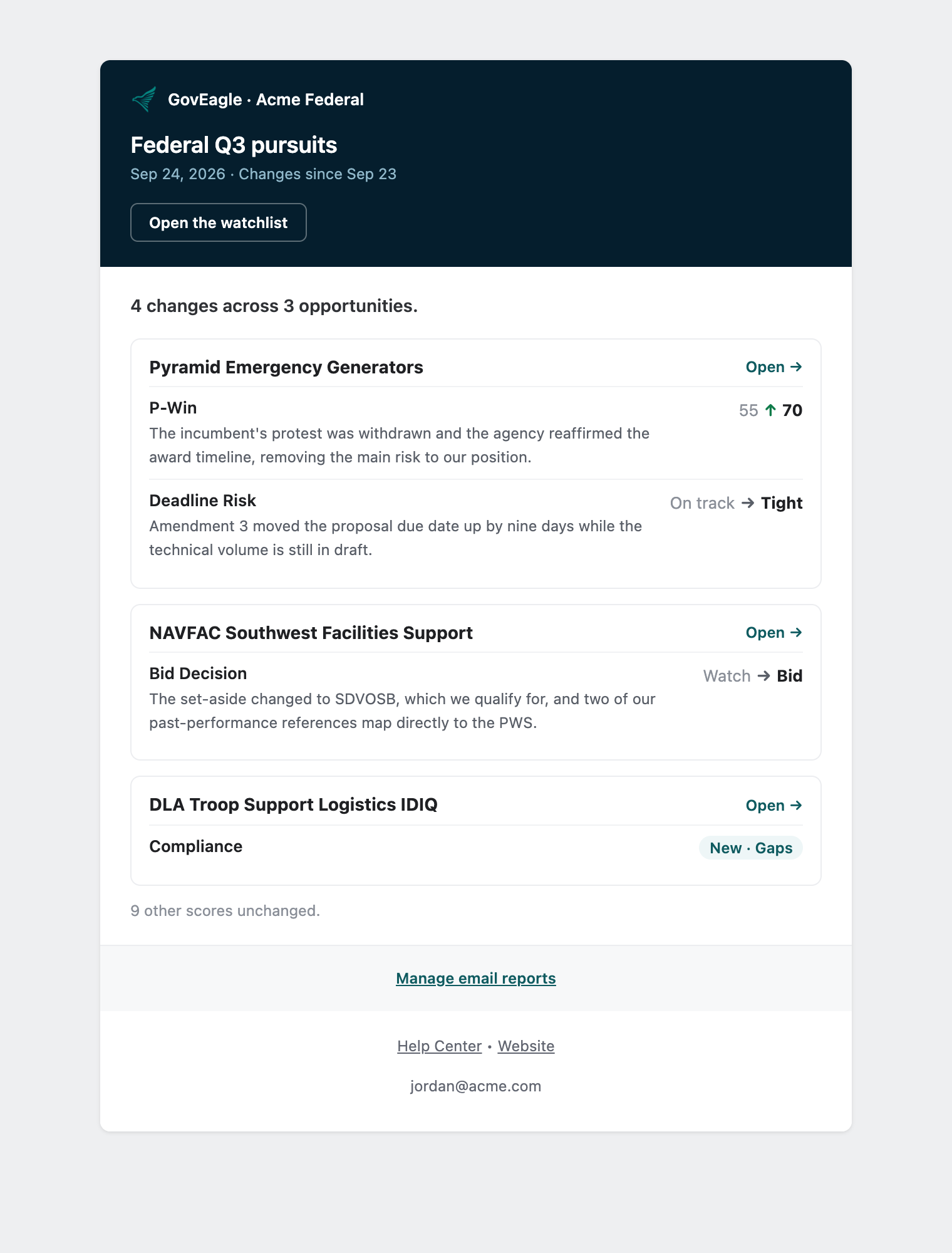
The subject line says what moved, for example "Federal Q3 pursuits: 4 changes across 3 opportunities." Each opportunity in the email links to its page in GovEagle, Open the watchlist takes you to the table, and Manage email reports at the bottom opens the report settings.
Setting up a report
You can add a report on the Email reports step when you create a watchlist, or at any time afterwards by clicking the envelope icon in the watchlist toolbar and choosing Create email report (or New report if the watchlist already has one).
Under Send after these monitors run, select the monitors the report should wait for. The monitors in one report must run at the same time of day: a daily monitor and a weekly monitor that both run at 4:00 AM can share a report, while a monitor that runs at a different time is greyed out. Monitors set to Manual cannot be used because they have no schedule.
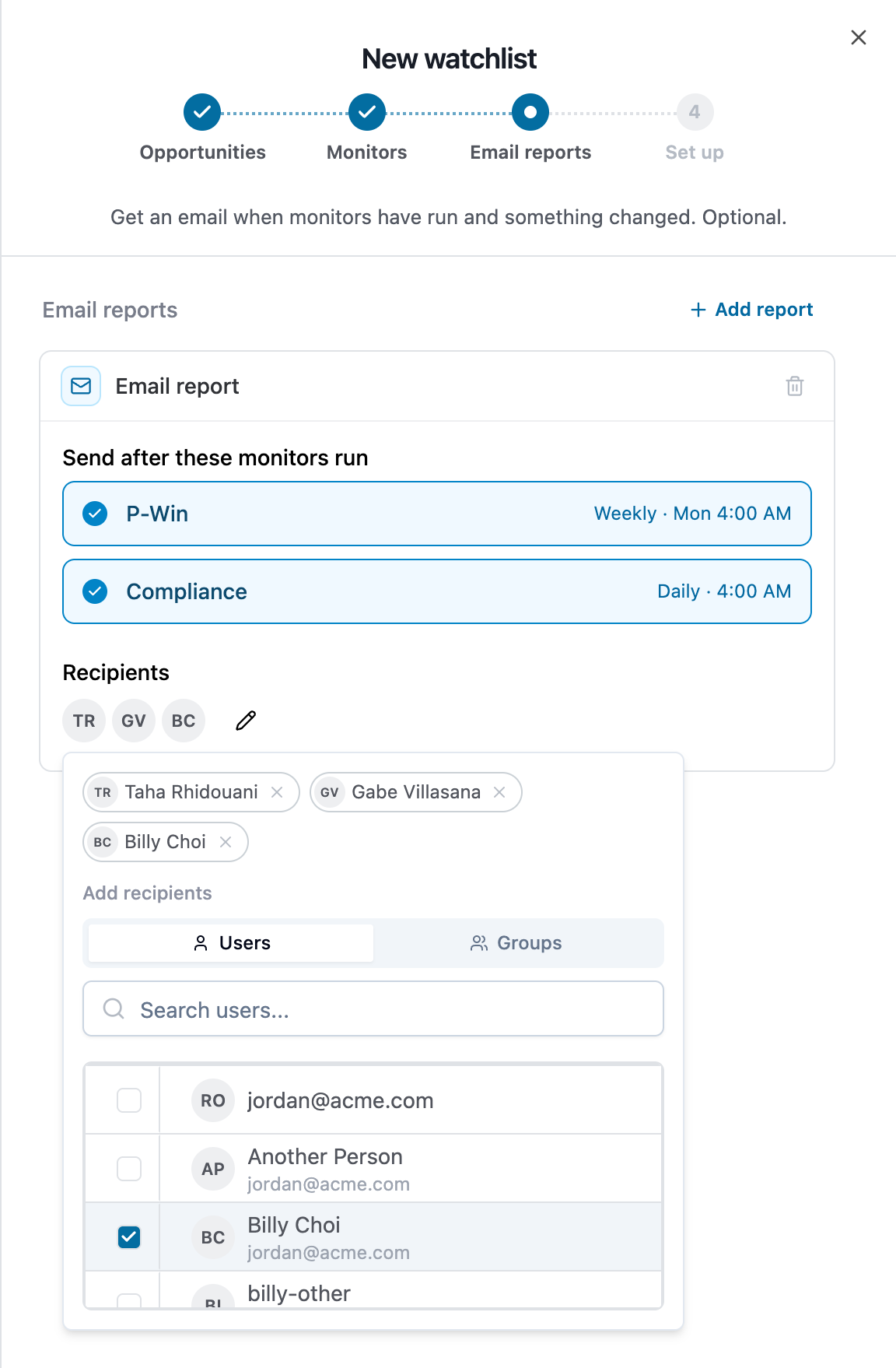
Under Recipients, you are included by default. Click the pencil icon to add people or groups. Anyone you add who cannot already see the watchlist is given view access, so they can open the opportunities the email links to.
Click Create report. Reports are active as soon as you create them.
Note: The email arrives a few minutes after the last of its monitors finishes, so it will not land at exactly the monitors' scheduled time.
Managing reports
Click the envelope icon in the toolbar to see a watchlist's reports. A green dot on the icon means at least one report is active, and hovering it tells you how many. A watchlist can have several reports, for example a daily one for the capture team and a weekly one for leadership.
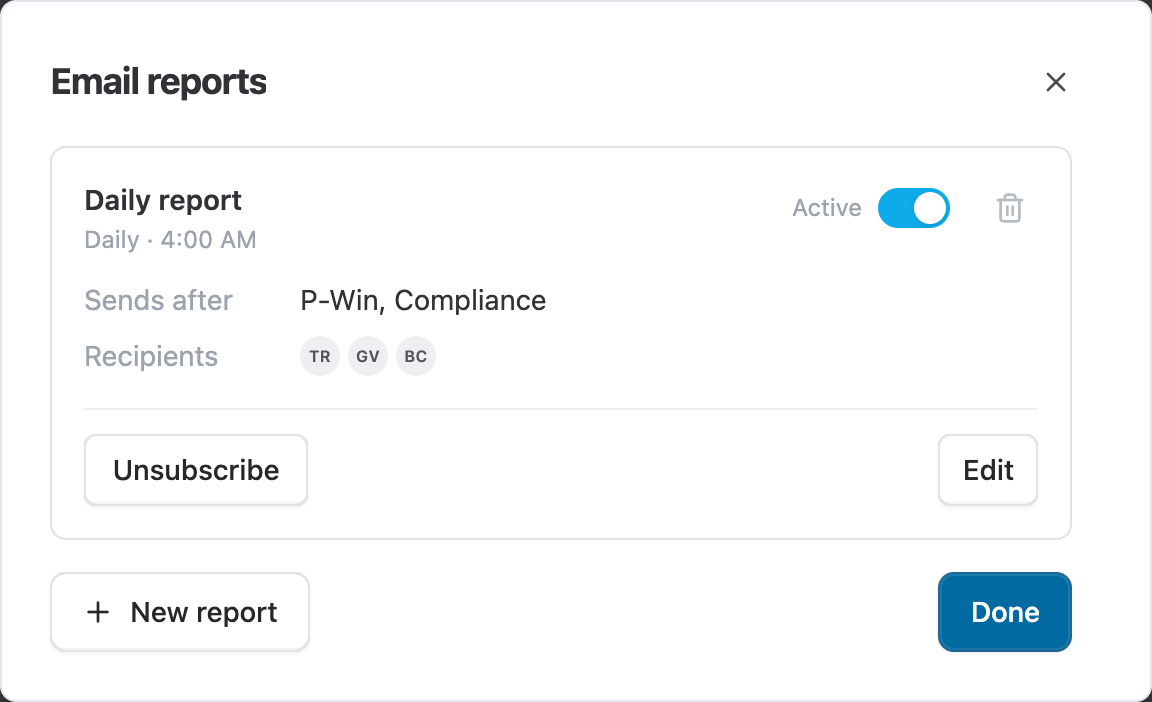
Active / Paused: use the switch on a report to pause it without deleting it. A paused report keeps its monitors and recipients.
Subscribe or Unsubscribe: anyone who can view the watchlist can add or remove themselves from a report, including people who were added through a group.
Edit changes the report's monitors or recipients, and the trash icon deletes it. Only watchlist editors can edit, pause, or delete reports.
Note: If you change a monitor's cadence so it no longer runs at the same time as the other monitors in its report, GovEagle asks whether to Move the other monitors too or Only change this monitor, which takes it out of the report. A report with no monitors left is paused.
Managing the watchlist
Add opportunities with the Add opportunities row at the bottom of the table, or choose Edit opportunities from the ⋯ menu next to the watchlist name to add and remove several at once.
Rename or Delete the watchlist from the same ⋯ menu. Deleting removes its monitors, scores, and history permanently.
Delete a monitor from its column header ⋯ menu. A watchlist always needs at least one monitor.
Download the current table as a CSV file using the download icon in the toolbar.
Switch between watchlists with the picker at the top left, which lists My watchlists and watchlists Shared with me.
Who can see a watchlist
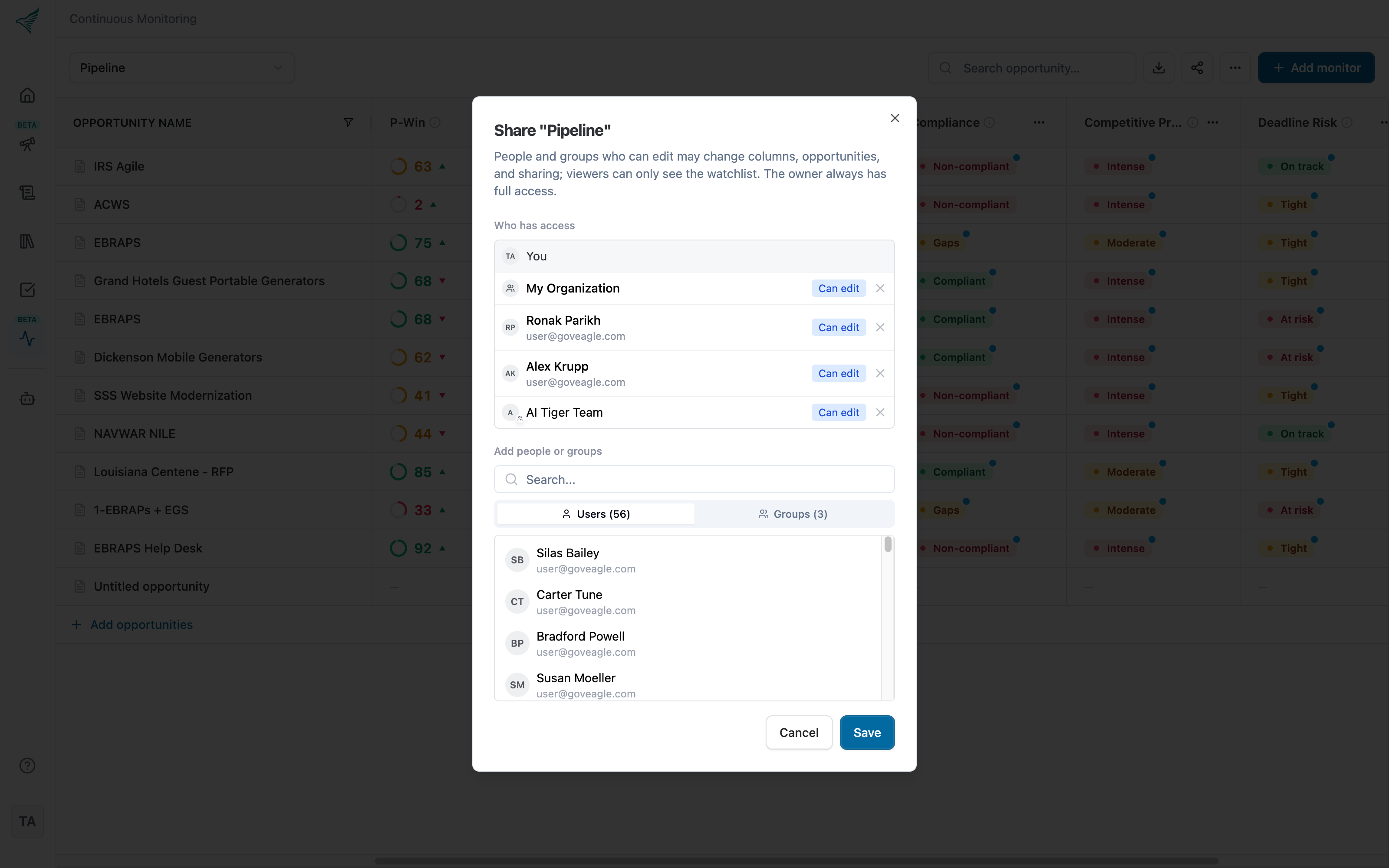
A new watchlist is visible only to you until you share it. Click Share to add people, groups, or your whole organization with one of two levels:
Can edit: change opportunities, monitors, sharing, and guidance, run and recompute, rename, and delete.
Can view: read the table and reports, sort and search, and download the CSV.
You remain the owner with full access, and the Share dialog shows who created the watchlist and what access everyone has.
People you add as recipients of an email report are given Can view access automatically if they do not already have it, and removing someone's access also removes them from the watchlist's reports.
FAQs
Does GovEagle notify me when something changes?
Yes, by email. Set up an email report (see Email reports above) and GovEagle sends the recipients a summary of what moved once the report's monitors have run. Nothing is sent when nothing changed. In the app, the triangles, blue dots, and What's changed notes highlight everything that moved since the last run.
Does a monitor run when a new amendment or document is posted?
No. Monitors run on their schedule or when you run them manually. When they run, they pick up any documents added since the last run. If you upload something important, use Run now to re-score right away.
Can I add opportunities from Opportunity Search?
Watchlists track opportunities that already exist in GovEagle. Add the opportunity to your pipeline first, then add it to the watchlist.
Where does GovEagle get its answers?
From the opportunity itself: its solicitation and other documents, milestones, tasks, notes, and win strategies, plus any guidance you add. It can also search the opportunity's documents while scoring.