Opportunity Search helps you find federal opportunities worth pursuing without reading every notice yourself. GovEagle pulls new opportunities from SAM.gov, PIEE, GSA eBuy, and GovWin every day. You set up bid agents that describe what you are looking for, and each agent reads every new batch, decides which opportunities you should pursue, estimates your probability of winning, and explains its reasoning. Email digests deliver the results to your team after each run.
Note: GovWin opportunities appear only for organizations that have connected their GovWin IQ subscription. The same goes for eBuy opportunities.
.png)
The Opportunity Search page
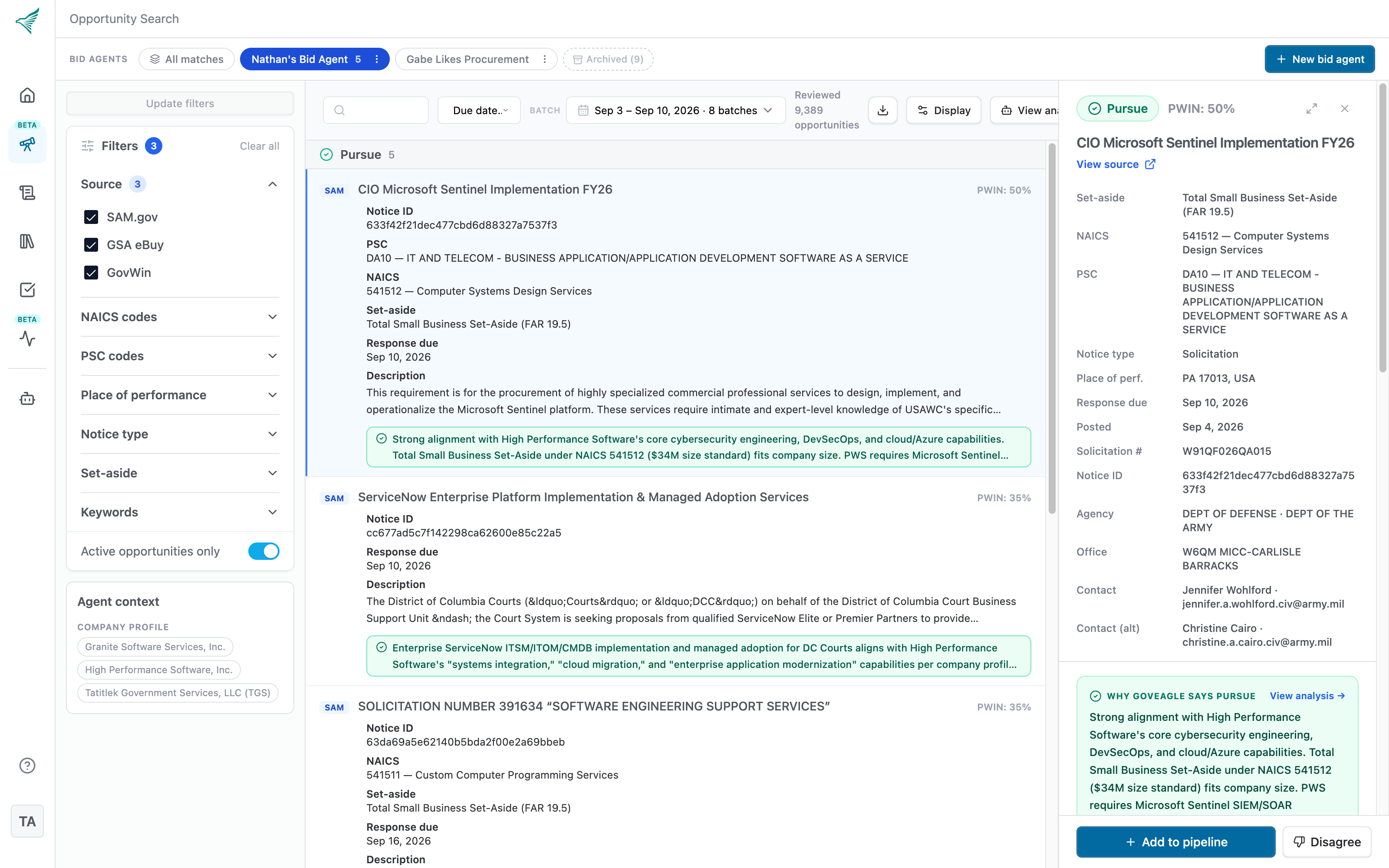
Open Opportunity Search from the left sidebar. Everything lives on one screen:
Bid agent bar. Across the top, one pill per bid agent, each showing the number of opportunities it recommends pursuing. A spinner in a pill means that agent is currently running. The All matches pill combines the results of every agent. Archived agents are tucked behind an Archived toggle.
Results. Click an agent to see its recommended opportunities. Use the filters on the left to narrow the list.
Detail panel. Click any opportunity to open its details on the right, including the agent's reasoning, the opportunity description, key dates, and links to the original posting.
If no agent is selected, you are browsing the full set of opportunities GovEagle has ingested.
Creating a bid agent
Click New bid agent at the right of the bid agent bar. You can also browse all opportunities, set the filters you want, and click Save as bid agent to turn those filters into an agent.
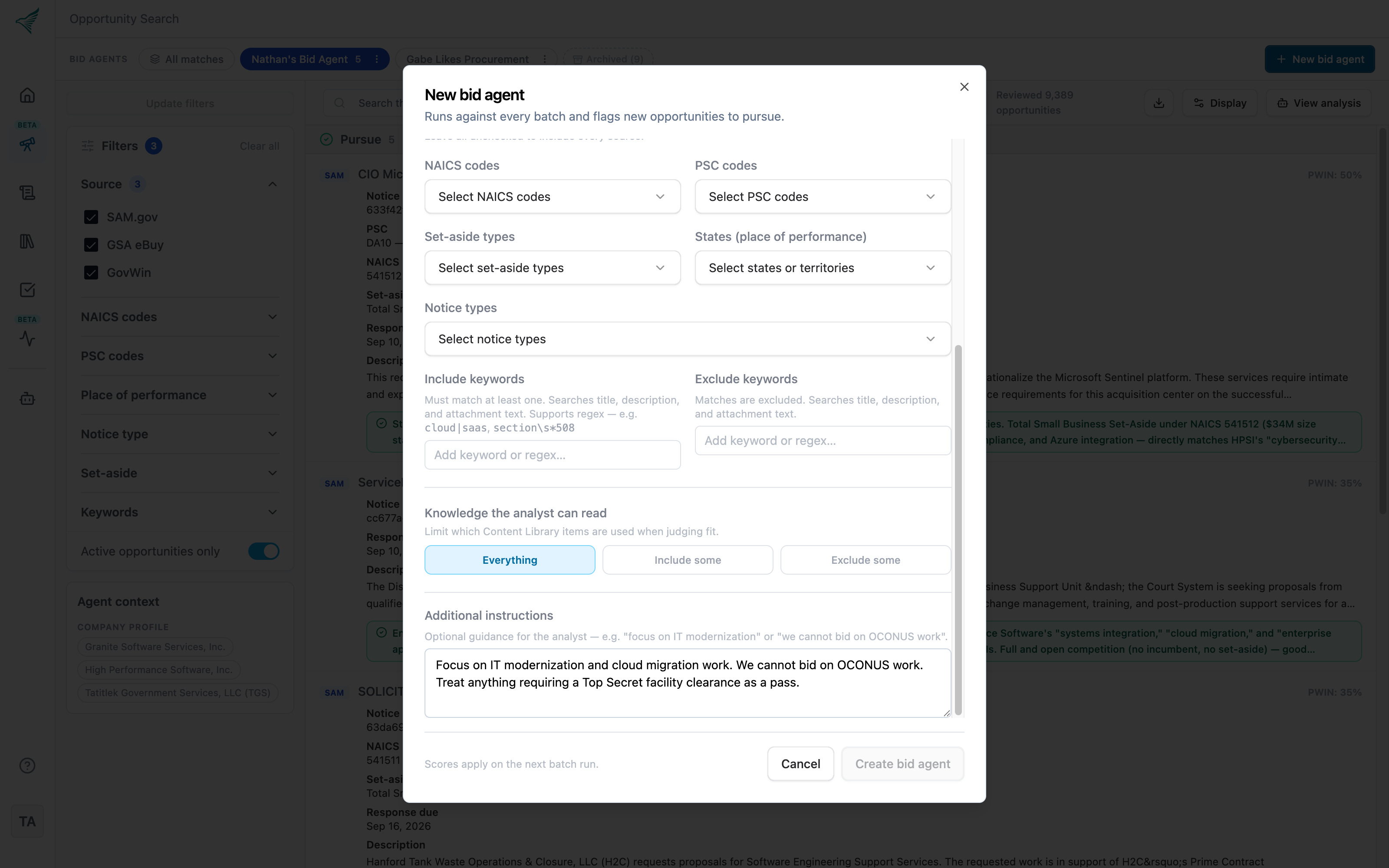
Give it a Name, for example "IT Services — Small Business".
Choose one or more Company profiles. The agent scores opportunities against these profiles, so pick the entity that would actually bid. Profiles need a description to be useful; add one under Settings → Company Profiles if needed.
Set Hard filters. These work like SAM.gov filters: anything that does not match is excluded before the agent reads it.
Sources: SAM.gov, PIEE, GSA eBuy, GovWin. Leave all unchecked to include every source.
NAICS codes and PSC codes
Set-aside types
States (place of performance)
Notice types
Include keywords and Exclude keywords. These search the title, description, and attachment text. An opportunity must contain at least one included keyword and none of the excluded ones.
Choose the Content Library Scope. By default the agent can search your whole Content Library for past performance and capability evidence. Choose Include some or Exclude some to limit it to particular folders, documents, or tags. This is useful when different business units have separate libraries.
Optionally add Additional instructions (see below).
Click Create bid agent.
.png)
As soon as you save, the agent starts analyzing the latest batch of opportunities. Its pill shows a spinner while it works, and the results appear when it finishes, usually within a few minutes. New batches are analyzed automatically every day.
Tip: If you have no bid agents yet, click Create default agent. GovEagle creates an agent with no filters for your default company profile so you can see results right away, then refine from there.
Additional instructions
Hard filters decide which opportunities the agent sees. Additional instructions shape how it judges them. Write them the way you would brief a new analyst, for example:
Focus on IT modernization and cloud migration work. We cannot bid on OCONUS work. Treat anything requiring a Top Secret facility clearance as a pass.
The agent reads these instructions alongside your company profiles when it decides whether to pursue an opportunity and when it estimates your probability of winning. Changing the instructions re-runs the analysis. You can see an agent's current instructions in the Agent context card in the left rail.
Understanding the results
Each bid agent lists the opportunities it recommends under a Pursue heading. For every opportunity you will see:
The source badge (SAM, PIEE, eBuy, or GovWin) and the title, which links to the original posting.
PWIN, the agent's estimate of your probability of winning, shown as a percentage.
Match reasoning, a short explanation of why the agent thinks this is a fit, including the evidence it found in your content library.
Key fields such as Notice ID, NAICS, set-aside, PSC, and response due date. Use Display in the toolbar to choose which fields appear; your choice is saved for you.
An Also in chip when another bid agent also recommended the same opportunity.
The toolbar also shows Reviewed N opportunities, which is how many opportunities passed the hard filters and were read by the agent.
PIEE (Procurement Integrated Enterprise Environment)
PIEE is a Department of Defense acquisition portal that publishes public solicitations. GovEagle scrapes new PIEE solicitations daily and includes them in Opportunity Search alongside all other sources.
How to spot a PIEE opportunity. Each row in the results list shows a colored source badge. PIEE opportunities display a teal PIEE badge, just as SAM.gov opportunities show a blue SAM badge.
Attachments are mirrored automatically. Solicitation documents attached to a PIEE opportunity are downloaded and stored in GovEagle so you can read them in place — no need to visit piee.eb.mil separately. When you add a PIEE opportunity to your pipeline, any attachments are imported as solicitation documents on the opportunity.
PWIN
PWIN is the agent's estimate, from 0 to 100 percent, of how likely you are to win an opportunity if you pursue it. Before scoring, the agent searches your content library for past performance and capability evidence and weighs three things:
How well your capabilities align with the requirement
The past performance evidence it found
Your competitive position, including any incumbent
PWIN only appears on opportunities the agent recommends pursuing. Sort by PWIN (highest) to see your strongest prospects first. To improve PWIN accuracy, keep your company profiles current, point the agent at the right part of your content library, and use additional instructions to share what the documents do not say.
Note: PWIN in Opportunity Search is a quick, early estimate for triage. For a detailed price-to-win or competitive analysis, run the corresponding workflow on the opportunity once it is in your pipeline.
Batch assessment
When an agent finishes a run, it writes a short Batch assessment summarizing what it saw in that batch. Expand the card at the top of the left rail to read it. Click View analysis in the toolbar to open the full chat behind the run, where you can ask follow-up questions about any opportunity.
Working with an opportunity
Click an opportunity to open the detail panel. From there you can:
Read the full description, agency and contact details, and the agent's reasoning.
Follow the link to the original posting on SAM.gov, PIEE, eBuy, or GovWin.
Review potential incumbent contracts pulled from USASpending.gov.
Click Expand to full view to page through opportunities one at a time.
Click Add to pipeline to create an opportunity in GovEagle from this notice.
Click Disagree if you think the agent got it wrong.
Disagreeing with a decision
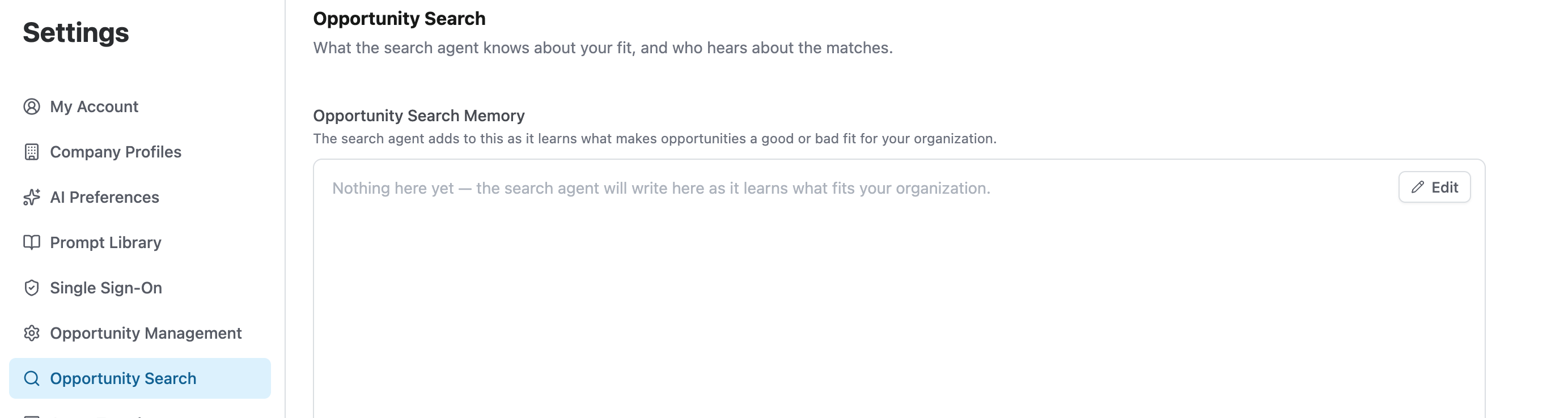
If the agent recommends something you would never bid, or passes on something you want, click Disagree, explain why, and click Submit. The agent flips the decision in the background and saves your feedback to the organization's search memory so that future runs score similar opportunities differently. The update happens automatically. You can see the opportunity search memory here:
Viewing all matches
Click All matches in the bid agent bar to see every recommended opportunity across all of your active agents in one list. Each opportunity appears once, with the name of the agent that recommended it in the match reasoning and an Also in chip if other agents agreed. This is the fastest way to review a day's batch when you run several agents.
Choosing a date range
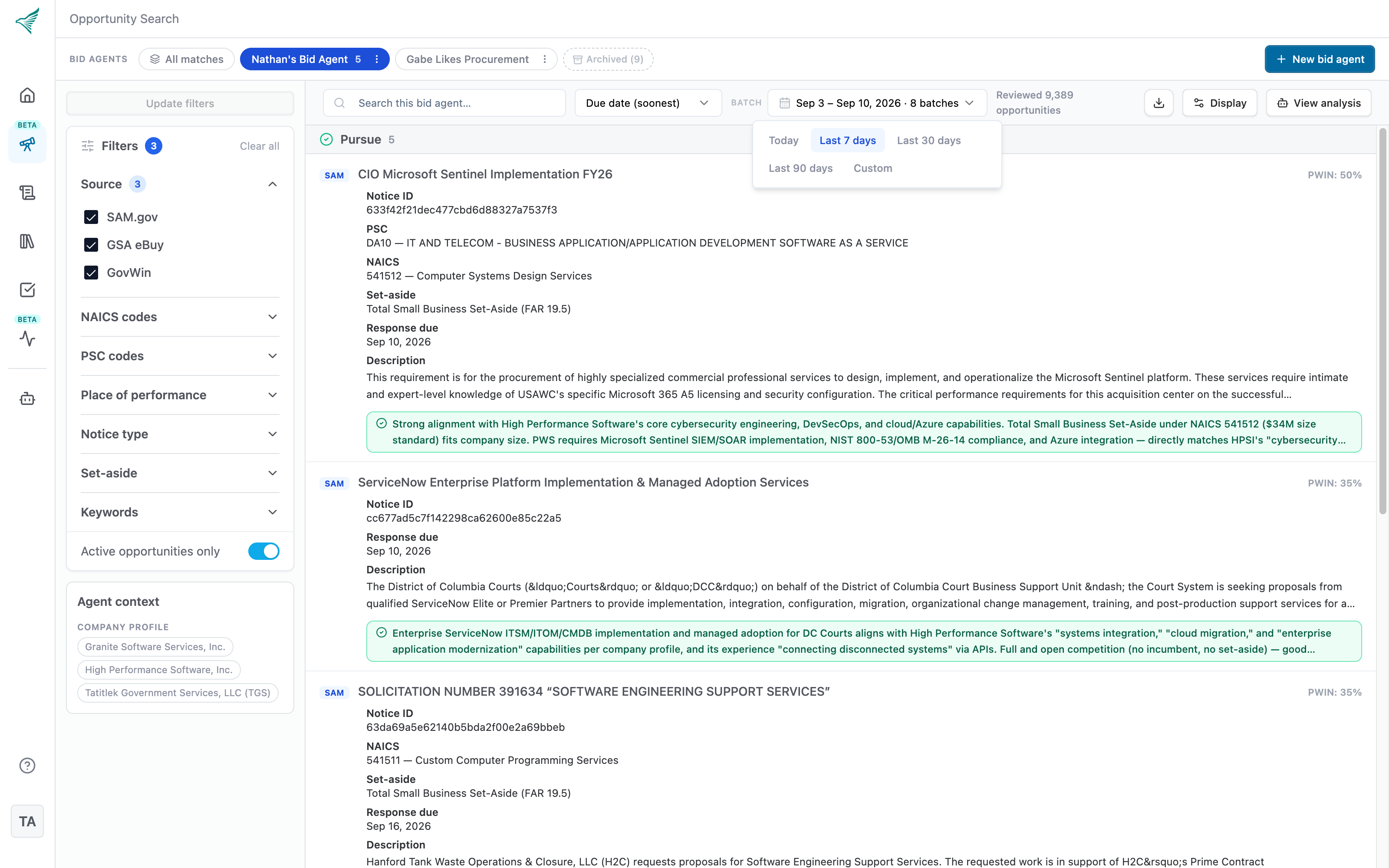
By default you see the latest daily batch. Use the Batch picker in the toolbar to look further back: Today, Last 7 days, Last 30 days, Last 90 days, or Custom. Only days with a batch are selectable. GovEagle remembers your choice for next time.
Refining a bid agent
Filter live. Changing a filter in the left rail immediately narrows the list on screen without changing the agent. Click Update filters to save the new filters to the agent and re-run the analysis, or Reset to go back.
Edit the agent. Open the ⋮ menu on its pill and choose Edit to change its name, company profiles, filters, Content Library Scope, or additional instructions.
Re-run the analysis. Choose Re-run analysis from the ⋮ menu to have the agent re-read the current batch, for example after updating a company profile.
Archive or delete. Archived agents stop running and drop out of digests, but you can unarchive them later. Deleting is permanent.
Improving results
If you want to improve... | Update this | Why it matters |
|---|---|---|
Which opportunities are considered | Bid agent hard filters | Hard filters decide what the agent reads at all. |
How GovEagle understands your company | Company Profiles | The agent scores fit and PWIN against the profile description. |
How the agent weighs a decision | Additional instructions | Priorities and constraints that are not in your documents. |
The supporting evidence used | Content Library Scope | Controls which folders and documents the agent searches for past performance. |
What the agent has learned about your fit | Search Memory (Settings → Opportunity Search) | Accumulated feedback from disagree actions and agent observations. Edit directly when scoring drifts. |
Separation between business units | Separate bid agents, profiles, and Content Library Scopes | Keeps one unit's history from influencing another's results. |
Quality of the evidence | Content Library | Current past performance and capability statements produce better matching. |
Search memory
As the search agent scores opportunities and processes your disagree feedback, it builds an Opportunity Search Memory — a running set of notes about what makes opportunities a good or bad fit for your organization. The agent reads this memory on every run and uses it alongside your company profiles and additional instructions when deciding whether to pursue an opportunity.
Memory is updated automatically when you disagree with a decision (see above) or when the agent discovers a pattern during analysis. You can also view and edit the memory directly:
Go to Settings → Opportunity Search.
The Opportunity Search Memory panel shows what the agent has learned so far.
Edit the text to add, correct, or remove any entry, then click Save.
Memory is shared across your organization. Any user with edit access to Opportunity Search can view and update it. The agent writes in Markdown with headings and bullet points, for example:
## Clearance requirements
- We do not have TS/SCI clearance — flag these as weak fit
## Agency preferences
- Strong preference for DoD and DHS agencies
Tip: If the agent consistently misjudges a type of opportunity, check the memory first. A quick edit here is often faster than rewriting additional instructions on every bid agent.
Email digests
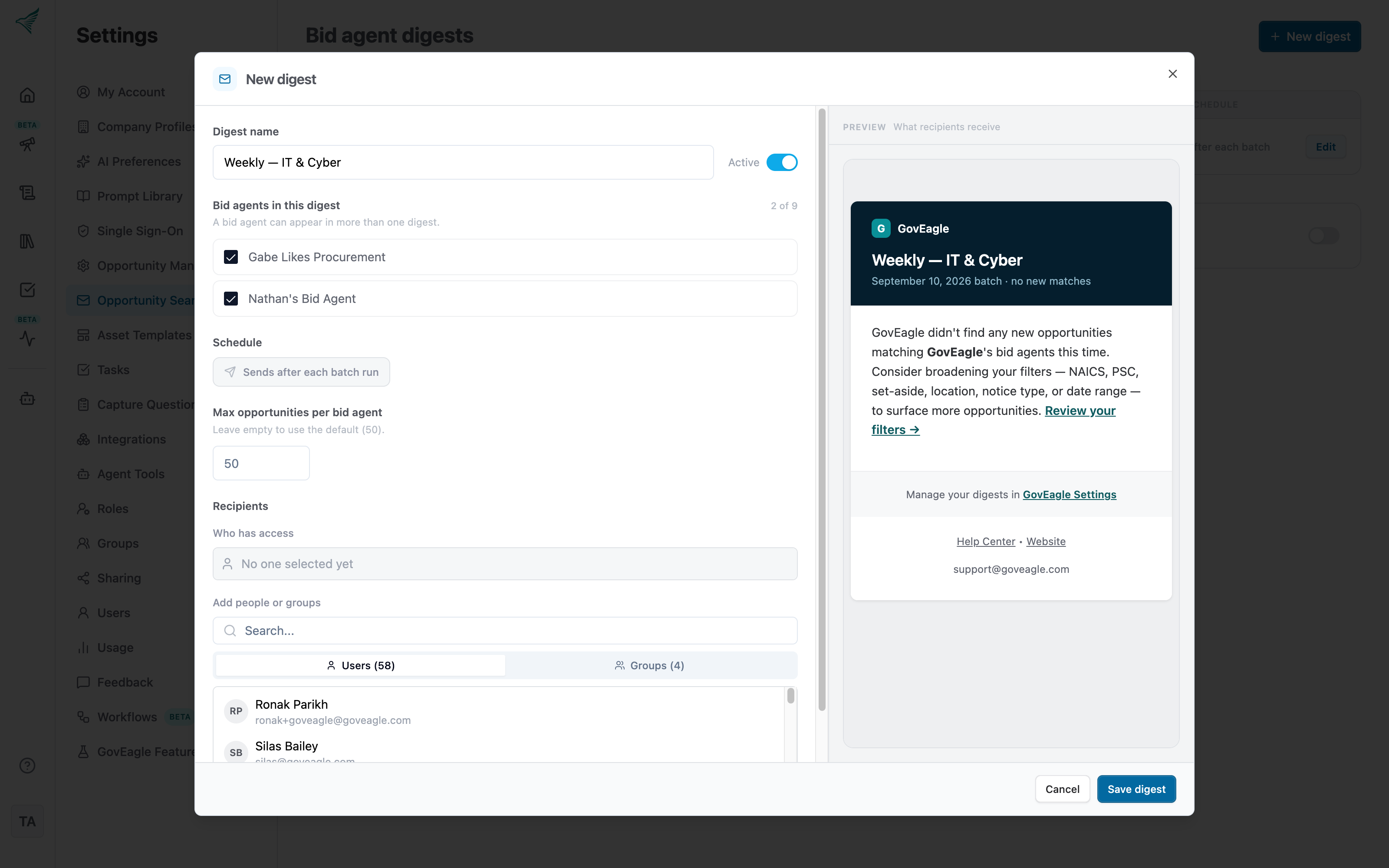
Digests email each bid agent's recommended opportunities to your team after every batch run.
Go to Settings → Opportunity Search and click New digest.
Enter a Digest name.
Pick the Bid agents in this digest. An agent can appear in more than one digest.
Optionally set Max opportunities per bid agent. The default is 50.
Choose Recipients from the users and groups in your organization.
Check the Preview on the right, then click Save digest.
Digests send automatically after each batch run. Use Send now to send the last saved version immediately, and the Active / Paused switch to pause a digest without deleting it.
Each email has a section per bid agent. Every opportunity shows the agency, set-aside, due date, the agent's reasoning, a View link that opens it in GovEagle, and a View on SAM.gov link for SAM.gov notices.
To avoid sending emails on days with nothing new, turn on Skip empty digest emails below the digest list. This setting applies to all digests in your organization.
Who can see and edit bid agents
Bid agents and digests are shared across your organization. Anyone with access to Opportunity Search can view every agent and its results. Users with edit access to Opportunity Search can create, edit, re-run, archive, and delete any agent and manage digests. Starring an agent is personal to you.
FAQs
What happened to saved searches?
Saved searches are now called bid agents. Your existing saved searches carried over with the same filters; the new name reflects that they actively analyze each batch and make pursue recommendations, rather than just filtering.
How often do bid agents run?
Every agent analyzes each new daily batch automatically. You can also re-run an agent at any time from its ⋮ menu.
Why does an opportunity show no PWIN?
PWIN is only estimated for opportunities the agent recommends pursuing.
Can I send digests to people outside my organization?
Not at this time. Recipients must be users or groups in your GovEagle organization.
Why do I see an opportunity in All matches only once when two agents recommended it?
All matches removes duplicates and shows each opportunity once, with an Also in chip listing the other agents that agreed.
What is search memory?
Search memory is a set of notes the agent builds as it learns what makes opportunities a good or bad fit for your organization. It is updated automatically when you disagree with a decision, and you can also edit it directly under Settings → Opportunity Search.
Troubleshooting
Opportunity Search does not appear in the left sidebar
Every user can see Opportunity Search by default. A custom role, however, grants only the permissions that were selected when the role was created. If your organization has created custom roles, users assigned to a role that does not include Opportunity Search will not see it in the left sidebar, even though the feature is enabled for your organization.
To restore access:
Go to Settings → Roles.
Open the custom role that is assigned to the affected users.
Confirm that Opportunity Search is among the selected permissions, then click Save.
Ask the affected users to sign out of GovEagle and sign back in. A browser refresh alone may not pick up a newly granted permission.
Users on the default User, Content Manager, and Admin roles are not affected. For how custom roles and permissions work, see Managing Users & Access Control.
Opportunities from one source are missing
If SAM.gov results appear but PIEE, GovWin, or GSA eBuy results do not, the problem is usually with that integration rather than with your bid agents. See the troubleshooting sections of Connecting GovWin and Connecting GSA eBuy. PIEE does not require a separate integration — its solicitations are included automatically.