GovEagle captures messages from Microsoft Teams channels into an opportunity's activity feed as notes. It reads Teams with the same app registration as your existing SharePoint connection, so there is no separate integration to add and no second set of credentials to manage.
This guide covers how to enable Teams message capture from an IT perspective. Here are a few things to know before you start:
Teams message capture requires an existing SharePoint connection. It is not a standalone integration.
It captures channel messages, including reactions and thread replies. It does not sync files, meetings, or transcripts.
Your app registration needs three additional Microsoft Graph permissions and a new admin consent.
Nothing is ever posted back to Teams.
Looking for Teams chat with GovEagle support?
This guide is about capturing messages from your own Teams channels. To let your team chat with GovEagle in Teams, see Chatting with GovEagle Support in Microsoft Teams instead.
Enabling Teams Message Capture
Prerequisites
Before you begin, ensure you have:
A SharePoint connection already set up in GovEagle for the same Microsoft tenant. See Connecting SharePoint to GovEagle.
Global Administrator access in Microsoft Entra ID to grant admin consent.
A GovEagle Admin account.
Part 1: Add Graph Permissions in Entra
Go to Microsoft Entra ID → App registrations and open the app registration your SharePoint connection uses.
Click API permissions → Add a permission → Microsoft Graph → Application permissions.
Add
ChannelMessage.Read.All,Channel.ReadBasic.All, andTeam.ReadBasic.All.Optionally add
User.ReadBasic.All. GovEagle uses it to name people who react to a message without posting in the channel.Click Grant admin consent.
Already have broader permissions?
Group.Read.All,Directory.Read.All, and their ReadWrite equivalents each satisfy the Channel and Team requirements, so you may already have them from your SharePoint setup.ChannelMessage.Read.Allhas no substitute and must be added.
Note:
Entra usually needs a few minutes, sometimes up to 15, before a new grant appears on fresh tokens. The setup dialog re-checks every 30 seconds while it is open.
Part 2: Turn It On in GovEagle
Log in to GovEagle at app.goveagle.com.
Click the Profile icon at the bottom left → Settings → Integrations.
On the Microsoft SharePoint tenant card, find the Teams message capture row.
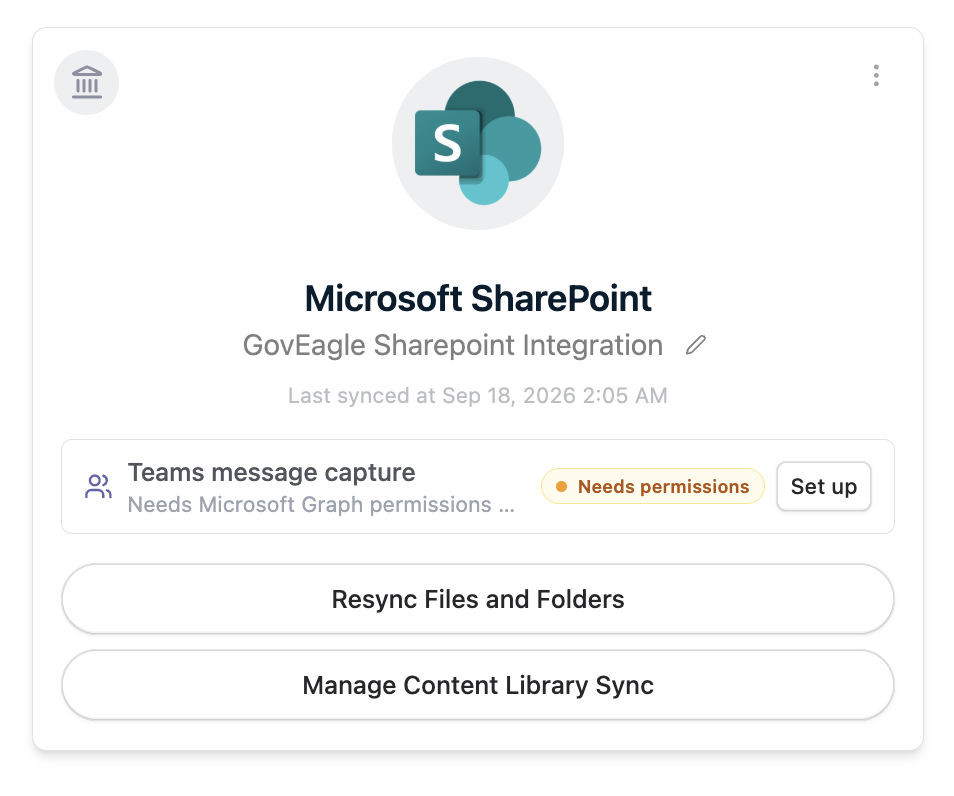
Click Set up. If capture is already on, the button reads Details.
Review the permission checklist, then click Re-check until every permission is found.
Click Turn on.
The row reads Enabled once capture is on, along with a count of linked channels. Needs permissions means the app registration is still missing a Graph permission.
If your tenant was connected earlier through GovEagle's admin-consent app rather than your own app registration, the dialog shows a Grant admin consent link in place of the Entra steps. That connection type is no longer offered for new tenants. A Global Administrator can click the link to re-consent, or you can move to your own app registration by following Connecting SharePoint to GovEagle.
Linking a Teams Channel to an Opportunity
Each opportunity captures from one Teams channel, and each channel feeds one opportunity. Any user with write access to the opportunity can link a channel.
In Teams, click the channel name → ⋯ → Get link to channel.
In GovEagle, open the opportunity and go to the Activity tab.
Click Link Teams channel.
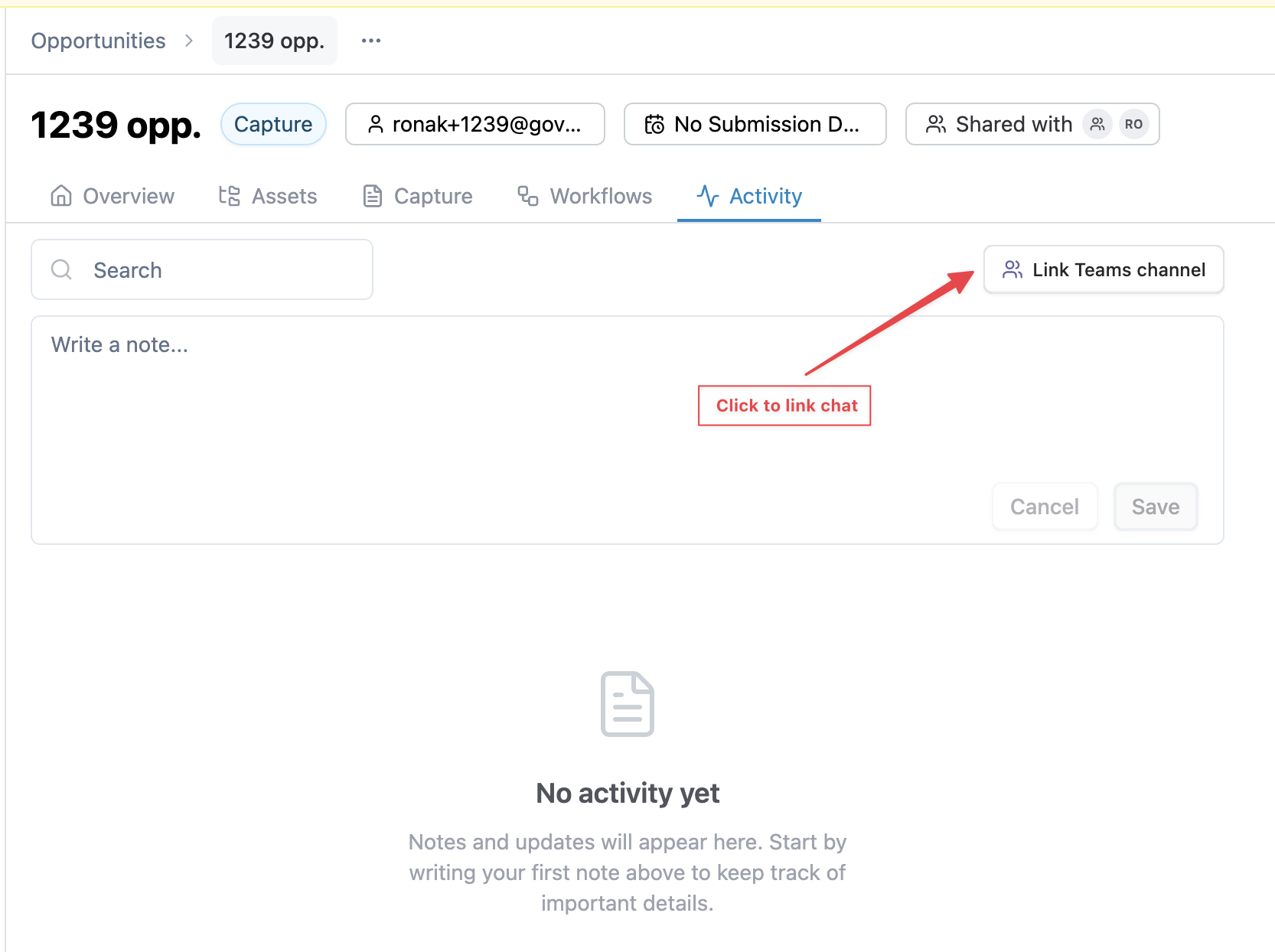
Paste the link into Channel link.
Leave Capture every message off to capture only messages that mention @GovEagle. Turn it on to capture everything in the channel.
Click Start capturing.
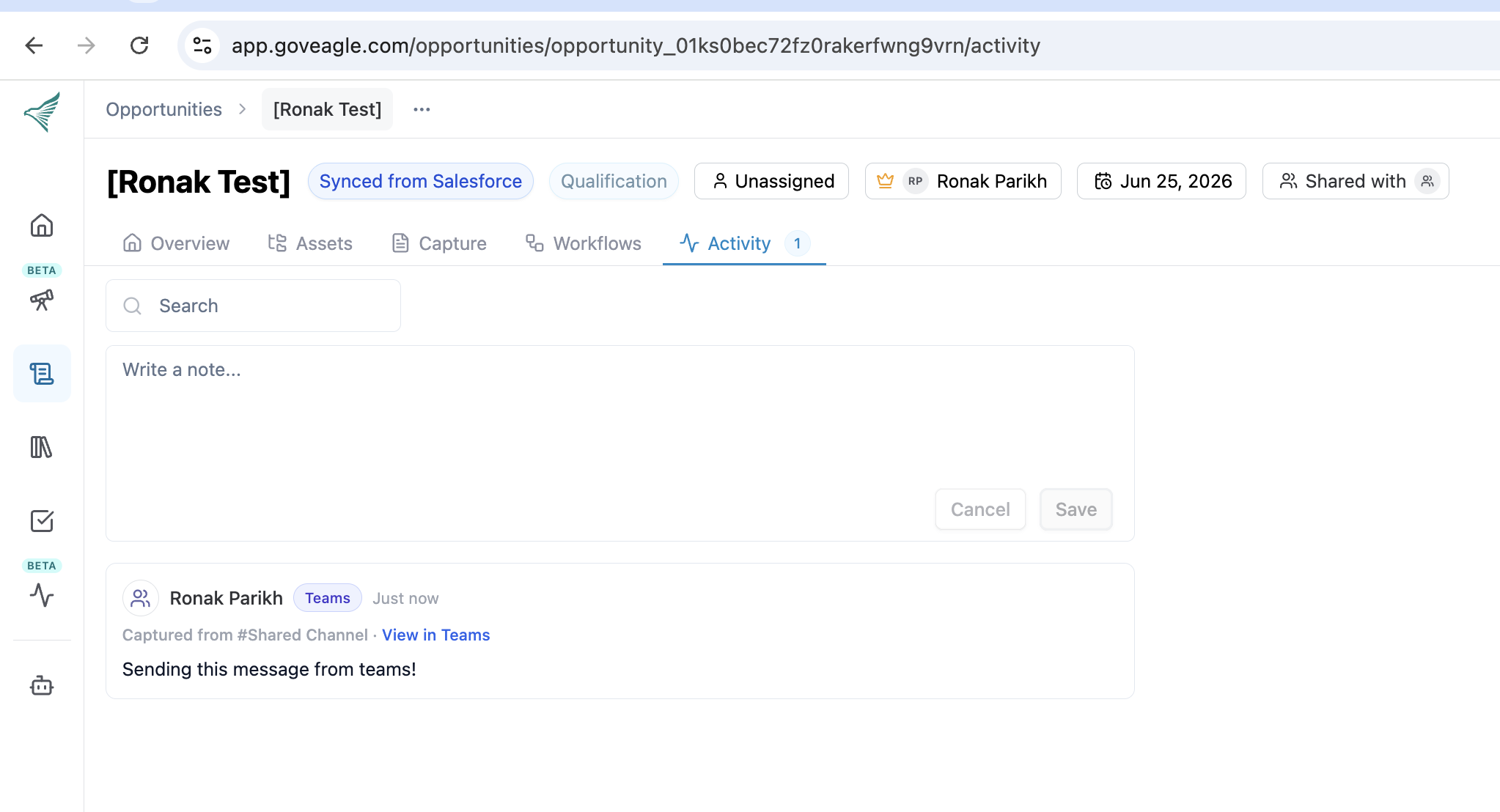
Captured messages appear in the activity feed as notes labeled Captured from #channel-name, each with a View in Teams link. The channel chip menu offers Sync now and Unlink channel.
Note:
Capture starts when you link the channel. Messages posted before then are not backfilled.
What Gets Captured
GovEagle captures:
Channel messages, with the sender's name and timestamp
Reactions, and who left them
Thread context, so replies group under their parent message
A link back to the original message in Teams
GovEagle does not capture:
Files, attachments, images, meetings, or transcripts
Messages with no text
System messages such as joins and channel renames
Deleting a message in Teams removes its note from GovEagle. Teams is the source of truth.
Managing the Integration
Turning capture off for a tenant unlinks every channel and removes GovEagle's Teams subscriptions. Notes already captured stay in their activity feeds. Nothing changes on the app registration in Entra.
Removing the SharePoint connection stops Teams capture for that tenant, because capture uses its credentials.
Click Sync now on the opportunity's channel chip if a message seems missing. GovEagle also sweeps each linked channel hourly.
Troubleshooting
I don't see the Teams message capture row
The row sits on the Microsoft SharePoint tenant card under Settings → Integrations. If there is no SharePoint card, connect SharePoint first.
You need permission to manage integrations. Ask a GovEagle Admin.
The row still says Needs permissions after I granted consent
Wait up to 15 minutes, then click Re-check. Entra takes time to include a new grant in fresh tokens.
Open Roles on the token in the dialog to see what GovEagle actually received.
Confirm you added the permissions as Application permissions, not Delegated.
Linking a channel fails
The link must come from Get link to channel in Teams. A link copied from the browser address bar is missing the
groupIdparameter GovEagle needs.If the channel is already linked to another opportunity, unlink it there first.
If your organization has more than one SharePoint tenant, use a channel link that includes a
tenantId.
Need help?
Contact your Customer Success representative or email support@goveagle.com.