Overview
Some opportunities never appear on SAM.gov. Task orders under an IDIQ or other contract vehicle often arrive only by email to the vehicle's holders. If your company holds one of these vehicles, you can forward its notices to GovEagle. Discover then adds each opportunity to your matches, scores it against your company the same way it scores everything else, and keeps the attachments with it.
Which sources you can forward
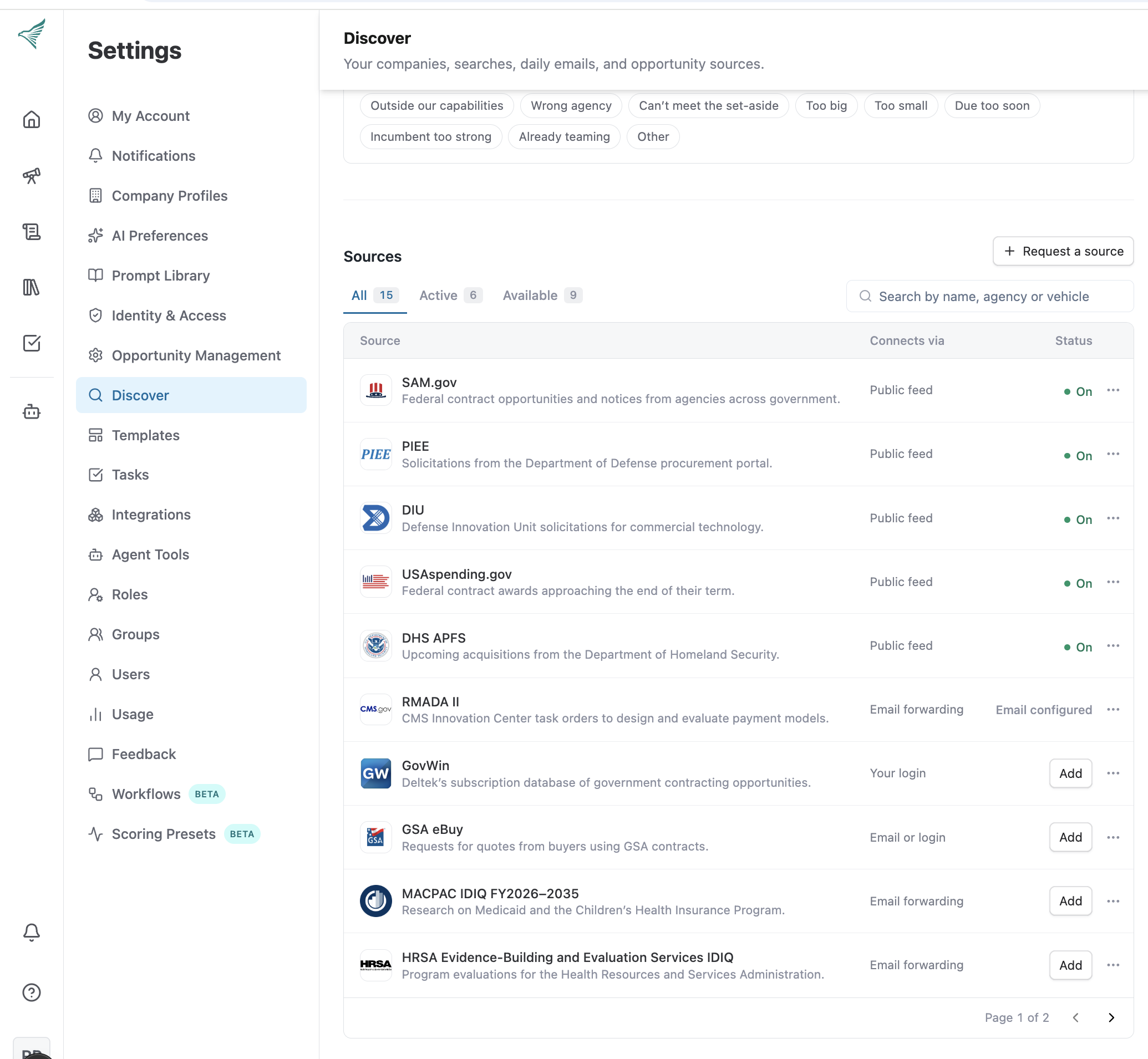
In Settings → Discover → Sources, these sources can be set up by email:
- SAM.gov
- PIEE
- DIU
- USAspending.gov
- DHS APFS
- RMADA II
- GovWin
- GSA eBuy
- MACPAC IDIQ FY2026–2035
- HRSA Evidence-Building and Evaluation Services IDIQ
- Email forwarding Add
- PRESTO
- NSF EAC EASP
- T3150 Evaluation, Research, Continuous Quality Improvement, and Model Support
- MIDS 3
- Other email publisher
- Forward notices from another publisher your organization works with.
Note: Email setup only forwards the notices you receive. It does not connect to a portal account or give GovEagle access to private document links. Make sure the documents you need are attached to the email.
Before you start
- You need to be an admin. Other users see "Ask an admin to set it up." next to the source.
- Know which address the notices will come from: the agency's sending address or domain, plus the mailbox or person who will forward them to GovEagle.
Set up a forwarding address
- Go to Settings → Discover.
- Under Sources, find the vehicle and click Set up. If you don't see your vehicle, use Other email publisher.
- For Other email publisher only, enter the Publisher name, such as the agency or vehicle name.
- Optionally change the Address label, so you can tell your addresses apart later.
- In Allowed senders, enter the email addresses or domains, separated by commas, that are allowed to send to this address. Include:
- the agency's sending address or domain (for example,
cms.hhs.gov) - the person or shared mailbox that forwards the notices (for example,
bd@yourcompany.com)
- the agency's sending address or domain (for example,
- Click Generate email address.
- Copy the address right away. It's shown only once. If you lose it, revoke it and generate a new one.
[Screenshot: Settings → Discover → Sources with the setup window open]
Start forwarding notices
Forward notices to the new address, or set up an automatic forwarding rule in your email so every notice from the vehicle goes there.
When a notice arrives, GovEagle:
- reads the email and its attachments
- adds the opportunity to Discover, labeled with its source
- scores it for fit like any other match
If a notice is incomplete or conflicts with one GovEagle already has, it's held for review instead of being added automatically.
Why a notice didn't arrive: GovEagle only accepts mail from your allowed senders, and it checks the address that sent the email to GovEagle. If someone forwards a notice from a mailbox that isn't on the list, it's rejected, even if the original agency sender quoted in the message is allowed. Add the forwarding mailbox to Allowed senders.
Manage your addresses
Once a source is set up, its status changes to Email configured. Click Manage next to it to see its addresses, including when each was created and last used. From there you can:
- Edit senders to add or remove allowed senders
- Revoke an address to stop accepting mail at it. Revoking can't be undone. To start forwarding again, generate a new address.
Related articles
- Connecting GSA eBuy
- Discover opportunities