You can upload video and audio recordings to GovEagle, such as oral presentation rehearsals, customer calls and screen-recorded walkthroughs. GovEagle processes each recording so you can search it, read an automatic transcript and ask GovEagle agents about it in chat. Answers cite the exact moment in the recording, and clicking a citation plays the recording from that point.
This guide covers which files you can upload, how to upload them and how to use them once they're ready. A few things to know first:
Audio and video uploads are turned on per organization. If your upload window doesn't list MP4, M4A, MP3 and WAV, contact your GovEagle Customer Success team.
GovEagle keeps your original file. You can play it back and download it at any time.
For video, GovEagle looks at what's on screen as well as what's said, so silent screen recordings work too.
Before You Begin
Before you begin, ensure you have:
The Edit Content Library permission to upload to the Content Library. Admins and Content Managers have it by default. Members can still attach recordings in chat.
Audio and video uploads enabled for your organization.
A recording that meets the limits in Supported Files below.
Supported Files
Type | Formats | Max file size | Max length |
|---|---|---|---|
Video | MP4 | 1 GB | 30 minutes |
Audio | M4A, MP3, WAV | 1 GB | 30 minutes |
Other video and audio formats, such as MOV, WEBM, AVI, MKV, OGG, AAC and FLAC, aren't supported. Convert them to MP4 or MP3 before uploading.
The 1 GB limit applies to recordings only. Documents keep their existing size limit.
You can upload up to 100 files at a time. To upload more, add them to a ZIP file.
MP4 is a container format. An MP4 that uses an unusual video encoding may fail to process. Re-export it as a standard MP4 and try again.
Uploading a Recording
Upload to the Content Library
Click Content Library in the sidebar.
Open the folder where the recording should live.
Click Upload.
In Upload new content, drag in your files or click to browse.
Click Upload Content.
The upload window lists every format your organization can upload under Supported file types. Large recordings upload in parts, so keep the tab open until the upload finishes.
Other places you can upload
Recordings work anywhere you can attach files in GovEagle, including:
Chat, using the attach button or by dragging a file into the message box.
Opportunity assets and reference documents.
Task attachments.
The GovEagle add-in for Word.
ZIP files. Supported recordings inside a ZIP are processed like any other upload.
Note:
Recordings stored in synced SharePoint folders aren't processed yet. Upload recordings directly to GovEagle instead.
What Happens After You Upload
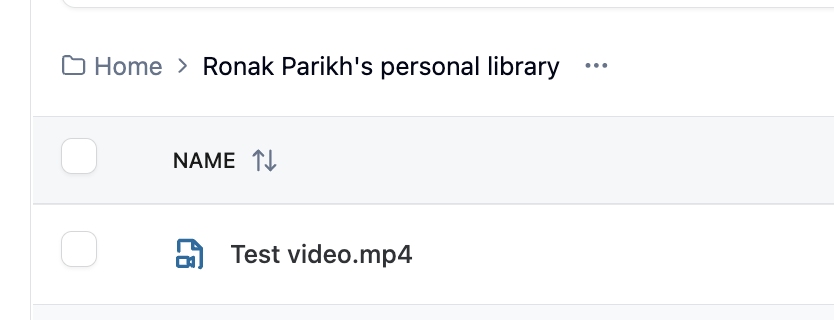
While GovEagle processes a recording, it shows a spinner in place of the file icon. Hover over it to see "This document is being processed so you can use smart search and AI chat." Longer recordings take longer to process.
When processing finishes, the recording has:
A transcript of the speech and relevant sounds, with timestamps, in the language spoken.
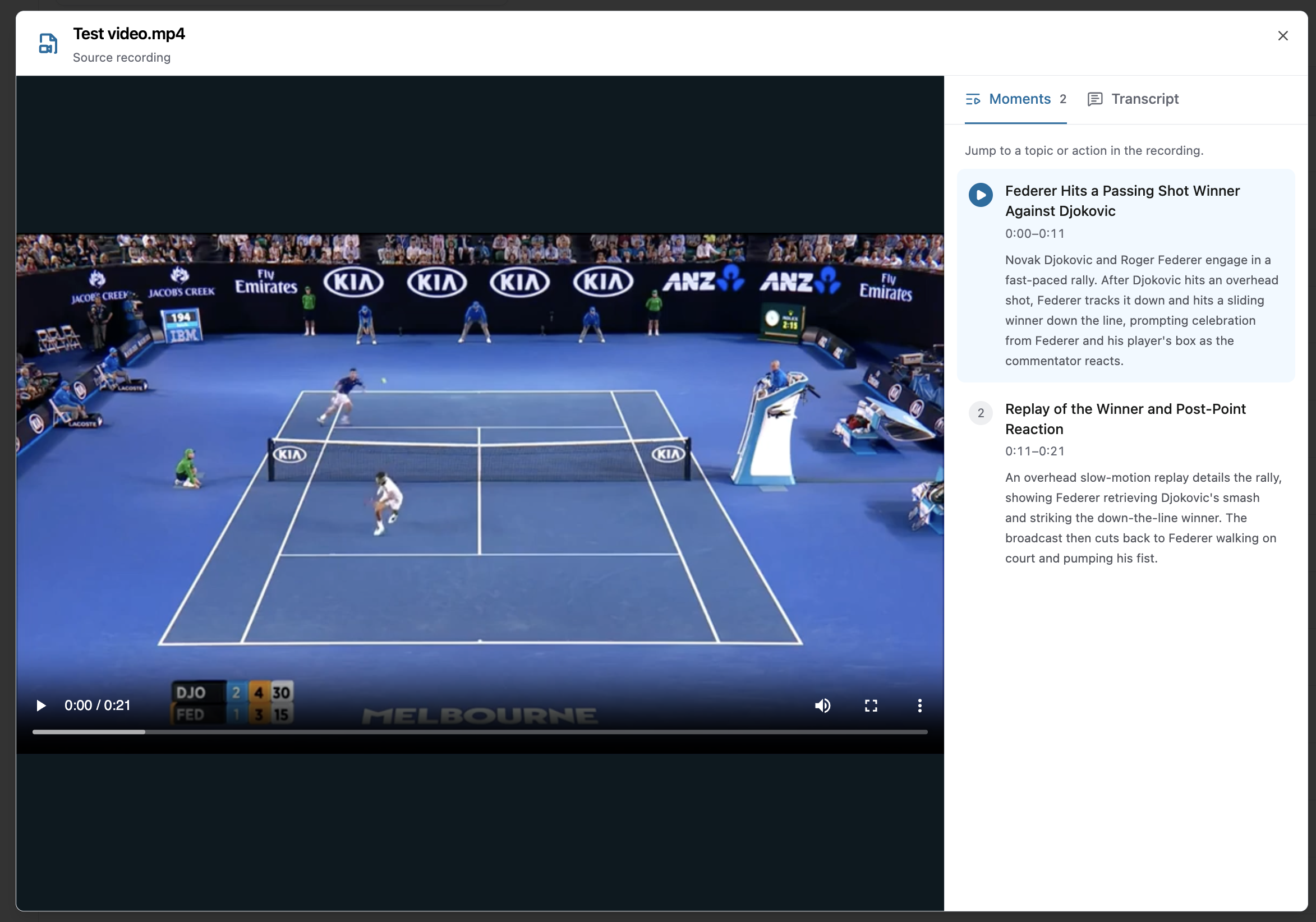
Moments, which split the recording into topics, each with a title, a short summary and start and end times.
Search coverage, so agents can find the part of the recording that answers a question.
Viewing a Recording
Click the recording in the Content Library to open the player.
Click Moments to jump to a topic.
Click Transcript to read along and jump to any line.
For video, you can also turn on Auto-generated captions from the player's captions menu. Use the player's own controls to download the original file.
 In Word, click Open in GovEagle Webapp to watch in a larger player. It opens at the same point in the recording.
Asking Questions About a Recording
Ask about a recording in chat the same way you ask about a document. For example:
"Summarize our oral presentation rehearsal and list where we ran over time."
"What did the customer say about their transition timeline?"
"Write step-by-step instructions from this screen recording."
Each citation shows a time range, such as 4:10–5:02. Click it to play the recording from the start of that range.
For a full summary or review, ask about the whole recording. The agent then reviews it end to end instead of only the most relevant parts.
Note:
Transcripts and descriptions of what's on screen are generated automatically and can contain errors. Check the cited moment before relying on it for an important decision.
Troubleshooting
I can't select my recording in the upload window
If you see "Audio and video uploads are not enabled for this organization.", contact your Customer Success team to turn them on. Once they're on, reload GovEagle.
It says "Only MP4 video and M4A, MP3, or WAV audio recordings are supported."
The file is in a format GovEagle doesn't accept. Convert video to MP4 or audio to MP3, then upload it again.
It says my file "exceeds the recording limit of 1024 MB."
The file is larger than 1 GB. Export it at a lower quality, or split it into shorter recordings.
It says "The video exceeds the 30-minute duration limit."
Recordings can be up to 30 minutes long. Split longer recordings into parts of 30 minutes or less. Audio files show "The audio recording exceeds the duration limit." for the same reason.
It says "Google could not decode this MP4 video."
The MP4 uses an encoding GovEagle can't read. Re-export it as a standard MP4 from your video editor or recording tool. For audio, the message is "This audio file could not be decoded. Upload a valid M4A, MP3, or WAV recording."
It says "Google could not finish processing this recording."
Processing failed after several attempts. Delete the recording and upload it again. If it fails a second time, contact support.
FAQ
Does GovEagle analyze what's shown on screen?
Yes. For video, GovEagle describes what's on screen as well as transcribing speech, so you can ask about slides or steps shown in a screen recording.
Does the transcript show who is speaking?
No. Transcripts include timestamps but don't label speakers.
Are transcripts translated?
No. Transcripts are in the language spoken in the recording.
Can other people in my organization see my recordings?
Yes, if they have access to the folder you uploaded to. Recordings follow the same folder permissions as documents. Chat uploads go to your personal library by default. See Content Library Overview.
Need help?
For questions or issues with audio and video uploads, contact your GovEagle Customer Success team or email support@goveagle.com.
Document360 source HTML · paste into the HTML editor
<p data-block-id="eng4396-001">You can upload video and audio recordings to GovEagle, such as oral presentation rehearsals, customer calls and screen-recorded walkthroughs. GovEagle processes each recording so you can search it, read an automatic transcript and ask GovEagle agents about it in chat. Answers cite the exact moment in the recording, and clicking a citation plays the recording from that point.</p>
<p data-block-id="eng4396-002">This guide covers which files you can upload, how to upload them and how to use them once they're ready. A few things to know first:</p>
<ul data-block-id="eng4396-003"><li data-block-id="eng4396-004"><p data-block-id="eng4396-005">Audio and video uploads are turned on per organization. If your upload window doesn't list MP4, M4A, MP3 and WAV, contact your GovEagle Customer Success team.</p></li><li data-block-id="eng4396-006"><p data-block-id="eng4396-007">GovEagle keeps your original file. You can play it back and download it at any time.</p></li><li data-block-id="eng4396-008"><p data-block-id="eng4396-009">For video, GovEagle looks at what's on screen as well as what's said, so silent screen recordings work too.</p></li></ul>
<hr class="hr-divider1">
<h2 data-block-id="eng4396-010" id="before-you-begin">Before You Begin</h2>
<p data-block-id="eng4396-011">Before you begin, ensure you have:</p>
<ul data-block-id="eng4396-012"><li data-block-id="eng4396-013"><p data-block-id="eng4396-014">The <strong>Edit Content Library</strong> permission to upload to the Content Library. Admins and Content Managers have it by default. Members can still attach recordings in chat.</p></li><li data-block-id="eng4396-015"><p data-block-id="eng4396-016">Audio and video uploads enabled for your organization.</p></li><li data-block-id="eng4396-017"><p data-block-id="eng4396-018">A recording that meets the limits in <a href="#supported-files" target="_self" translate="no">Supported Files</a> below.</p></li></ul>
<hr class="hr-divider1">
<h2 data-block-id="eng4396-019" id="supported-files">Supported Files</h2>
<table><tbody><tr><th><p>Type</p></th><th><p>Formats</p></th><th><p>Max file size</p></th><th><p>Max length</p></th></tr><tr><td><p><strong>Video</strong></p></td><td><p>MP4</p></td><td><p>1 GB</p></td><td><p>30 minutes</p></td></tr><tr><td><p><strong>Audio</strong></p></td><td><p>M4A, MP3, WAV</p></td><td><p>1 GB</p></td><td><p>30 minutes</p></td></tr></tbody></table>
<ul data-block-id="eng4396-020"><li data-block-id="eng4396-021"><p data-block-id="eng4396-022">Other video and audio formats, such as MOV, WEBM, AVI, MKV, OGG, AAC and FLAC, aren't supported. Convert them to MP4 or MP3 before uploading.</p></li><li data-block-id="eng4396-023"><p data-block-id="eng4396-024">The 1 GB limit applies to recordings only. Documents keep their existing size limit.</p></li><li data-block-id="eng4396-025"><p data-block-id="eng4396-026">You can upload up to 100 files at a time. To upload more, add them to a ZIP file.</p></li><li data-block-id="eng4396-027"><p data-block-id="eng4396-028">MP4 is a container format. An MP4 that uses an unusual video encoding may fail to process. Re-export it as a standard MP4 and try again.</p></li></ul>
<hr class="hr-divider1">
<h2 data-block-id="eng4396-029" id="uploading-a-recording">Uploading a Recording</h2>
<h3 data-block-id="eng4396-030" id="upload-to-the-content-library">Upload to the Content Library</h3>
<ol data-block-id="eng4396-031"><li data-block-id="eng4396-032"><p data-block-id="eng4396-033">Click <strong>Content Library</strong> in the sidebar.</p></li><li data-block-id="eng4396-034"><p data-block-id="eng4396-035">Open the folder where the recording should live.</p></li><li data-block-id="eng4396-036"><p data-block-id="eng4396-037">Click <strong>Upload</strong>.</p></li><li data-block-id="eng4396-038"><p data-block-id="eng4396-039">In <strong>Upload new content</strong>, drag in your files or click to browse.</p></li><li data-block-id="eng4396-040"><p data-block-id="eng4396-041">Click <strong>Upload Content</strong>.</p></li></ol>
<p data-block-id="eng4396-042">The upload window lists every format your organization can upload under <strong>Supported file types</strong>. Large recordings upload in parts, so keep the tab open until the upload finishes.</p>
<p data-block-id="eng4396-043"><em>[Screenshot: Upload new content window with an MP4 and an MP3 added, showing the supported file types line]</em></p>
<h3 data-block-id="eng4396-044" id="other-places-you-can-upload">Other places you can upload</h3>
<p data-block-id="eng4396-045">Recordings work anywhere you can attach files in GovEagle, including:</p>
<ul data-block-id="eng4396-046"><li data-block-id="eng4396-047"><p data-block-id="eng4396-048">Chat, using the attach button or by dragging a file into the message box.</p></li><li data-block-id="eng4396-049"><p data-block-id="eng4396-050">Opportunity assets and reference documents.</p></li><li data-block-id="eng4396-051"><p data-block-id="eng4396-052">Task attachments.</p></li><li data-block-id="eng4396-053"><p data-block-id="eng4396-054">The GovEagle add-in for Word.</p></li><li data-block-id="eng4396-055"><p data-block-id="eng4396-056">ZIP files. Supported recordings inside a ZIP are processed like any other upload.</p></li></ul>
<blockquote data-block-id="eng4396-057" class="warningBox" data-background="#fdf2ce" data-border="#7f6416" style="background:rgb(253, 242, 206);border-left:4px solid rgb(127, 100, 22);overflow:auto;"><div class="blockquote-title"><p data-block-id="eng4396-058">Note:</p></div><p data-block-id="eng4396-059">Recordings stored in synced SharePoint folders aren't processed yet. Upload recordings directly to GovEagle instead.</p></blockquote>
<hr class="hr-divider1">
<h2 data-block-id="eng4396-060" id="what-happens-after-you-upload">What Happens After You Upload</h2>
<p data-block-id="eng4396-061">While GovEagle processes a recording, it shows a spinner in place of the file icon. Hover over it to see "This document is being processed so you can use smart search and AI chat." Longer recordings take longer to process.</p>
<p data-block-id="eng4396-062">When processing finishes, the recording has:</p>
<ul data-block-id="eng4396-063"><li data-block-id="eng4396-064"><p data-block-id="eng4396-065"><strong>A transcript</strong> of the speech and relevant sounds, with timestamps, in the language spoken.</p></li><li data-block-id="eng4396-066"><p data-block-id="eng4396-067"><strong>Moments</strong>, which split the recording into topics, each with a title, a short summary and start and end times.</p></li><li data-block-id="eng4396-068"><p data-block-id="eng4396-069"><strong>Search coverage</strong>, so agents can find the part of the recording that answers a question.</p></li></ul>
<p data-block-id="eng4396-070"><em>[Screenshot: Content Library folder showing a recording still processing next to a finished one]</em></p>
<hr class="hr-divider1">
<h2 data-block-id="eng4396-071" id="viewing-a-recording">Viewing a Recording</h2>
<ol data-block-id="eng4396-072"><li data-block-id="eng4396-073"><p data-block-id="eng4396-074">Click the recording in the Content Library to open the player.</p></li><li data-block-id="eng4396-075"><p data-block-id="eng4396-076">Click <strong>Moments</strong> to jump to a topic.</p></li><li data-block-id="eng4396-077"><p data-block-id="eng4396-078">Click <strong>Transcript</strong> to read along and jump to any line.</p></li></ol>
<p data-block-id="eng4396-079">For video, you can also turn on <strong>Auto-generated captions</strong> from the player's captions menu. Use the player's own controls to download the original file.</p>
<p data-block-id="eng4396-080"><em>[Screenshot: Recording player with the Moments list open beside the video]</em></p>
<p data-block-id="eng4396-081">In Word, click <strong>Open in GovEagle Webapp</strong> to watch in a larger player. It opens at the same point in the recording.</p>
<hr class="hr-divider1">
<h2 data-block-id="eng4396-082" id="asking-questions-about-a-recording">Asking Questions About a Recording</h2>
<p data-block-id="eng4396-083">Ask about a recording in chat the same way you ask about a document. For example:</p>
<ul data-block-id="eng4396-084"><li data-block-id="eng4396-085"><p data-block-id="eng4396-086">"Summarize our oral presentation rehearsal and list where we ran over time."</p></li><li data-block-id="eng4396-087"><p data-block-id="eng4396-088">"What did the customer say about their transition timeline?"</p></li><li data-block-id="eng4396-089"><p data-block-id="eng4396-090">"Write step-by-step instructions from this screen recording."</p></li></ul>
<p data-block-id="eng4396-091">Each citation shows a time range, such as <strong>4:10–5:02</strong>. Click it to play the recording from the start of that range.</p>
<p data-block-id="eng4396-092"><em>[Screenshot: Chat answer with a timestamped citation to a recording]</em></p>
<p data-block-id="eng4396-093">For a full summary or review, ask about the whole recording. The agent then reviews it end to end instead of only the most relevant parts.</p>
<blockquote data-block-id="eng4396-094" class="warningBox" data-background="#fdf2ce" data-border="#7f6416" style="background:rgb(253, 242, 206);border-left:4px solid rgb(127, 100, 22);overflow:auto;"><div class="blockquote-title"><p data-block-id="eng4396-095">Note:</p></div><p data-block-id="eng4396-096">Transcripts and descriptions of what's on screen are generated automatically and can contain errors. Check the cited moment before relying on it for an important decision.</p></blockquote>
<hr class="hr-divider1">
<h2 data-block-id="eng4396-097" id="troubleshooting">Troubleshooting</h2>
<h3 data-block-id="eng4396-098" id="i-cant-select-my-recording-in-the-upload-window">I can't select my recording in the upload window</h3>
<p data-block-id="eng4396-099">If you see "Audio and video uploads are not enabled for this organization.", contact your Customer Success team to turn them on. Once they're on, reload GovEagle.</p>
<h3 data-block-id="eng4396-100" id="it-says-only-mp4-video-and-m4a-mp3-or-wav-audio-recordings-are-supported">It says "Only MP4 video and M4A, MP3, or WAV audio recordings are supported."</h3>
<p data-block-id="eng4396-101">The file is in a format GovEagle doesn't accept. Convert video to MP4 or audio to MP3, then upload it again.</p>
<h3 data-block-id="eng4396-102" id="it-says-my-file-exceeds-the-recording-limit">It says my file "exceeds the recording limit of 1024 MB."</h3>
<p data-block-id="eng4396-103">The file is larger than 1 GB. Export it at a lower quality, or split it into shorter recordings.</p>
<h3 data-block-id="eng4396-104" id="it-says-the-video-exceeds-the-30-minute-duration-limit">It says "The video exceeds the 30-minute duration limit."</h3>
<p data-block-id="eng4396-105">Recordings can be up to 30 minutes long. Split longer recordings into parts of 30 minutes or less. Audio files show "The audio recording exceeds the duration limit." for the same reason.</p>
<h3 data-block-id="eng4396-106" id="it-says-google-could-not-decode-this-mp4-video">It says "Google could not decode this MP4 video."</h3>
<p data-block-id="eng4396-107">The MP4 uses an encoding GovEagle can't read. Re-export it as a standard MP4 from your video editor or recording tool. For audio, the message is "This audio file could not be decoded. Upload a valid M4A, MP3, or WAV recording."</p>
<h3 data-block-id="eng4396-108" id="it-says-google-could-not-finish-processing-this-recording">It says "Google could not finish processing this recording."</h3>
<p data-block-id="eng4396-109">Processing failed after several attempts. Delete the recording and upload it again. If it fails a second time, contact support.</p>
<hr class="hr-divider1">
<h2 data-block-id="eng4396-110" id="faq">FAQ</h2>
<p data-block-id="eng4396-111"><strong>Does GovEagle analyze what's shown on screen?</strong></p>
<p data-block-id="eng4396-112">Yes. For video, GovEagle describes what's on screen as well as transcribing speech, so you can ask about slides or steps shown in a screen recording.</p>
<p data-block-id="eng4396-113"><strong>Does the transcript show who is speaking?</strong></p>
<p data-block-id="eng4396-114">No. Transcripts include timestamps but don't label speakers.</p>
<p data-block-id="eng4396-115"><strong>Are transcripts translated?</strong></p>
<p data-block-id="eng4396-116">No. Transcripts are in the language spoken in the recording.</p>
<p data-block-id="eng4396-117"><strong>Can other people in my organization see my recordings?</strong></p>
<p data-block-id="eng4396-118">Yes, if they have access to the folder you uploaded to. Recordings follow the same folder permissions as documents. Chat uploads go to your personal library by default. See <a href="/v1/docs/content-library-overview" target="_self" translate="no">Content Library Overview</a>.</p>
<blockquote data-block-id="eng4396-119" class="infoBox" data-background="#ddf7ff" data-border="#006a8a" style="background:rgb(221, 247, 255);border-left:4px solid rgb(0, 106, 138);overflow:auto;"><div class="blockquote-title"><p data-block-id="eng4396-120">Need help?</p></div><p data-block-id="eng4396-121">For questions or issues with audio and video uploads, contact your GovEagle Customer Success team or email <a href="mailto:support@goveagle.com">support@goveagle.com</a>.</p></blockquote><p data-block-id="eng4396-122"></p>
<style> p[data-block-id] {font-size:1rem;} ul li p[data-block-id] {margin-bottom: 0;} ul[data-type="taskList"] li div p[data-block-id] {margin-bottom: 0;} ol li p[data-block-id] {margin-bottom: 0;} table tbody th p[data-block-id] { margin-bottom: 0;} blockquote p[data-block-id] {margin-bottom: 0 !important;}  p[data-block-id]:empty::after {content: "\00A0";} </style>