You can ask the GovEagle assistant to build a finished Word document, PowerPoint deck, or Excel workbook directly from a chat in the web app. Point it at one of your templates, describe what you need, and it returns a downloadable file that already uses your fonts, colors, headings, and slide layouts. You can then ask for changes in the same conversation and download the updated file.
.png)
Note: This works in the GovEagle web app only. The Word, PowerPoint, and Excel add-ins edit the file you already have open; they do not create new standalone files. If you want to add content to a document that is open on your screen, use the add-in instead. See Working with the Word Add-In, Working with the PowerPoint Add-In, and Working with the Excel Add-In.
What you can create
File type | Template | What GovEagle produces |
|---|---|---|
Word (.docx) | Recommended | A new document using your template's styles, headers, footers, and page layout, with fresh content written by the assistant. Without a template you get a plain, unstyled document. |
PowerPoint (.pptx) | Required | A new deck built from the slide layouts in your template, so it matches your brand exactly. GovEagle cannot create a deck without a template. |
Excel (.xlsx) | Recommended | A new workbook. With a template, it keeps your cell styles, colors, and column widths. Without one, you get a blank, unformatted workbook. |
GovEagle never changes the template itself. It makes a copy, builds the new file from that copy, and leaves your original untouched.
Before you start: have a template ready
The assistant needs a template file to take styles from. You can provide one in two ways:
Mention a file from your content library. Upload the template to your content library (or attach it to the chat), then reference it in your message with @ followed by the file name.
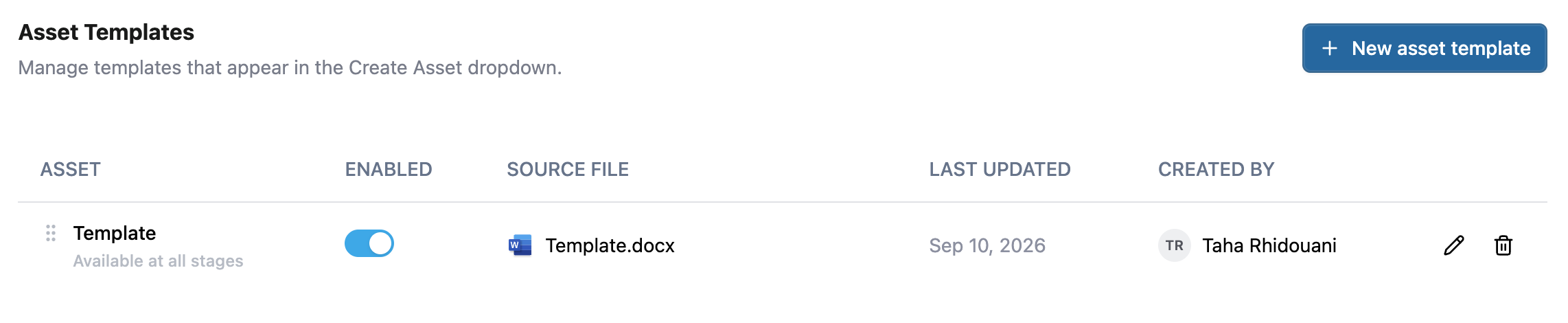
Use an organization Asset Template. Admins can add company templates under Settings → Asset Templates. The assistant can see these templates and will use them when you ask, for example "use our standard proposal template."
Templates must be the modern Office formats: .docx, .pptx, or .xlsx. Older .doc, .ppt, and .xls files, PDFs, and Google Docs exports will not work. The template type must also match what you are asking for; a Word template cannot style a PowerPoint deck.
Creating a document
Open a chat in the web app. If the document is for a specific opportunity, open that opportunity first so the assistant has the solicitation and your opportunity documents as context.
In your message, type @ and pick your template file, then describe what you want. Be specific about the audience, the sections or slides you want, and where the content should come from. For example:
Using @Acme Proposal Template.docx, draft a 3-page executive summary for this opportunity. Cover our understanding of the requirement, our approach, and why Acme is the low-risk choice. Pull past performance from the "Navy" folder in the content library.
Create a 10-slide capture briefing from @Acme Brand Deck.pptx: title slide, opportunity overview, customer hot buttons, competitors, our win themes, and next steps.
Build a compliance matrix workbook from @Compliance Matrix Template.xlsx with every "shall" statement in Section C, its section number, and a blank column for our response.
Watch the progress steps in the chat. You will see messages like Inspecting your template, Generating document, and Preparing download while the assistant works. Longer documents can take a few minutes.
When it finishes, a file card appears in the chat showing the file name and size. Click Download to save it.

Two ways to use a Word template
How you phrase your request tells the assistant what to keep from a Word template.
Start fresh with your styles. Say "create," "draft," "write," or "based on the template." GovEagle keeps the template's fonts, colors, heading styles, headers, footers, and page setup, removes the placeholder body text, and writes new content.
Fill in the template. Say "fill out," "fill in," "populate," or "complete." GovEagle keeps the template's existing text and structure and replaces placeholder text such as "[Insert text here]" with real content.
Use fill mode for forms and fixed-structure documents such as past performance write-ups or data sheets. Use create mode when the template is mainly a brand shell.
Making changes
You do not have to start over to fix something. Reply in the same chat with what you want changed, such as "make slide 4 less dense and add a slide on transition risks" or "tighten the executive summary to two pages." The assistant edits the same file and posts a new file card with an updated Download button.
Note: Each edit replaces the previous version of the file. If you want to keep an earlier version, download it before asking for changes.
Finding your files later
Generated files are not added to your content library. To get a file again, reopen the chat where you created it and click Download on the file card. If you want to keep the file in GovEagle, download it and upload it to the content library or to the opportunity.
Tips for better results
Give the assistant something to work from. Reference solicitation documents, past performance folders, capture notes, or an outline you have already approved. Vague requests produce generic documents.
Ask for an outline first for longer documents. Confirm the structure, then ask the assistant to build the file. This is the same approach recommended in Creating Oral Presentation Slides.
Keep slides readable. Ask for a few short bullets per slide. If you have a lot to say, ask for more slides or a table rather than cramming one slide.
Excel templates with charts or pivot tables have limits. In those workbooks GovEagle can fill in cells on existing sheets but cannot add new sheets or change formatting. Simple templates and blank workbooks get full formatting control.
Check the result. GovEagle checks its own output for text that overflows or overlaps, but always review the file before you send it anywhere.
Troubleshooting
The assistant asks me for a template when I want a PowerPoint deck.
Decks always need a .pptx template. Attach one to the chat or mention it with @, or ask your admin to add one under Settings → Asset Templates.
My Word or Excel file came out with no styling.
No template was used, or the template was the wrong type. Mention a .docx or .xlsx template in your request and try again.
I want to edit a document that is already open in Word.
Use the GovEagle Word add-in. Chat in the web app produces new standalone files; it does not write into a file you have open.
The Download button stopped working.
Reopen the chat and click Download again. Download links are refreshed each time you click the button.