The GovEagle PowerPoint Add-In brings AI assistance directly into Microsoft PowerPoint, enabling you to create capture presentations, orals decks, executive briefings, and other visual proposal materials without leaving your presentation. PowerPoint is essential for communicating strategy, telling your story visually, and preparing for oral presentations.
For instructions on installing and opening the add-in, see Authoring Workspace Overview.
Getting Started
Open any PowerPoint (blank or template) and the GovEagle Add-In
Toggle on “Deep Thinking” if not turned on already
Toggle on “Auto-accept actions” if desired (More Info)
Ask anything! Refer to Common Use Cases below for more direction
Auto-accept Mode
Auto-Accept Mode allows the add-on to automatically apply recommended actions without requiring manual confirmation for each change. This is especially useful when performing multi-step formatting updates or structural edits across slides.
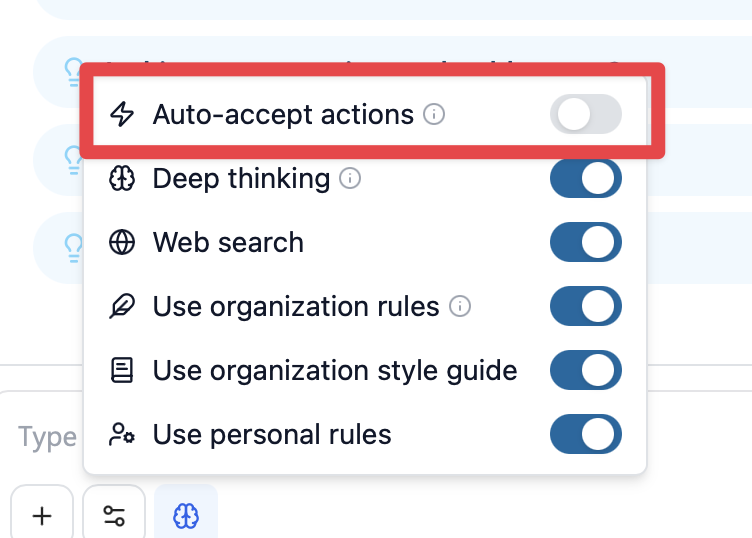
Mode On
When enabled, the add-on can:
Automatically apply formatting adjustments (alignment, spacing, sizing)
Resolve detected overlaps between shapes
Accept diagram layout refinements
Mode Off
When disabled, the add-on proposes actions instead of executing them immediately
Common PowerPoint Add-In Use Cases
Capture Strategy Presentations
Create compelling presentations for capture team reviews, strategy sessions, and bid decision meetings.
Example prompts:
"Fill out this capture strategy presentation including competitive analysis, win themes, and team structure"
"Create talking points for a slide about our competitive advantages on this opportunity"
"Generate content for a SWOT analysis slide based on this solicitation"
Orals Preparation
Develop presentation decks and speaker notes for oral presentations to government evaluators.
Example prompts:
"Create a 20-minute orals presentation addressing evaluation criteria M.1 through M.3"
"Draft speaker notes for this slide about our technical approach"
"Generate Q&A talking points in the slide for likely evaluator questions about our management plan"
Executive Briefings
Build concise briefing materials for leadership reviews and decision-making sessions.
Example prompts:
"Create a 5-slide executive summary covering opportunity overview, win strategy, team, pricing, and risk"
"Draft content for a bid/no-bid decision brief including qualification analysis and competitive assessment"
"Generate talking points in the slide for a leadership briefing on this opportunity"
“Please create a pricing summary chart that I can provide to my finance team to complete for signoff. Should include everything from our direct and indirect costs, to subcontractor costs, and risk reserved (etc...)”
Solution Architecture Overviews
Visualize your technical approach and solution architecture.
Example prompts:
"Create slide content describing our proposed system architecture for the requirements in SOW Section 3"
"Draft bullet points explaining our technical solution approach"
"Generate content for a slide showing our solution's key components and integrations"
Win Theme Development
Articulate your key discriminators and value propositions visually.
Example prompts:
"Generate content for slides highlighting our top 3 win themes for this opportunity"
"Create talking points connecting our past performance to the customer's needs"
"Draft content showing how our solution addresses the customer's pain points"
Team and Past Performance Slides
Showcase your team composition and relevant experience.
Example prompts:
"Create content for a slide showing our team structure and key personnel for this bid"
"Draft bullet points describing our most relevant past performance for these requirements"
"Generate content highlighting our teaming partners and their roles"
Reading Your Current Presentation
GovEagle can read and understand the content already in your PowerPoint presentation. This allows you to:
Ask the AI to create content consistent with existing slides
Request that the AI fill out slide templates or placeholders
Have the AI review and refine existing content
Ensure new slides match the style and messaging of your deck
To use this capability, include phrases like:
"Read this presentation..."
"Continue the content from the previous slides..."
"Fill in the talking points for this slide..."
"Create the next slide in this sequence..."
"Match the tone and style of the existing content..."
When you're working on a specific slide, GovEagle focuses on that context.
Editing Content into Your Presentation
The add-on can intelligently editing structured content into your slides while respecting your layout, formatting, and template constraints.
What It Can Edit
The add-on can edit:
Textboxes with structured content
Tables (new or styled to match existing ones)
Diagrams (process, timeline, hub & spoke, comparison, etc.)
Additional slides using your selected layout
Reformatted or rewritten content within existing shapes
It understands:
Your current slide
Slide dimensions
Existing layout structure
Underlying (not visible) shapes
Overlaps between elements
If you're using a branded PowerPoint template with predefined layouts and styles, GovEagle can help populate it with content.
Iterating and Refining
Presentation content may require multiple iterations to get the messaging and level of detail right.
Example iteration:
First request: "Create content for a slide about our management approach"
Follow-up: "Make it more focused on our key personnel qualifications"
Refinement: "Add specific metrics from our past performance"
Final adjustment: "Simplify to 5 bullet points for a visual slide"
Best Practices for PowerPoint Add-In
Think Visually PowerPoint is a visual medium. Request concise, high-impact content rather than long narratives. Aim for bullet points, key messages, and talking points.
Specify Slide Count and Timing If you're creating an orals deck with time constraints, tell GovEagle the total number of slides and presentation duration so it can help you allocate content appropriately.
Request Speaker Notes Separately Ask for slide content first, then request detailed speaker notes or talking points as a separate follow-up.
Reference Evaluation Criteria Align slide content with specific evaluation criteria from Section M to ensure your presentation addresses what evaluators will score.
Use for Structure and Content, Refine Visually Use GovEagle for outlines, bullet points, and talking points. Apply your visual design, graphics, and branding manually.
Review Before Inserting Presentation messaging is critical to your proposal story. Always review AI-generated content before inserting it into your deck.
Reference the Prompting Guide See the Prompting Guide for strategies on crafting effective prompts.
Tips for Common Scenarios
For Orals Decks: "Create an outline for a [duration]-minute orals presentation addressing evaluation criteria [M.X]. Include slide topics, key messages, and suggested timing for each section."
For Capture Strategy: "Generate content for a capture strategy presentation including: opportunity overview, competitive analysis, our discriminators, proposed team structure, and risk mitigation. 10-12 slides total."
For Executive Briefs: "Create a concise 5-slide executive brief covering: opportunity summary, win probability, team and approach, pricing summary, and recommendation. Keep content high-level for C-suite audience."
For Technical Approach: "Draft bullet points for slides explaining our technical solution for [Requirement], highlighting our unique approach and past performance proof points."
Creating Entire Slides as SVGs
You can create highly stylized, custom slides as SVG images with GovEagle. To do this:
Open the GovEagle add-in in PowerPoint with a blank or template slide deck
Turn on Generate SVG Images in chat settings (see Chat Settings)
Ask GovEagle to create a slide as an SVG and describe what the slide should look like. You can re-prompt to iterate
Below the image in the chat transcript, select Insert into document
Expand the image to take up the entire slide
To edit the inserted image using PowerPoint tools, right-click on it and select Convert to Shape
Troubleshooting
Content is too detailed for slides: Ask GovEagle to "create concise bullet points" or "summarize in 3-5 key messages suitable for a slide."
AI doesn't understand presentation flow: Provide an outline or sequence first, then request content for individual slides in order.
Inserted content doesn't match template layout: After inserting, manually adjust text boxes and formatting to match your template's design. PowerPoint templates have more visual variation than Word, so some manual formatting is expected.
Missing opportunity context: Verify that solicitation documents are uploaded and that you've selected the correct opportunity in the dropdown.