References help the AI provide more relevant and accurate responses based on your specific documents and projects. When you add a file, folder, tag, or opportunity as a reference, the AI can search within those items to find the exact information needed to answer your questions, draft content, or analyze requirements.
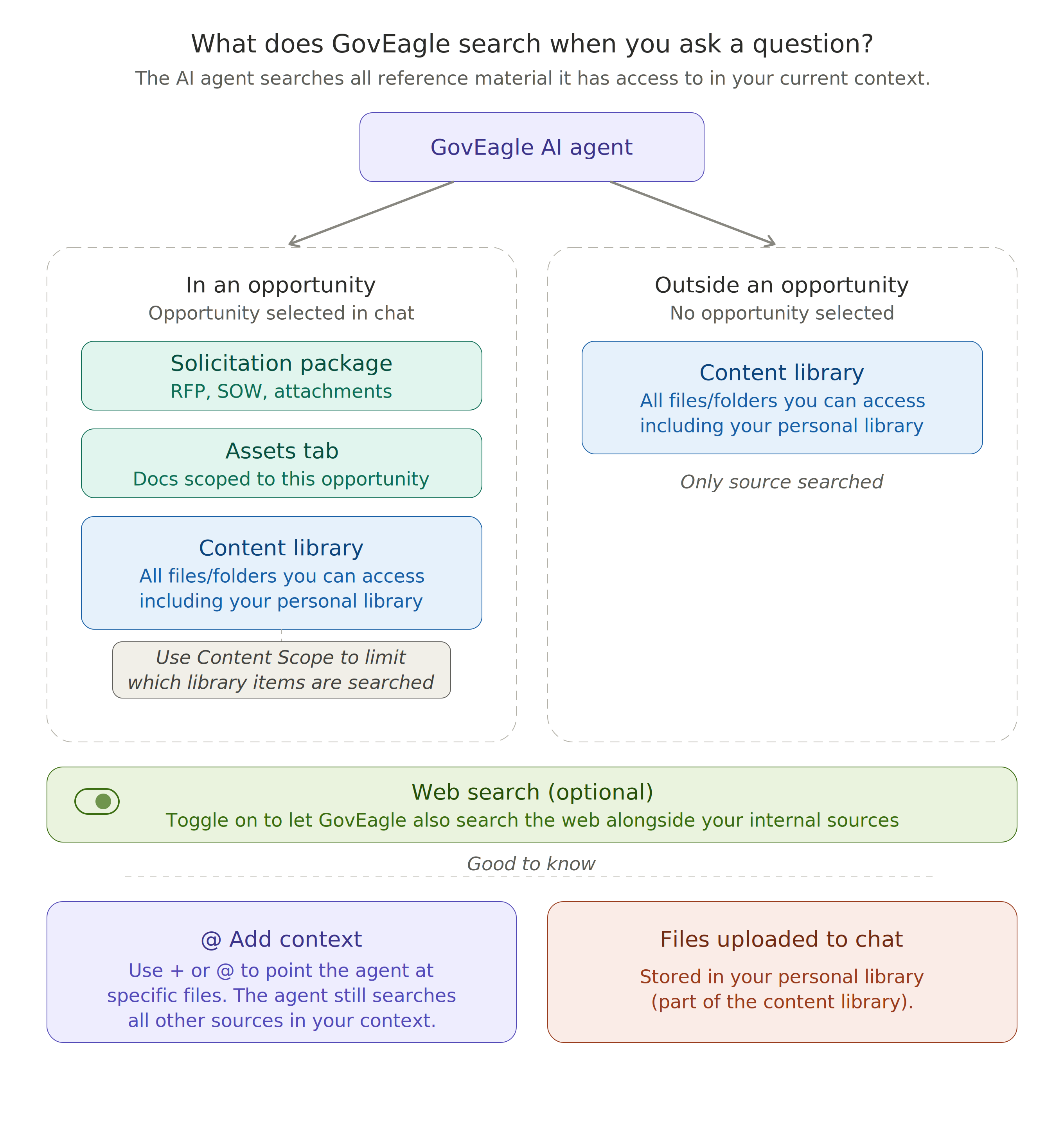
What the AI searches when you ask a question
Quick Reference Guide
Action | MS Office Add-in | Web App |
|---|---|---|
Add single reference quickly | Type | Type |
Add multiple references |
| Click |
Add text from current document | Highlight text in document | N/A |
Upload new file |
| Paperclip icon |
Add opportunity context | Use the opportunity dropdown | Auto-added when viewing opportunity |
How References Work
When you add a reference to your chat message, you will see it displayed as a dismissible chip at the top of the chat input area. The AI will search within referenced items to find relevant content for your request. You can add multiple references to a single message, and there is no strict limit, though adding highly focused references produces the best results.
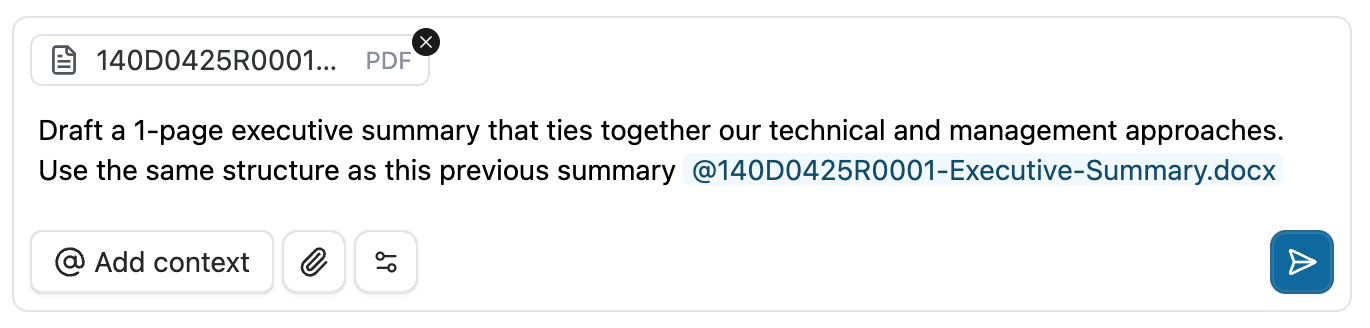
What gets included:
Files: The AI can search the entire document content
Folders: The AI can search across all files within the folder
Tags: The AI can search all documents labeled with that tag
Opportunities: The AI has access to opportunity details and associated documents
Highlighted text (MS Office only): The AI prioritizes the specific text you've selected
Using @ Mention Menu in the MS Office Add-ins
The @ menu is the fastest way to find and insert a single reference.
Type
@in the chat input boxAlternatively, click the
+button and select@Add a file, folder, or tag
A menu will appear showing available references
Scroll through the menu, use the up and down arrows, or continue typing to find the item you are looking for
Click to select your desired reference item or press
Enterwhile the item is highlighted select itPress
Escor click outside the menu at any time to close it

Using the File and Folder Browser
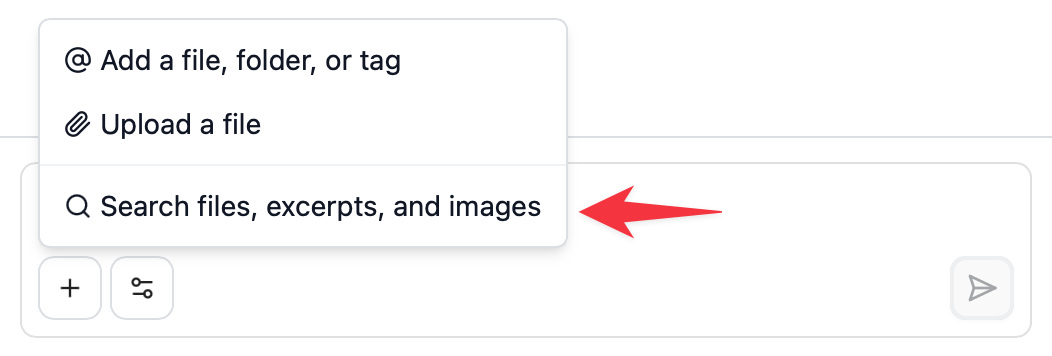
The file and folder browser can be used to search and select multiple references. To access this view:
Click the
+button in the chat input and clickSearch files, excerpts, and imagesOn the subsequent screen, check the box next to any items you want to add as references
Click
+Add to chatto add the references and return to the chat input
Upload a File
Click the
+button in the chat input and clickUpload a fileSelect the file from your computer that you would like to upload
Files uploaded to chat are uploaded to your personal, private folder.
Highlighting Text from Your Current Document
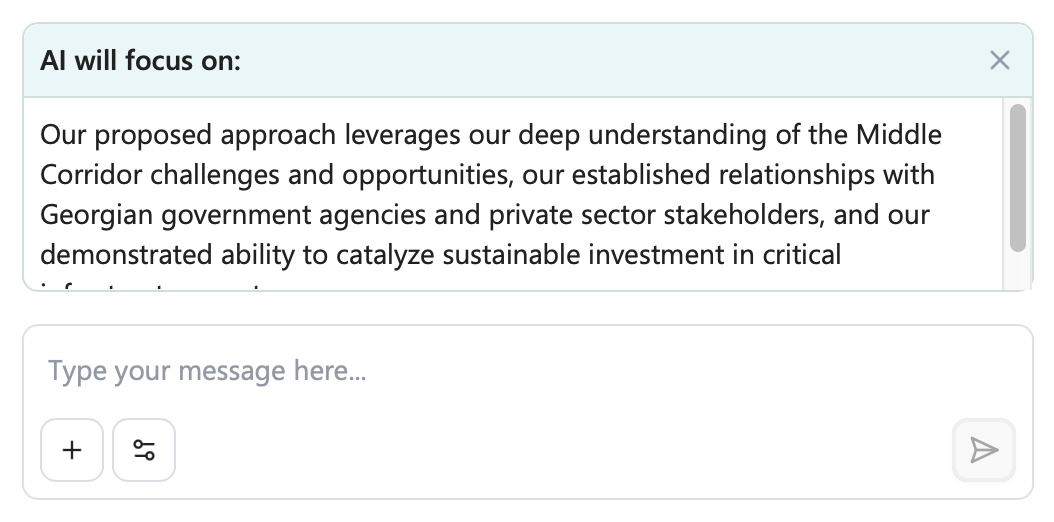
When you highlight text in the Word document you have open, this text is added as context to your message. You will see highlighted text appear in a box with the title AI will focus on.
Adding References to Web App Chat
In the web application, you can add files, folders, tags, and opportunities as context to any chat message.
When you open the chat panel while viewing an opportunity, that opportunity will be added as a reference by default.
Using @ Mention Menu in the Web App
Type
@in the chat input boxAlternatively, click on
@Add context
A menu will appear showing available references
Scroll through the menu, use the up and down arrows, or continue typing to find the item you are looking for
Click to select your desired reference item or press
Enterwhile the item is highlighted to select itPress
Escor click outside the menu at any time to close it
Using the File and Folder Browser
The file and folder browser can be used to search and select multiple references. To access this view:
Click the
Knowledge LibraryorLibrarytoggle at the top of a chatCheck the box next to any item you want to add as a reference
Click
+Add to chatto add the references and return to the chat input

Upload a File
Click the paperclip icon in the chat input
Select the file from your computer that you would like to upload
Files uploaded to chat are uploaded to your personal, private folder by default. To instead keep an upload in just the chat where you added it, enable chat-only uploads in your personal settings.
Tips and Best Practices
Drafting Content
Reference your past performance folder when drafting past performance narratives
Add relevant past proposals when writing similar technical or management sections
Efficient Searches
Use folder references when you need the AI to search across multiple related documents
Use specific file references when you know exactly which document contains the information
Use tag references to search across documents with similar characteristics (e.g., all proposals for a specific customer)
For Best Results
Add focused, relevant references rather than your entire library
When working with large documents, reference the specific file and ask the AI to search within it first
Remove references you no longer need by clicking the X on the reference chip
Troubleshooting
What if I don't see my file in the @ menu?
Ensure the file has been fully uploaded and processed. Newly uploaded files may take a moment to appear.
How do I remove a reference I added by mistake?
Click the X icon on the reference chip displayed at the top of the chat input area.
Can I reference items from shared folders or organization-wide folders?
Yes, you can reference any files, folders, or tags you have access to, including shared and organization-wide content.
What happens when I reference a very large folder?
The AI will search across all files in the folder. For best performance, consider referencing specific subfolders or files when possible, or ask the AI to search the folder first to identify the most relevant documents.
Why isn't the AI using my referenced document?
Ensure your question relates to the content in the referenced document. The AI only uses references when they contain relevant information.
Try asking more specific questions that clearly connect to the referenced content.
Check that the document uploaded successfully and contains searchable text (scanned PDFs without OCR may not be searchable).
Can I save a set of references to reuse later?
Currently, references are added per message. However, when you continue a conversation, context from previous messages (including referenced documents discussed) is maintained.