GovEagle agents can use tools from other systems your team uses, like Slack, monday.com, Salesforce and Google Drive.
An admin connects the system's MCP server once, chooses which of its tools agents may use, and decides who can use the connection. Each member then signs in with their own account, and agents use those tools in chat when they're relevant.
This guide covers adding and managing a custom connection, and how members sign in. A few things to know first:
You choose from a list of vendor-hosted servers that GovEagle has approved. You can't enter your own server URL.
Every member signs in with their own account. There are no shared API keys, and tools run with that member's own permissions in the other system.
Custom connections are for reading. Agents use them to search, look up and summarize information, not to change data in the other system.
Custom connections work wherever you use GovEagle agents: the web app, Word, Excel, PowerPoint and opportunity search.
Before You Begin
You must have a GovEagle Admin account. Of the built-in roles, only Admin can add or manage custom connections.
Custom connections must be turned on for your organization by GovEagle. If you don't see the Custom connections section under Agent Tools, contact your GovEagle Customer Success team.
For Google Drive, Salesforce and Slack, you must be able to register an OAuth app with that vendor, or work with the person who can. This is optional for monday.com.
You must have your own account with the vendor. GovEagle lists the server's tools using your sign-in.
Approved Servers
These are the servers you can connect today. Each organization can connect each server once.
Server | What agents can access | Setup |
|---|---|---|
monday.com | Boards, items, docs and workspaces in monday.com | Registers automatically, or use your own monday.com app |
Google Drive | Search and read files in Google Drive (a Google developer preview) | Needs your OAuth app |
Salesforce | Read records in your Salesforce org | Needs your OAuth app |
Slack | Messages, channels and canvases in your Slack workspace | Needs your OAuth app |
Need a server that isn't listed?
In the Add MCP server dialog, click Request it. In Request an MCP server, enter the server or vendor and, optionally, how agents would use it. GovEagle reviews each server before adding it to the approved list.
Add an MCP Server
Adding a server takes four steps: Server, Sign in, Tools and Review.
Step 1: Choose a Server
Click the Profile icon at the bottom left → Settings → Agent Tools.
Under Custom connections, click Add MCP server.
Select the server you want to connect.
If the server shows Needs your OAuth app, set up its OAuth client:
Open the vendor's setup guide link (for example, Slack setup guide) and register an OAuth app.
Copy the Redirect URI to register with the app and add it to your app.
Enter the app's Client ID and Client secret.
Click Continue.
monday.com registers automatically by default, so it needs no OAuth client. If your organization uses its own monday.com app instead, prepare it first. See Example: Connecting monday.com. For each vendor's requirements, see Vendor Setup Notes below.
[Screenshot: the Server step of the Add MCP server dialog, showing the four approved servers]
Step 2: Sign In
Check the box confirming that each member's own permissions apply and that tool calls can send organization data to this server.
Click Register and sign in.
Sign in with your own account on the vendor's page.
When you return to GovEagle, wait for the server's tools to be listed.
Click Continue to tools.
If you close the dialog before finishing, GovEagle saves the connection as paused. Its card shows Setup incomplete. Click Finish setup to resume from the step you reached.
[Screenshot: the Sign in step, with the acknowledgement checkbox and connection progress]
Step 3: Choose Tools
You can select up to 32 tools. Tools are grouped by what the server says about them: Read-only, Unlabeled and Can modify data. These labels come from the server and are not verified by GovEagle.
Select the tools agents may use.
Click Continue to review.
Note:
Custom connections support read-only operations. Agents are instructed not to use them to change data in the other system, so choose tools that search, list or read. Tools under Can modify data must be selected one at a time. Only select them if the accounts that sign in cannot write to that system.
[Screenshot: the Tools step, showing the Read-only, Unlabeled and Can modify data groups]
Step 4: Review and Enable
Check the server, your sign-in, the OAuth client and the selected tools.
Under Who can use this connection, choose who can use it:
Everyone in the organization — all members can sign in and use it.
Selected people and groups — only the people and groups you choose.
Check I have reviewed the selected tools and understand what each one can do.
Click Enable connection.
GovEagle confirms that the server is connected and how many tools are available to agents. Admins can manage every connection, but to use a connection's tools in chat, an admin must also be included in its access list.
[Screenshot: the Review step, with the access options and the confirmation checkbox]
Example: Connecting monday.com
This example connects monday.com using your organization's own monday.com app, so agents can read boards and items. If you use automatic registration instead, skip Part 1 and leave the OAuth client fields empty.
Part 1: Prepare Your monday.com App
GovEagle uses monday.com's newer OAuth flow. Your app must be set up for it, or sign-in will succeed but the connection will fail.
In monday.com, open the Developer Center and select your app.
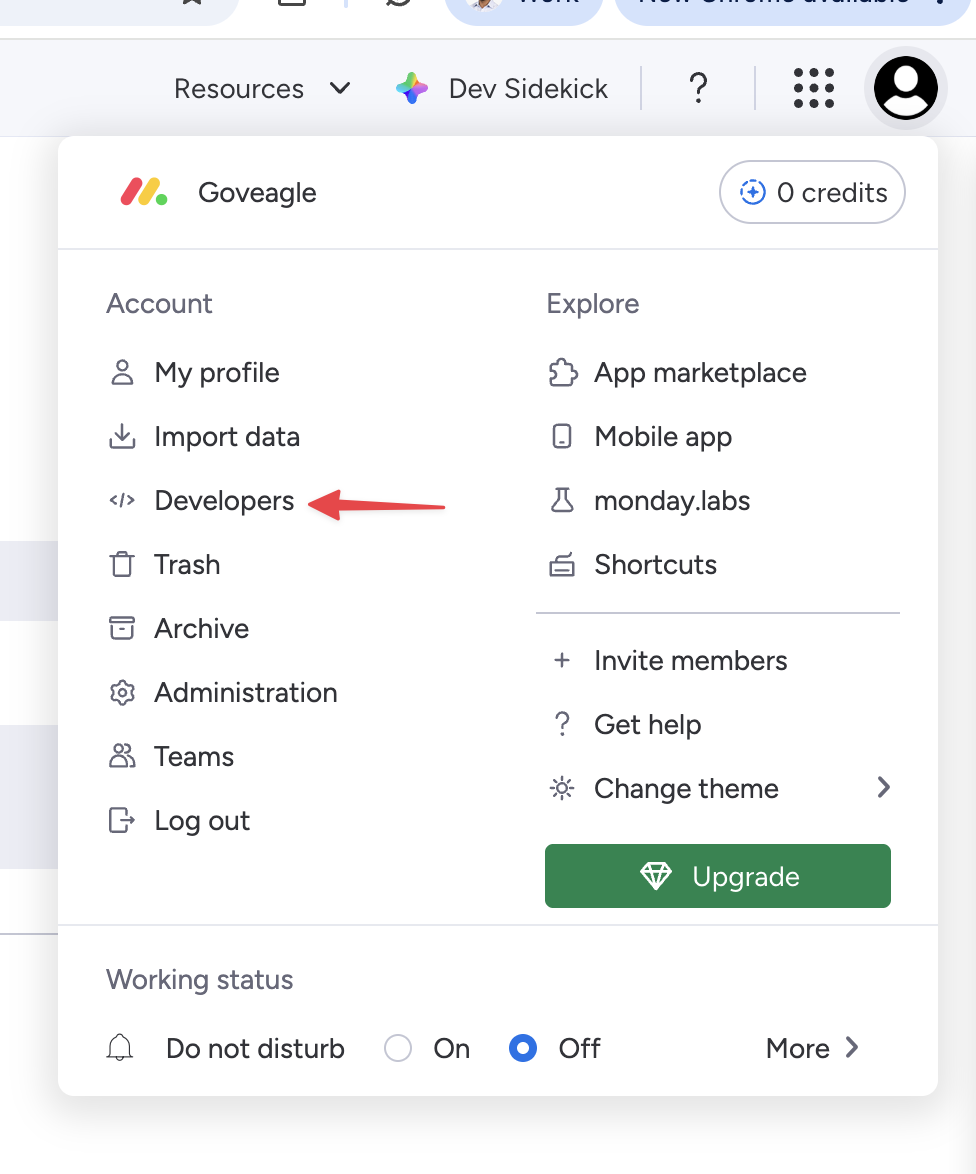
Select the app version you'll connect to GovEagle.
Under OAuth & Permissions, turn on New OAuth Flow. This setting applies to each app version separately, so turn it on for the version you're connecting.
Under Redirect URLs on the same version, add the GovEagle redirect URI exactly as shown in the Add MCP server dialog.
Make sure this version is the active (live) version of the app.
Copy the app's Client ID and Client secret.
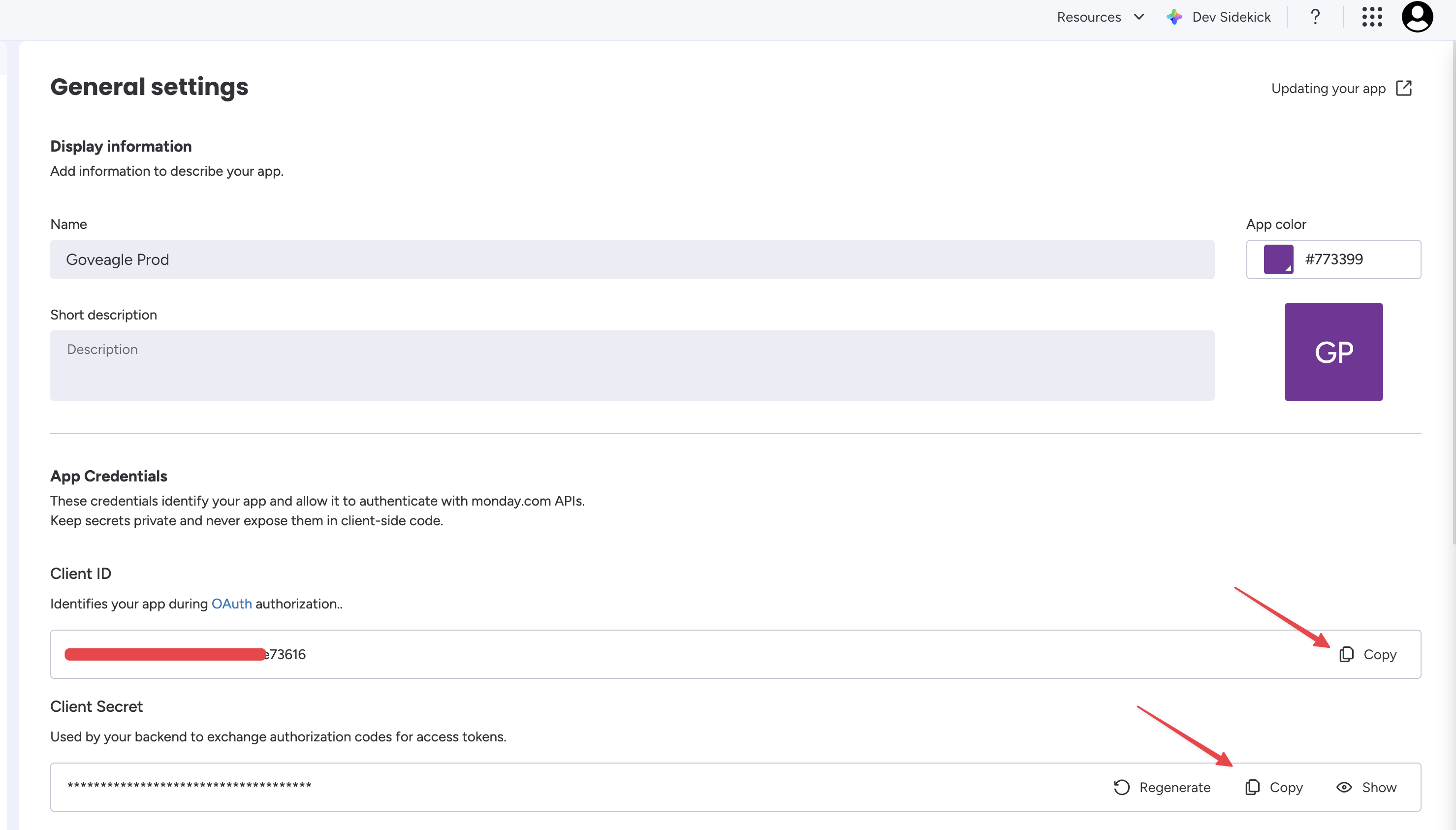 [Screenshot: monday.com app version, OAuth & Permissions, with New OAuth Flow turned on and the GovEagle redirect URL added]
Part 2: Connect monday.com in GovEagle
Click the Profile icon → Settings → Agent Tools. Under Custom connections, click Add MCP server.
Select monday.com. Enter your app's Client ID and Client secret, then click Continue.
Check the acknowledgement box and click Register and sign in. Sign in to monday.com with your own account and approve access.
When the monday.com tools are listed, click Continue to tools.
Select tools that search or read, such as tools that list boards or get items. Click Continue to review.
Choose who can use the connection, check the review box, and click Enable connection.
Part 3: Use monday.com in Chat
Each member signs in to monday.com once (see Using Connected Tools). Then ask a question that needs monday.com data, for example:
"Which items on our Capture Pipeline board are due this month?"
"Summarize the status of the Army opportunity on the BD board."
The tool step in chat shows the monday.com name and logo. The agent only sees boards your own monday.com account can see.
Sign-in worked but the connection failed?
An
invalid_granterror usually means New OAuth Flow isn't turned on for the app version you connected, the version isn't active, or its redirect URL doesn't match. Fix the app version, then start a fresh sign-in. You don't need to remove and re-add the connection. See Troubleshooting.
Vendor Setup Notes
monday.com
By default, monday.com registers automatically, and you don't need to create an app with monday.com first.
To use your organization's own monday.com app instead, set up the app version you'll connect:
Turn on New OAuth Flow under OAuth & Permissions. This applies to each app version separately.
Make sure that version is active and its redirect URL matches the GovEagle redirect URI exactly.
For the full walkthrough, see Example: Connecting monday.com.
Google Drive
Google offers this server as a developer preview. Follow the Google Drive setup guide to create a web OAuth client in your Google Cloud project, then:
Enable the Drive MCP API (
drivemcp.googleapis.com) on that project.Make sure the project's owner is enrolled in the Google Workspace Developer Preview Program.
Until both are done, every Google Drive tool call returns "The caller does not have permission".
Salesforce
Follow the Salesforce setup guide to create an External Client App with the mcp_api and refresh_token scopes and JWT access tokens. The MCP server must also be activated in Salesforce Setup. Each member chooses their Salesforce org when they sign in.
Slack
Follow the Slack setup guide to create an internal Slack app for your workspace, then enter its Client ID and Client secret.
Using Connected Tools
Before an agent can use a connection for you, sign in to it with your own account:
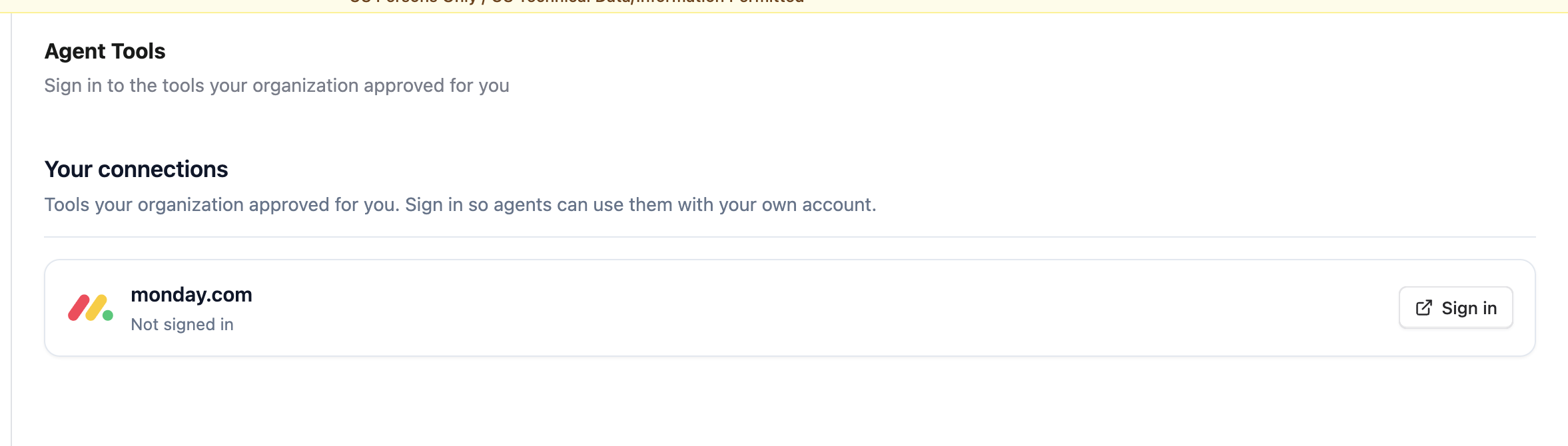
Click the Profile icon at the bottom left → Settings → Agent Tools.
Under Your connections, click Sign in next to the connection.
Sign in on the vendor's page.
You can also sign in from chat. If you haven't signed in to a connection an agent needs, the chat shows a Sign in to {name} button. Sign in, then ask again.
After that, chat as usual. The agent uses the allowed tools when they're relevant to your question, and each tool step shows the connection's name and logo. Tools only see what your own account can see in that system.
Managing Your Connection
Each connection appears as a card under Custom connections. Use the toggle on the card to pause or resume it. Pausing keeps the OAuth client and tool selection.
Click Manage connection to open these tabs:
Tools — change the selected tools. GovEagle doesn't refresh tools automatically. When the vendor adds or changes tools, click Refresh tools, then select the new or changed tools again.
Access — change who can use the connection.
Connection — sign in or out, rename the connection, change the OAuth client, or remove the connection with Remove connection…
Click Save changes when you're done.
Note:
Changing the OAuth client signs everyone out of the connection and pauses it until its tools are reviewed again. Removing a connection also signs everyone out.
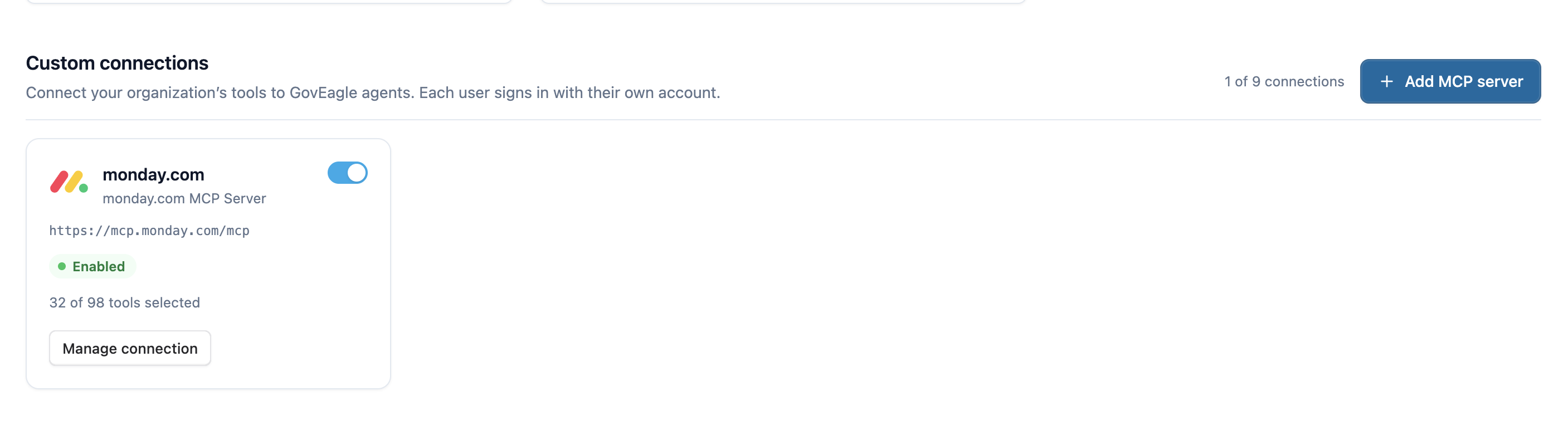 [Screenshot: the Manage connection dialog with the Tools, Access and Connection tabs]
Limits: an organization can have up to 10 connections, including GovEagle-hosted ones, and each custom connection can have up to 32 selected tools.
Troubleshooting
I don't see Custom connections in Settings
Only admins can add connections, and the feature must be turned on for your organization by GovEagle. If you're an admin and don't see Custom connections under Settings → Agent Tools, contact your GovEagle Customer Success team.
Add MCP server is greyed out
Your organization has reached its limit of 10 connections, including GovEagle-hosted ones. Remove a connection to add another.
"This sign-in link expired. Start again."
Sign-in links work once, for the GovEagle account that started them, and expire after 10 minutes. If you see this or "Sign-in could not be completed", start the sign-in again from GovEagle in the same account and finish it in one go.
The chat says "{name} needs you to sign in with your own account."
You haven't signed in to this connection yet, or your sign-in ended (for example, after an admin changed the OAuth client). Click Sign in to {name}, then ask your question again.
"You do not have access to this connection. Ask an administrator to grant it."
You're not on the connection's access list. Ask an admin to add you or your group on the Access tab.
Google Drive says "The caller does not have permission"
Google accepted your sign-in but refused the request. Check that the Drive MCP API is enabled on the OAuth client's Google Cloud project and that the project is enrolled in Google's Workspace Developer Preview Program. See Google Drive above.
monday.com sign-in succeeds, then fails with invalid_grant
This happens when your own monday.com app version still uses monday.com's older OAuth flow. In monday.com, open the app version you connected and turn on New OAuth Flow under OAuth & Permissions. Check that the version is active and its redirect URL matches the GovEagle redirect URI. Then start a fresh sign-in. You don't need to remove and re-add the connection.
monday.com says "Only DCR apps with allowed registered redirect URIs can use the resource parameter."
GovEagle no longer sends this parameter when you use your own monday.com app. If you still see this error, start a fresh sign-in. If it continues, contact support@goveagle.com.
Tools the vendor added don't appear
GovEagle doesn't pick up new tools automatically. Go to Manage connection → Tools, click Refresh tools, select the new tools, and save.
FAQ
Can we connect our own MCP server URL?
No. You can only connect servers on GovEagle's approved list. To ask for another server, click Request it in the Add MCP server dialog.
Can agents update records in monday.com?
No. Custom connections are read-only today. Agents can read monday.com boards and items but are instructed not to change data in any connected system.
Do members share one login?
No. Each member signs in with their own account, and tools run with that member's permissions.
Does GovEagle store my password?
No. You sign in on the vendor's own page. GovEagle stores the resulting sign-in tokens, encrypted, and never sees your password.
Need help?
For questions or issues with custom connections, contact your GovEagle Customer Success team or email support@goveagle.com.