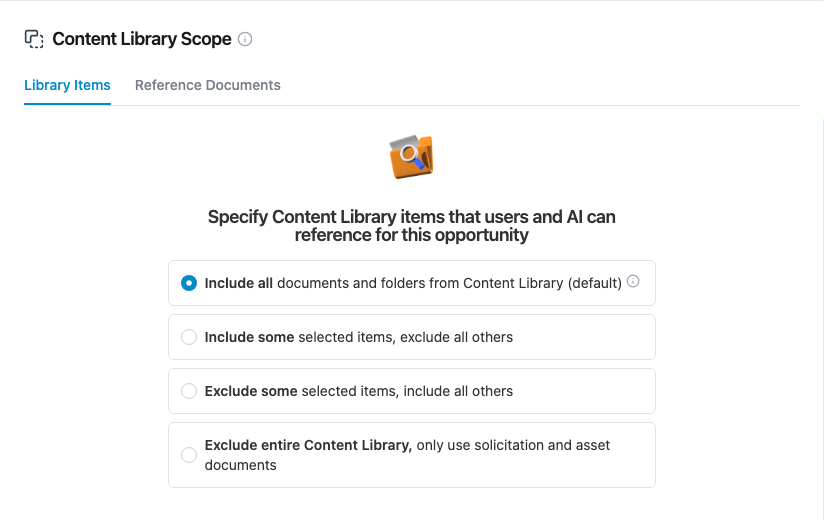
Content Library Scope controls which files and folders in your Content Library GovEagle AI will reference for one opportunity, whether it is generating responses, searching for past performance examples, or answering questions. It narrows the Content Library only. The opportunity's own Assets folder and its solicitation documents are always in scope. For how these sources fit together, see Where your documents live.

Why Use Content Library Scope?
When working on opportunities, you may want GovEagle to focus on specific content rather than searching through your entire library. Content Library Scope helps you:
Focus on relevant experience - Limit AI responses to past performance from specific contracts or business units
Exclude outdated content - Prevent the AI from referencing deprecated materials or old versions of documents
Improve response accuracy - Get more targeted results by narrowing the AI's search space
Setting Content Library Scope
By default, all files and folders in your Content Library are available to GovEagle AI for each opportunity. To change this:
Visit an opportunity's home page in the web app
In the top menu, select Library Scope. The panel that opens is titled Content Library Scope.
Select either:
Include selected items: Select only the files and folders you want GovEagle to reference. When you use this approach, the AI will ignore everything else in your Content Library.
Exclude selected items: Allow GovEagle to access your entire Content Library except for files and folders you explicitly exclude.
Select the files and folders you would like added to the scope
Select Save
Content Library Scope in the Word Add-In
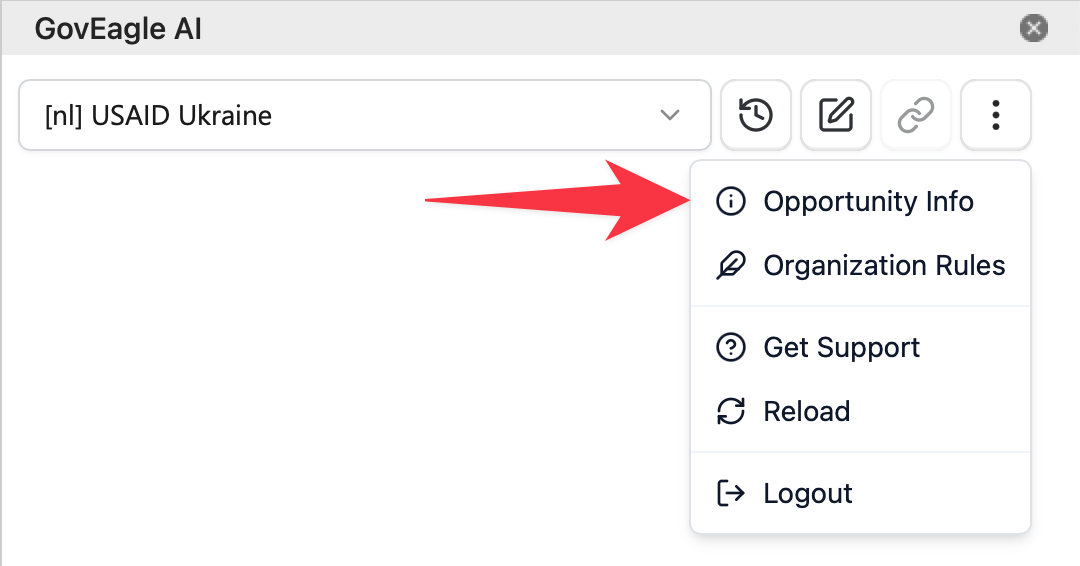
From the Word Add-In, you can view an opportunity's Content Library Scope by viewing Opportunity Info
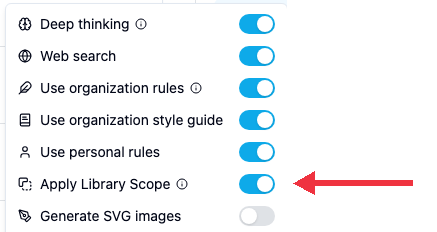
To search the whole Content Library in a chat without changing the opportunity's scope, turn off Apply Library Scope in the chat settings menu. In the Office add-ins, this switch is in the Content Library tab's search bar. Solicitation documents and Assets are always available either way.