GovEagle has a Prompt Library feature where you can save reusable prompts. It helps users store good prompts, organize them, and reuse them instead of starting from scratch every time.
Organization Prompts
Only Administrators with the Manage Organization AI Preferences permission can add prompts to the organization’s Prompt Library. The prompts can be used and starred by all users in the organization.
Personal Prompts
All users can create, edit, and manage their own personal Prompt Library. These prompts are only available to the individual user.
Why Use the Prompt Library
It saves time by keeping proven prompts in one place.
It helps teams use more consistent instructions and get more consistent results.
It makes strong prompts easier to find, share, and improve over time.
Add a Prompt
From anywhere within the GovEagle web portal (app.goveagle.com/home) click on your initials located at the bottom left corner of the page.
Click Settings.
Click Prompt Library. You will see this (only Administrators will see the Organization option):
.png)
Click Add Prompt. You will see:
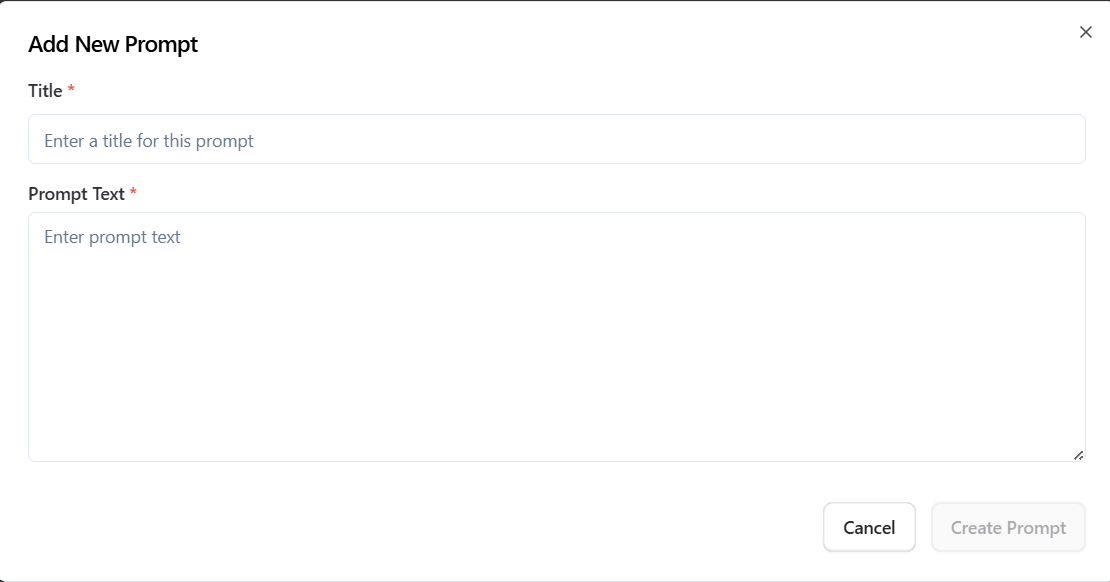
Enter a title for the prompt (e.g., compliance matrix, executive summary, proposal outline, etc.).
Enter the prompt text.
Click Create Prompt.
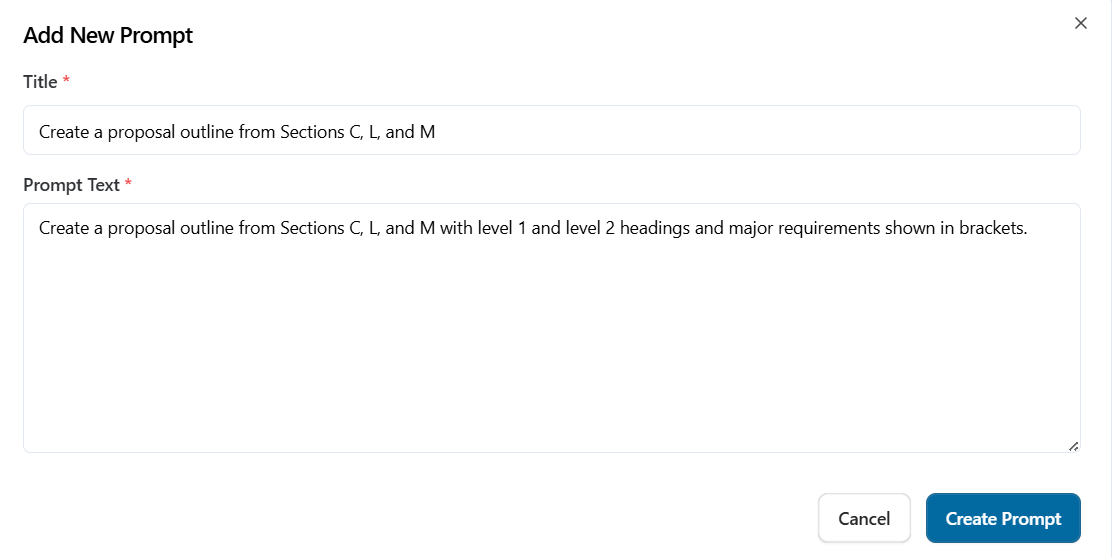
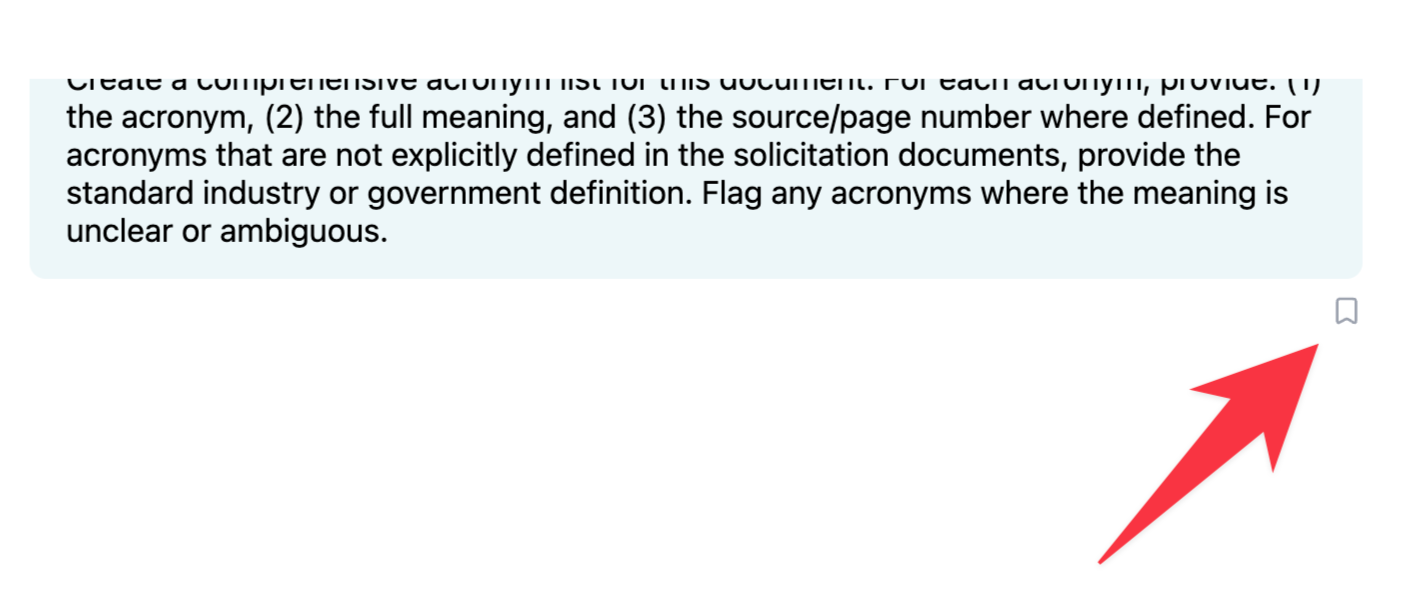
You can also save any sent chat message to the Prompt Library. Within a chat, hover over the sent message and click the bookmark icon. You can then edit and save the prompt for future use.
Best Practices
Do This | Why it Helps |
|---|---|
Use Clear Titles | Makes prompts easier to scan and select. |
Write Organization Prompts for Reuse | Helps others use them without needing extra explanation. |
Review Old Prompts | Keeps the library useful and up to date. |