With Agent Memory turned on, the GovEagle assistant remembers how you like to work and carries that knowledge into every future conversation. It also notices patterns that could help your whole team and suggests them to your admins as new Organization Rules. Nothing is added to your organization's rules without an admin approving it.
Note: Agent Memory is enabled per organization and is off by default. To turn it on for your team, email support@goveagle.com. Until it is enabled, you will not see the Personal Memory section, the Opportunity Rules card, or the Pending suggestions panel described below.
How memory fits with rules
GovEagle already lets you steer the assistant with written rules. Memory sits alongside them.
Who writes it | Who it applies to | Where to find it | |
|---|---|---|---|
Personal Rules | You | Only you | Settings → My Account |
Personal Memory | The assistant, as it learns from your chats. You can edit it. | Only you | Settings → My Account |
Opportunity Rules | Anyone with edit access to the opportunity, and the assistant as it learns from chats about that opportunity | Everyone, in chats about that opportunity | The opportunity's home page |
Organization Rules | Admins. The assistant can suggest additions for admins to approve. | Everyone in your organization | Settings → AI Preferences |
If a memory ever conflicts with an Organization Rule or the Writing Style Guide, the organization's guidance wins. Memory fills in the gaps; it does not override your company's standards.
Personal Memory
What the assistant remembers
As you chat, the assistant takes note of things that will help it next time, such as:
Preferences you state ("keep summaries under a page," "always use active voice")
Corrections you make to its output
Your role and responsibilities
How you like to work, for example the folders you usually pull past performance from
Output formats you ask for repeatedly
It saves these as short notes and reads them at the start of every chat, whether you are in the web app or the Word, PowerPoint, or Excel add-in. You no longer need to repeat the same instructions in each conversation.
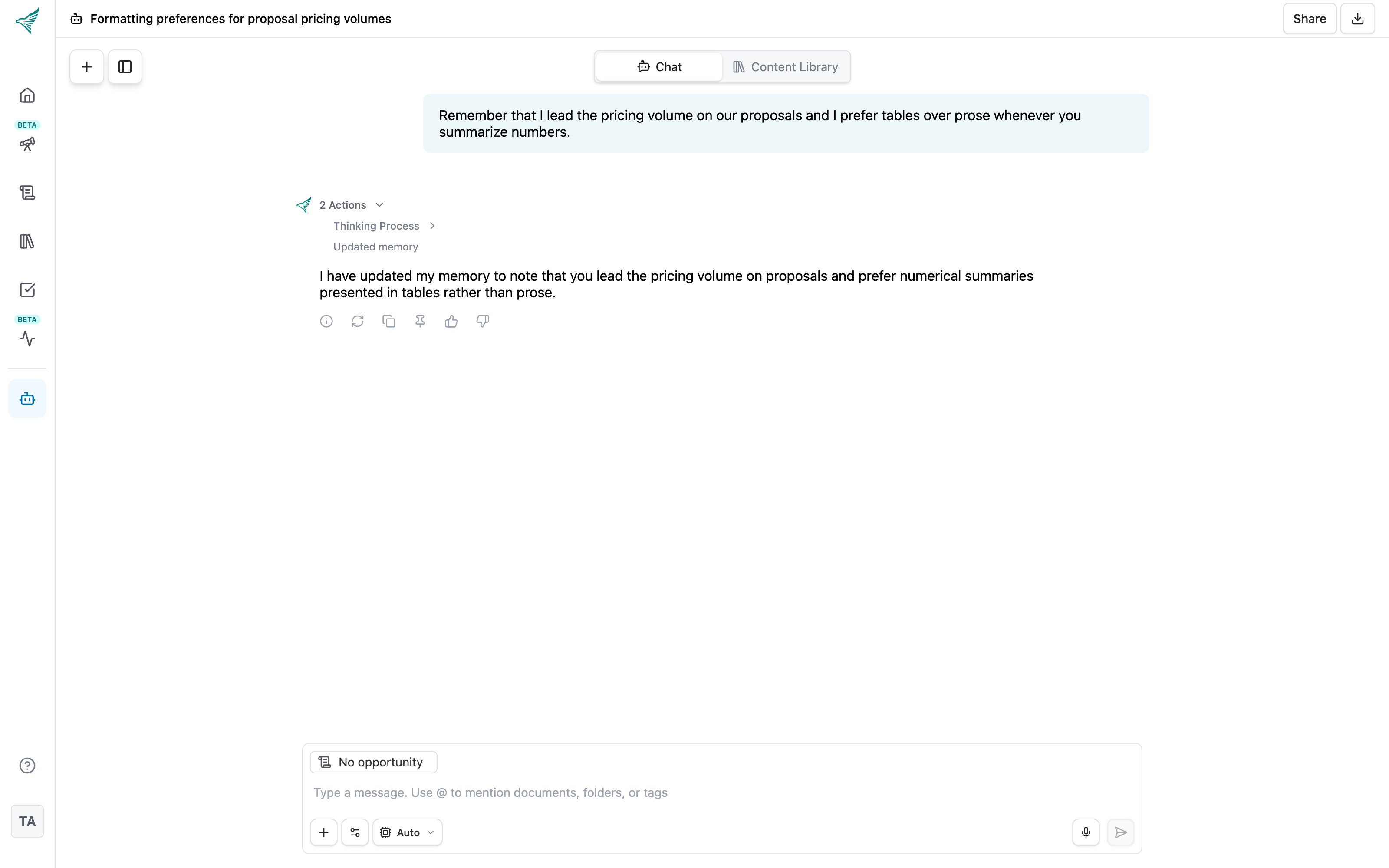
When the assistant saves something, you will see an Updated memory step in the chat's activity list. It does not interrupt the conversation to announce it.
Viewing and editing your memory
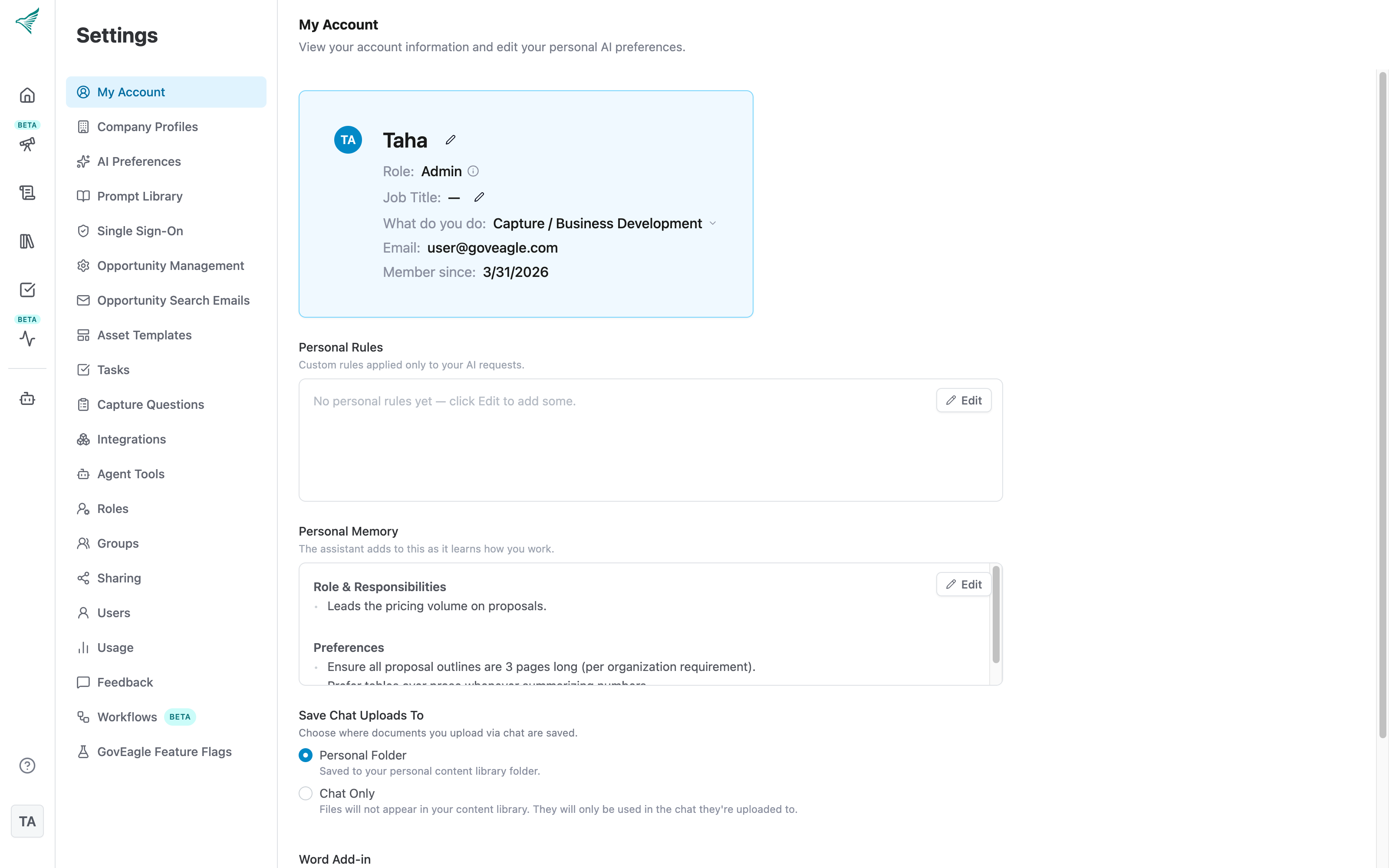
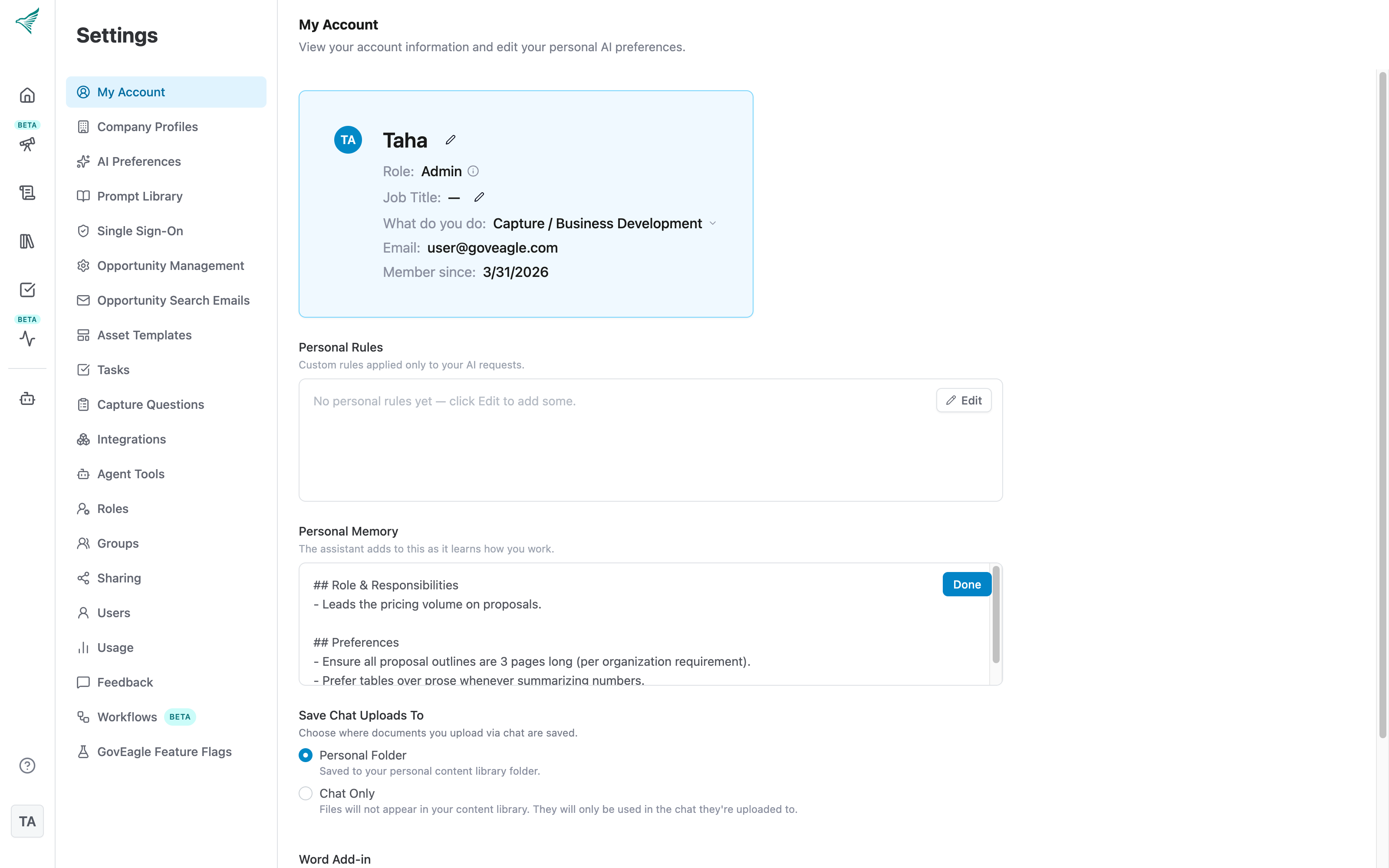
Click your profile icon in the bottom-left corner and select My Account.
Scroll to the Personal Memory card, just below Personal Rules.
Click Edit to change or remove anything. You can also add your own notes here.
Click Done to save. Changes apply to your next chat.
If you have never chatted with memory on, the card reads "Nothing here yet — the assistant will write here as it learns how you work."
Asking the assistant to remember or forget
You can also manage memory from inside a chat. Tell the assistant plainly what to keep or drop:
Remember that I lead the pricing volume and prefer tables over prose.
Forget the note about the Navy folder. We reorganized the library.
The assistant updates your memory and the change shows in the Personal Memory card.
Privacy
Your Personal Memory is yours. Admins and other users cannot view it in GovEagle. It is used only in your chats, not in background workflows or other people's conversations.
Opportunity Rules
Some guidance only matters for one pursuit: the agency's preferred terminology, the page limits in this RFP, the incumbent's name, or which teaming partner owns which volume. Opportunity Rules keep that guidance with the opportunity. The assistant reads them in every chat about that opportunity, for everyone working on it, and ignores them everywhere else.
Adding and editing opportunity rules
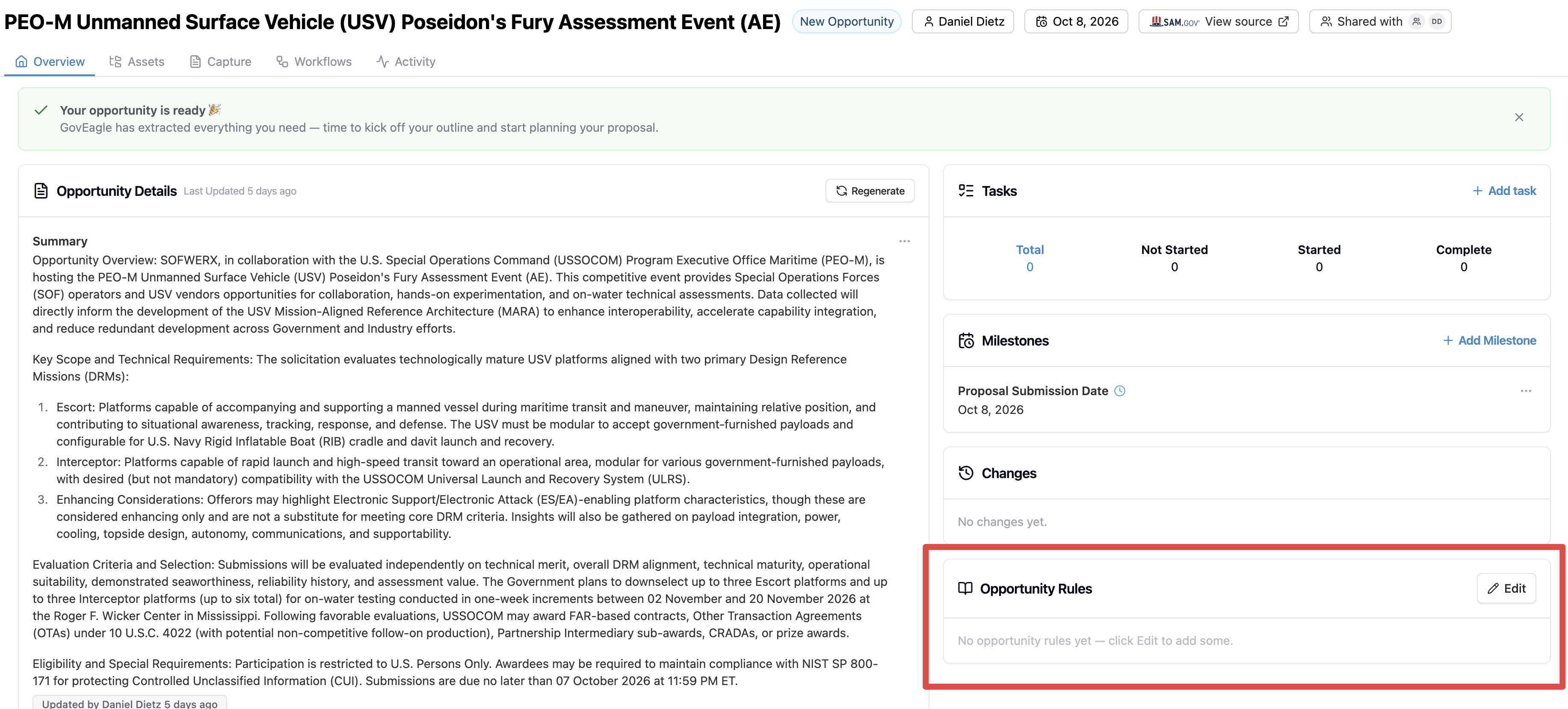
Open the opportunity. The Opportunity Rules card is at the bottom of its home page.
Click Edit.
Type instructions, terminology, or facts the assistant should remember for this opportunity. Start a line with
##for a heading or-for a bullet.Click Done to save.
To remove a rule, delete its text and click Done. Opportunity Rules hold up to 10,000 characters.
Anyone with edit access to the opportunity can change its rules. Users with view-only access can read them but will not see the Edit button.
How GovEagle updates opportunity rules
When you chat about an opportunity in the web app and share something that will matter for future work on it, the assistant can add it to the opportunity's rules itself. For example:
The CO confirmed the technical volume is capped at 25 pages, and they call the program "Project Atlas," not "Atlas."
You will see an Updating opportunity rules step in the chat's activity while it saves. You can also ask directly, for example "Add to this opportunity's rules that we're teaming with Acme on the transition plan," or "Remove the rule about page limits."
The assistant keeps opportunity-specific facts here rather than in your Personal Memory or your Organization Rules, so they do not carry over into other pursuits.
Note: Unlike Organization Rules suggestions, changes the assistant makes to Opportunity Rules do not need admin approval. Anyone who can edit the opportunity could make the same change. The card does not show who added each line, so review it from time to time and remove anything that is out of date.
How opportunity rules relate to other rules
Organization Rules and the Writing Style Guide come first. Opportunity Rules cannot override them.
Opportunity Rules come next. In chats about that opportunity, they take precedence over Personal Rules and Personal Memory.
Personal Rules and Personal Memory fill in your individual preferences.
For example, if your Personal Rules say to keep outlines to two levels but this opportunity's rules say to mirror the RFP's Section L numbering, the assistant follows the opportunity's rules when you work on that opportunity.
Opportunity Rules apply to every chat about the opportunity. There is no chat setting to turn them off, unlike Use organization rules and Use personal rules.
Suggestions for Organization Rules
While helping your team, the assistant sometimes spots a preference or problem that seems to apply to everyone, not just one person. For example, several people ask it to always check the content library before answering, or several people run into the same limitation. It records these as suggestions.
Suggestions are sent to your organization's admins to accept or dismiss. The assistant never changes your Organization Rules on its own.
Reviewing suggestions (admins)
You need the Manage Organization AI Preferences permission to see and act on suggestions.
Go to Settings → AI Preferences.
Look for the Pending suggestions panel to the right of the Organization Rules editor. The badge shows how many are waiting. The panel is hidden when there is nothing to review.
Click a suggestion to expand it. The rules editor highlights exactly where the new line would be inserted, or which existing line it would replace.
Click Approve to add it to your Organization Rules, or Dismiss to discard it.
Approved suggestions are added as a bullet under the relevant section of your Organization Rules and take effect for everyone immediately. You can edit or remove the line afterward like any other rule.
Note: GovEagle does not currently send a notification when new suggestions arrive. Check the AI Preferences page from time to time.
Frequently asked questions
Does memory change what the assistant does for my colleagues?
Personal Memory affects only your chats. Anything learned from chats reaches other people in only two ways: through an opportunity's rules, which apply to everyone chatting about that opportunity, or through a suggestion that an admin approves for your Organization Rules.
Can I turn memory off just for myself?
Not at the moment. Memory is enabled or disabled for the whole organization. You can clear your Personal Memory at any time from My Account. If your organization wants it switched off, email support@goveagle.com.
Is there a size limit?
Personal Memory holds up to about 10,000 characters. If it fills up, the assistant condenses older notes. You can trim it yourself at any time.
What is the difference between Personal Memory and Personal Rules?
Personal Rules are instructions you write deliberately. Personal Memory is what the assistant picks up on its own as you work. Both apply only to you. See Personalizing AI Behavior for guidance on writing rules.
When should something go in Opportunity Rules instead of Personal or Organization Rules?
If it is only true for one pursuit, such as a page limit, a customer's terminology, or a teaming arrangement, put it in that opportunity's rules. If it is how you personally like to work, use Personal Rules. If it should apply to every proposal your company writes, ask an admin to add it to Organization Rules.