A skill is a set of step-by-step instructions that teaches the GovEagle assistant how to do a specific task your way, such as analyzing past performance citations, building a pink team review checklist, or formatting a capability statement. The assistant loads a skill automatically when a request matches it, and you can also run a skill yourself from any chat in the web app or the Word, PowerPoint, and Excel add-ins.
Note: Custom Skills is in beta and is enabled per organization. To turn it on for your team, email support@goveagle.com. Until it is enabled, you will not see the Skills tab in Settings or the Run a skill menu in chat.
Personal and organization skills
Who creates it | Who can use it | Who can edit it | |
|---|---|---|---|
Personal skill | Any user | Only you | Only you |
Organization skill | Admins, or any user by submitting a personal skill for review | Everyone in your organization | Admins |
Personal skills are private. Admins and other users cannot see them. A good path is to build a skill for yourself, use it until it works the way you want, then send it to your organization so the whole team can use it.
GovEagle also has built-in skills (for example, for compliance matrices and drafting) that the assistant uses automatically. These do not appear in your Skills settings.
Creating a skill
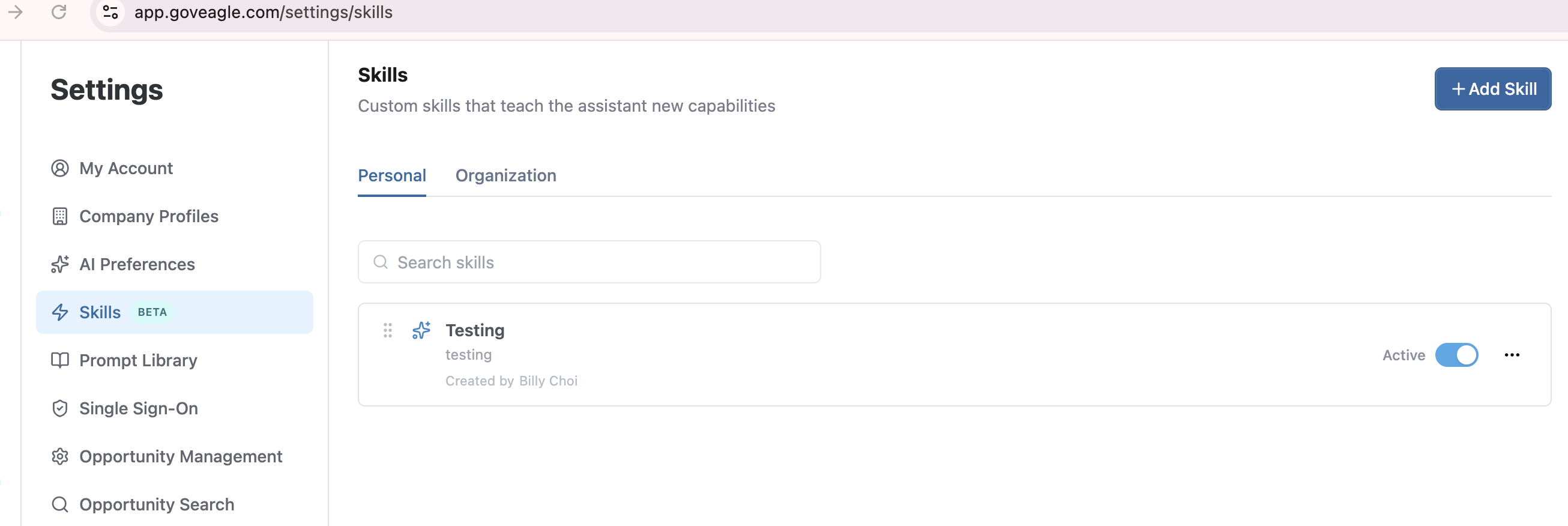
Click your profile icon in the bottom-left corner and select Settings, then open the Skills tab. You can also click Manage skills from the chat settings menu.
Choose the Personal tab, or the Organization tab if you are an admin.
Click Add Skill.
Enter a Name and optionally pick an icon.
Fill in When to use. Describe the situations where the assistant should use this skill, for example "Use when analyzing past performance citations or preparing PPIRS narratives."
Add the Instructions the assistant should follow. Type them under Enter Text, or switch to Upload to use an existing document (.pdf, .docx, .doc, .txt, or .md, up to 25 MB).
Click Create Skill.
New skills are active right away. If you uploaded a document, the skill shows a Processing badge while GovEagle extracts the text and becomes available once that finishes. If the badge changes to Extraction failed, edit the skill and upload the document again or paste the instructions as text.
Note: Uploading a document replaces any instructions you typed. The text extracted from the document becomes the skill's instructions.
Writing a good skill
Make When to use specific. The assistant decides whether to load a skill from this description alone, so name the task, the documents involved, and the words people are likely to use when they ask for it.
Write instructions as steps. List what to read, what to produce, and the format to use, in order.
Keep it focused. One skill per task works better than one skill that tries to cover everything. Instructions over 5,000 characters show a warning, and the limit is 20,000 characters.
Names can be up to 100 characters and When to use up to 500 characters. Each name must be unique among your personal skills, and among your organization's skills.
Sharing a personal skill with your organization
On the Personal tab, open the ⋯ menu on the skill.
Select Send to organization.

GovEagle sends a copy of the skill to your admins for review. Your personal skill stays as it is and you can keep using it. Changes you make to your personal skill afterward are not added to the copy for review. To share an updated version, wait until the admins have published or declined the earlier one, then send it again.
Note: GovEagle does not currently notify you when your skill is published or declined. Once published, it appears on the Organization tab and in everyone's skill menus.
Reviewing submitted skills (admins)
You need the Manage Organization Skills permission to create organization skills and review submissions. The built-in Admin role includes it, and you can add it to a custom role in Settings → Roles.
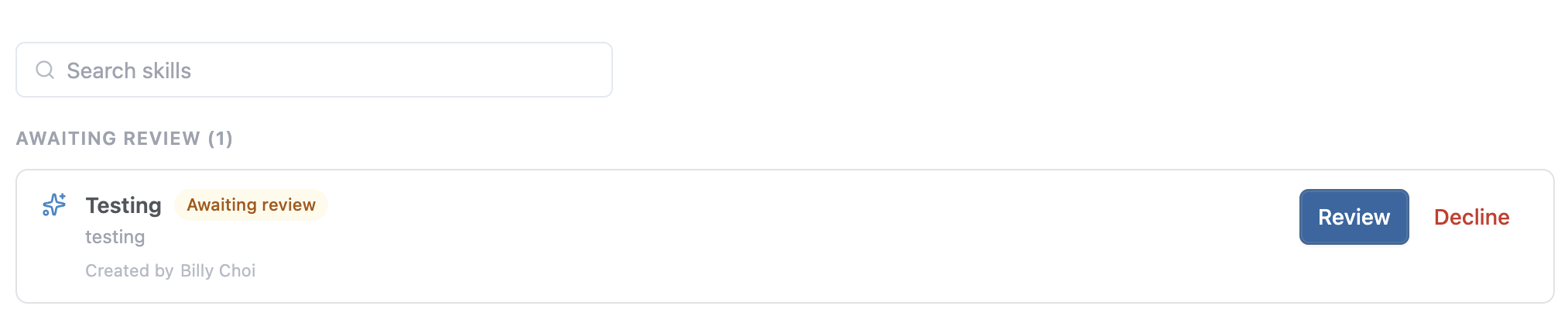
Go to Settings → Skills and open the Organization tab.
Submissions appear under Awaiting Review, with the name of the person who submitted each one.
Click Review to read the skill's When to use and instructions.
Click Publish to make it available to everyone, or click Decline on the submission to reject it.
Declining permanently deletes the submitted copy. The submitter's personal skill is not affected.
Note: Changes typed into the Review window are not saved. To adjust a submitted skill, publish it first, then use Edit from its ⋯ menu.
GovEagle does not currently send a notification when new skills are submitted. Check the Organization tab from time to time.
Running a skill
Automatically
You do not have to pick a skill to use it. In every chat, the assistant sees the name and When to use description of each active skill available to you. When your request matches one, it loads that skill and follows its instructions. You will see a Loading … skill step in the chat's activity while it does.
In the web app
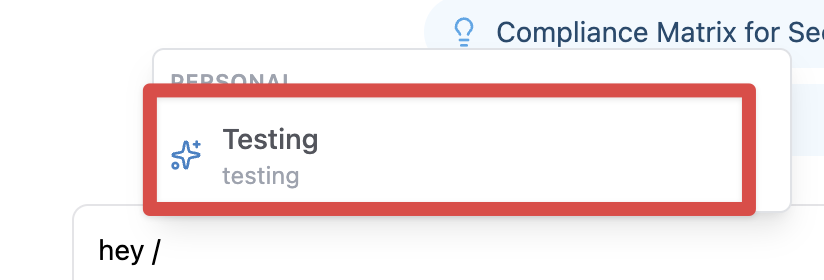
Slash command: type / in the chat box and choose a skill from the Personal or Organization list. Keep typing to search. The skill appears in your message, and you can add more text before sending.
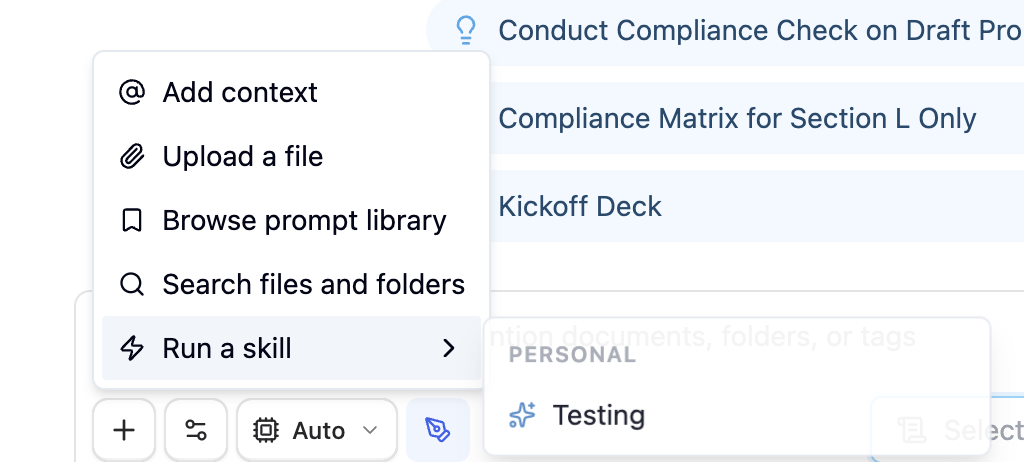
+ menu: click + in the chat box, choose Run a skill, and pick a skill. The message sends right away, along with anything you already typed.
Opportunity chat: click the lightning bolt (Run a skill) button in the chat toolbar and pick a skill. The message sends right away.
In Word, PowerPoint, and Excel
Skills you create in the web app are available in the add-ins automatically.
Click + in the chat box, choose Run a skill, and pick a skill. The message sends right away, along with anything you already typed.
Or type / in the chat box and choose a skill.
Skills can only be created and edited in the web app.
Managing skills
Turn a skill off: use the Active switch on the skill. Inactive skills are kept but removed from skill menus, and the assistant stops using them.
Edit or delete: open the ⋯ menu on the skill. Deleting is permanent.
Reorder: drag skills by their handle to change the order they appear in.
Search: use the Search skills box to filter the list.
You can manage your own personal skills. Only admins can edit, turn off, delete, or reorder organization skills.
Frequently asked questions
What is the difference between a skill and a rule?
Rules (Personal, Organization, and Opportunity Rules) apply to every chat. A skill applies only when the task calls for it, so it can hold longer, task-specific instructions without crowding every conversation. See Agent Memory for how rules work.
What is the difference between a skill and a prompt in the Prompt Library?
A prompt inserts text into your message for you to send. A skill is a set of instructions the assistant reads when the task calls for it, and it can be loaded automatically without anyone choosing it.
I don't see a skill in the Run a skill menu.
Check that the skill is active, that it has finished processing if it uses an uploaded document, and, for a submitted skill, that an admin has published it.
Can admins see my personal skills?
No. Personal skills are visible only to you. Admins see a skill only after you send it to your organization.