Generating Graphics in GovEagle
Overview
GovEagle can create graphics for your proposals and presentations straight from chat. Describe what you need, such as a process flow, org chart, quad chart, timeline or illustration, and GovEagle creates it for you.
You can make three kinds of graphics:
- Editable vector graphics (SVG): diagrams, flowcharts, org charts, timelines and infographics that you can keep revising and resize without losing quality.
- AI-generated images: illustrations, concept art and photo-style visuals. You can also edit an existing image.
- Office diagrams: native PowerPoint diagrams and Word SmartArt-style graphics built from your content.
You can insert finished graphics directly into a Word document or a PowerPoint slide manually, or enable "auto-accept" in your chat settings to allow GovEagle to automatically insert the completed graphic. Auto-accept is available in chat settings in the web-app and the Microsoft add-ins.
Choose the right type of graphic
Use an editable SVG graphic when exact labels matter. Use a generated image for illustrative or photo-like visuals.
| Type | Best for | Can you edit it later? | Examples |
|---|---|---|---|
| Editable SVG graphic | Diagrams where every word must be exact | Yes, by asking for changes in chat | Quad charts, org charts, OV-1 concept graphics, process flows, timelines, swim lanes, layered architectures, infographics |
| AI-generated image | Illustrations, concept art and photo-style imagery | Only by generating a new version | Cover art, mission scenes, illustrative backgrounds, a logo placed on a photo |
| PowerPoint diagram | Simple structured visuals built from shapes on a slide | Yes, as native PowerPoint shapes | Process, cycle, comparison, timeline, numbered list, hub and spoke, pyramid, funnel |
| Word graphic | Simple SmartArt-style visuals in a document | Yes, in Word | Process, cycle, 2x2 matrix |
Not sure which to pick? Just describe what you need. GovEagle chooses a suitable type, and you can ask for a different one.
Turn on Generate SVG images for editable graphics
The Generate SVG images setting decides what you get when you ask for a picture or graphic. It is off by default.
| Setting | What image requests produce |
|---|---|
| Off (default) | Static images. To change one, you generate a new version. |
| On | Editable vector (SVG) graphics that you can revise and resize. |
To turn it on:
- Open the chat settings menu in the chat box. The setting is in the same place in the GovEagle web app and in the Word and PowerPoint add-ins.
- Switch on Generate SVG images (pen icon).
- A pen icon appears in the chat box while the setting is on. Click it to turn the setting off.
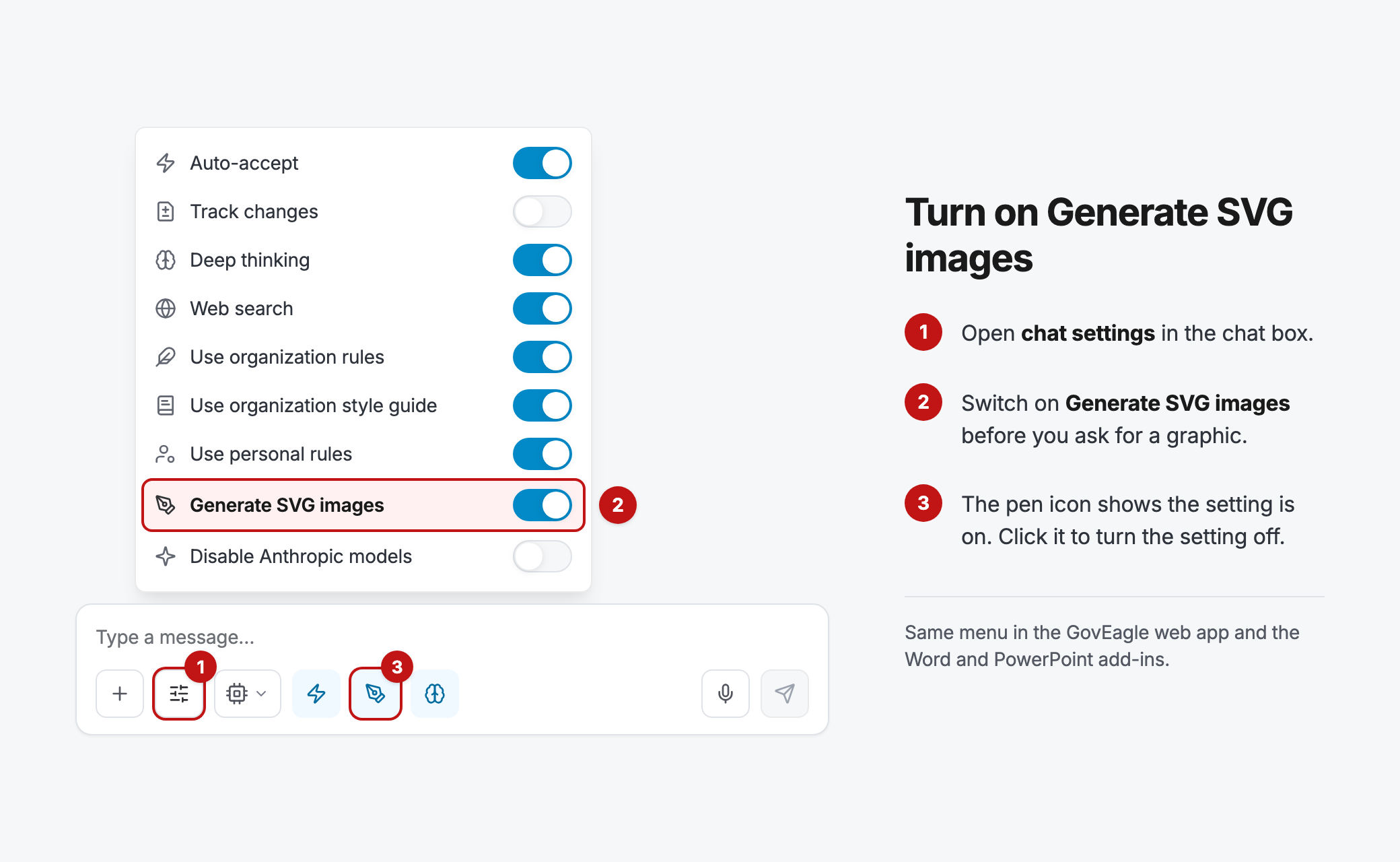
Turn the setting on before you ask for the graphic. A graphic created as a static image can't be turned into an editable one later. You need to generate it again with the setting on.
Plan your graphic before you prompt
The best proposal graphics are visual arguments: they help an evaluator understand and score a section faster. Before you ask GovEagle for a graphic, write one sentence saying what it must prove.
| Element | Question to answer | Example |
|---|---|---|
| Claim | What must the graphic prove? | Our transition approach reduces operational disruption. |
| Structure | Which visual form makes the claim easy to follow? | Three-phase timeline, process flow, architecture map |
| Evidence | What proof makes it credible? | Metrics, past performance, staffing depth, named controls |
| Evaluator relevance | Which evaluation factor or buyer concern does it address? | Risk reduction, staffing, mission continuity |
A few rules make graphics easier to score:
- Use a takeaway title. "Three-phase transition reduces startup risk" beats "Transition Approach."
- Keep one main message. If a graphic covers process, proof, risk and schedule at once, split it into two.
- Use short labels. Put phrases in boxes and move explanations into the caption.
- Make the reading order obvious. Use left-to-right flow, numbered steps or clear layers.
Generate a graphic
- Open a GovEagle chat, or the GovEagle add-in in Word or PowerPoint.
- For proposal graphics with exact labels, turn on Generate SVG images first.
- Give GovEagle source material. You can @-mention files, upload files to the chat, limit sources to the opportunity's content scope in chat settings, or highlight text in Word.
- Ask for the concept first: a takeaway title, layout, labels, callouts and caption. Refine the wording before anything is drawn.
- Ask GovEagle to draw the graphic. Editable SVG graphics open in a panel next to the chat.
- Ask for changes, or insert the graphic into your document or presentation.
Example prompt formula
Try this example structure for any graphic:
I need a [graphic type] for [proposal section or slide]. It must help the evaluator understand [main claim]. Use this source material: [@-mentioned file, uploaded file or highlighted text]. Follow these constraints: [Word or PowerPoint, maximum number of boxes, layout direction, colors]. Return: a takeaway title, layout, labels, callouts, a caption, and anything an evaluator might find unclear.
| Weak prompt | Better prompt |
|---|---|
| Make this look nice. | Create a three-phase transition timeline that shows how our approach reduces startup risk. Use the selected text and short, evaluator-friendly labels. |
Starter prompts
- Find graphic opportunities: "Review this proposal section and identify the best opportunities for evaluator-friendly graphics. For each, suggest the graphic type, what it would prove and a takeaway title. Don't recommend decoration."
- Process flow: "Create a left-to-right process flow for our incident response approach. Keep each step label short and action-oriented, add no more than three callouts, and write a caption explaining how the process reduces risk."
- Transition timeline: "Create a transition timeline with phases Kickoff (Month 1), Knowledge Transfer (Months 1–2), Parallel Operations (Month 3) and Full Performance (Month 4). Add a risk-reduction callout for each phase."
- Org chart with accountability: "Create an org chart with the Program Manager at the top and three task leads. Under each role, add a short label saying what it does for the customer, and show the escalation path."
- Compliance-to-response map: "Create a matrix showing how our solution elements address the evaluation factors below. Add callouts for our strongest proof points."
- Illustration: "Generate an illustration of a modern government operations center, blue and gray color scheme, no text."
Edit and refine a graphic
Editable SVG graphics: describe the change in chat, and GovEagle updates the same graphic. For example:
- "Change the title to Phase 2 Transition Plan."
- "Make the boxes navy and the text white."
- "Add a fourth task lead for Data Analytics."
- "Move the legend to the bottom right."
Generated images: each request creates a new image. To change an existing image, refer to it in your request and say exactly what should change and what should stay the same. You can also combine images, for example placing your company logo onto a photo.
Example: "Take the operations center image and add our logo to the wall screen. Keep everything else the same."
Insert a graphic into Word or PowerPoint
When you work in the GovEagle add-in for Word or PowerPoint, GovEagle can place the graphic directly into your file. Select Insert into document below the graphic in chat, or ask GovEagle to insert it.
- PowerPoint: name the slide, for example "Add this timeline to slide 3." GovEagle inserts the graphic, checks the layout, and fixes overlapping or cut-off content.
- Word: ask GovEagle to insert the graphic into the document.
How a graphic arrives in your file depends on its type and where you work:
| Graphic type | In your file | Can you edit it there? |
|---|---|---|
| PowerPoint diagram | Native PowerPoint shapes | Yes, like any other shape |
| Editable SVG graphic, desktop Word or PowerPoint | Vector graphic that stays sharp when resized | Yes. In PowerPoint, right-click it and select Convert to Shape to edit text and colors. |
| Editable SVG graphic, Word on the web | Flat image (PNG) | No. Insert from desktop Word to keep it editable. |
| AI-generated image | Flat image | No. Ask GovEagle for a new version. |
After inserting: check spacing, alignment and readability at the final size. GovEagle doesn't add alt text, so add it in Word or PowerPoint if your submission requires it.
Download the SVG file for a graphics team
You can download any editable SVG graphic as a standard .svg file for a designer to finish in Illustrator, Inkscape, Figma or another vector editor.
- Make sure Generate SVG images was on when the graphic was created. Static images have no SVG file to download.
- Select Download SVG:
- Web app: in the header of the side panel where the graphic opens, or in full-screen view.
- Word or PowerPoint add-in: below the graphic in chat, next to Insert into document.
- Send the file to your graphics team. It is named after the graphic's title.
The file uses standard shapes and text with common fonts, so it opens cleanly in vector editors. Designers can then apply brand fonts, icons and effects.
Graphic inside a document GovEagle generated? Downloading it there gives you a PNG. To get the SVG, open Edit source on the graphic and copy the markup, or ask GovEagle in chat to recreate the graphic as a standalone SVG, then select Download SVG.
Tips and limitations
Tips for better results
- Start with what the graphic must prove, not "make a graphic."
- Ask for options: "Give me three possible visual approaches and explain when each works best."
- Separate concept from design. Settle the title, layout and labels first, then ask for styling.
- Set limits, such as no more than five boxes, three phases or one page width.
- Give the exact wording for labels, and keep each to five words or fewer.
- Ask for evaluator language: "Rewrite the labels so they're clear to an evaluator who isn't on our solution team."
- Make proof visible. Ask where to add metrics, past performance or named capabilities.
- Ask for a caption that connects the graphic to the requirement or evaluation factor.
- For images, describe the subject, style, color scheme and any text that should appear.
- Make one change at a time when you refine a graphic.
Limitations of editable SVG graphics. Word and PowerPoint don't support some vector effects, so GovEagle leaves them out:
- No drop shadows, blurs or glows. Graphics use solid fills and outlines.
- Fonts are limited to Arial, Helvetica, Georgia, Times New Roman, Courier New and Verdana. To use your proposal's brand font, apply it in Word or PowerPoint after inserting the graphic.
- Icons are drawn as simple shapes. Photos and logos can't be embedded inside an SVG graphic, so use a generated image for those.
Review before you submit
Run every graphic through these checks before final production.
- Claim: an evaluator can tell what the graphic proves without reading the section.
- Requirement fit: it connects to a requirement, evaluation factor or buyer concern.
- Readability: the basic message comes across in 10 seconds.
- Proof: it shows evidence, not just assertions.
- Plain language: no internal jargon or unexplained acronyms.
- Accuracy: solution owners or subject-matter experts have checked the content.
- Consistency: fonts, colors and spacing match the rest of the proposal.
- Accessibility: it works in grayscale and has alt text if required.
For a final pass, ask GovEagle: "Review this graphic from the perspective of a proposal evaluator. Identify what is unclear, unsupported, crowded or not connected to the evaluation factors, and recommend specific edits."
FAQ
Why can't I edit the graphic I just made? It was created as a static image because Generate SVG images was off. Turn the setting on and ask GovEagle to create the graphic again.
Text in my graphic overlaps or is cut off. What should I do? Ask GovEagle to shorten the labels, enlarge the graphic, or split it into sections. In PowerPoint, you can also ask it to fix the layout on that slide.
Can I use my own logo or photos? Yes, with generated images. Refer to the image you want to use and describe how to combine it.
Can I reuse graphics from past proposals? Yes. Search your Content Library for images and graphics from documents you've already uploaded.
I inserted an SVG graphic in Word on the web and can't edit it. Why? Word on the web inserts SVG graphics as flat images. Insert the graphic from desktop Word or PowerPoint to keep it as an editable vector.
Can GovEagle use my company's brand font? Not inside the graphic itself. Insert the graphic, then apply your brand font in Word or PowerPoint. In PowerPoint, right-click an SVG graphic and select Convert to Shape first.
Does GovEagle add alt text? No. Add alt text in Word or PowerPoint after inserting the graphic.
My designer needs the original file. How do I get it? Select Download SVG on the graphic to get a .svg file that opens in any vector editor. See Download the SVG file for a graphics team above. AI-generated images can only be downloaded as image files.
Related articles
- Chat Settings: turn on Generate SVG images and other chat options.
- Creating Oral Presentation Slides with GovEagle: build a full slide as an editable graphic.
- Adding Context for an Opportunity: add files, excerpts, images and highlighted text to chat.
- Limiting Content Scope: control which sources GovEagle uses.
- Working with the PowerPoint Add-In
- Working with the Word Add-In
- Prompting Guide: write prompts that get better results.