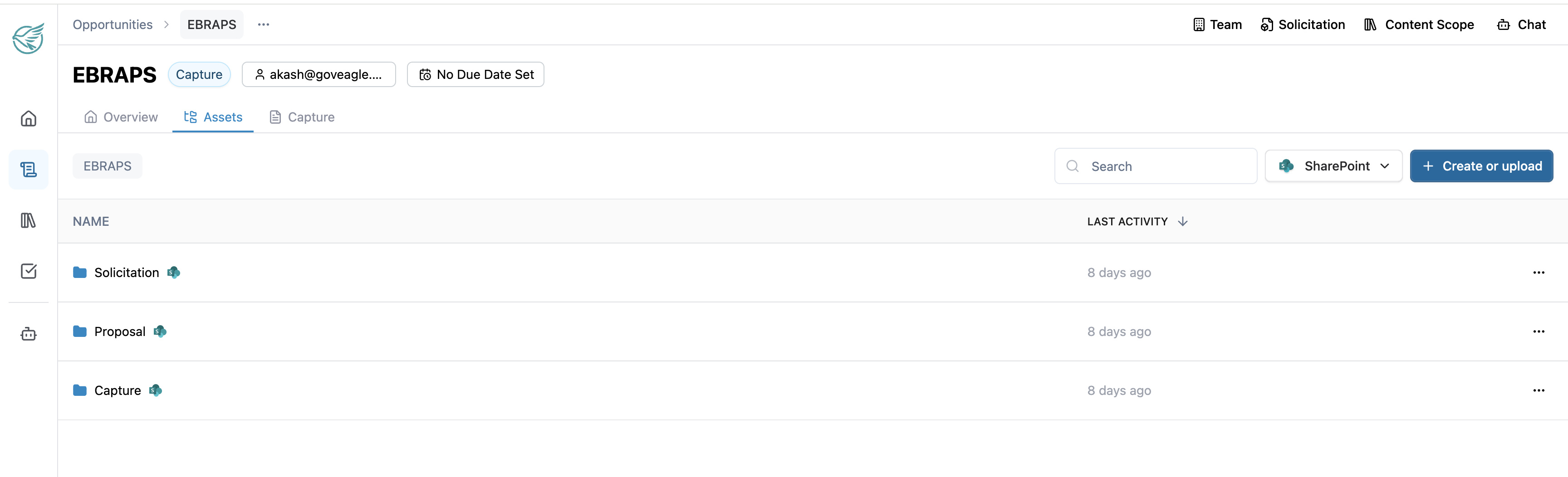
The Assets tab in GovEagle gives your team a dedicated workspace for managing proposal documents tied to a specific opportunity. From technical approaches and past performance volumes to pricing spreadsheets and compliance matrices, Assets keeps everything organized, accessible, and in sync with SharePoint.
Folders within the opportunity’s assets tab are a near real-time mirror of the folders you have set up on your opportunity-specific SharePoint site. Changes made in your SharePoint for an opportunity appear in GovEagle automatically. It is read-only unless your IT team has granted write access, and opportunity assets are never part of the Content Library, so nothing in it influences other opportunities. When you chat inside the opportunity, GovEagle uses the information in the assets tab first and falls back to the Content Library for things like past performance. See Where your documents live.
Prerequisites
Your organization's SharePoint connection must already be set up by an admin. See Connecting SharePoint to GovEagle. The Microsoft Graph permission your IT team granted to the app registration decides what the Assets tab can do:
Permission granted | What the Assets tab can do |
|---|---|
| Read-only mirror. Changes in SharePoint appear in GovEagle in near real time. New documents you create from GovEagle are downloaded to your computer instead of being saved into the folder. |
| Everything above, plus write-back: GovEagle can create subfolders and save templates and generated files directly into the linked SharePoint folder. Write-back applies to Assets folders only. The Content Library is always read-only. |
| Only sites your IT team has explicitly approved can be linked, and updates arrive nightly or when you click Resync, rather than in near real time. |
Sync Opportunity-Specific Folders from your SharePoint to GovEagle
Open an opportunity in GovEagle and click on the Assets tab.
Then click the Connect SharePoint button.
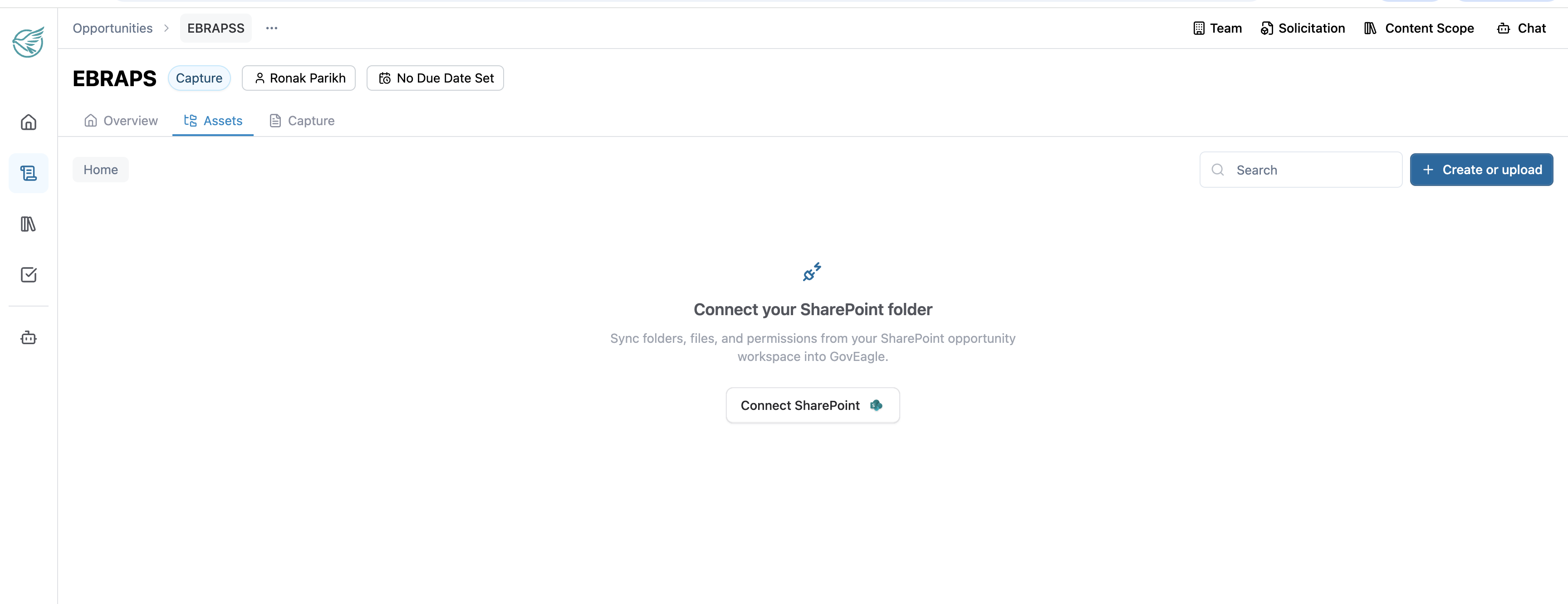
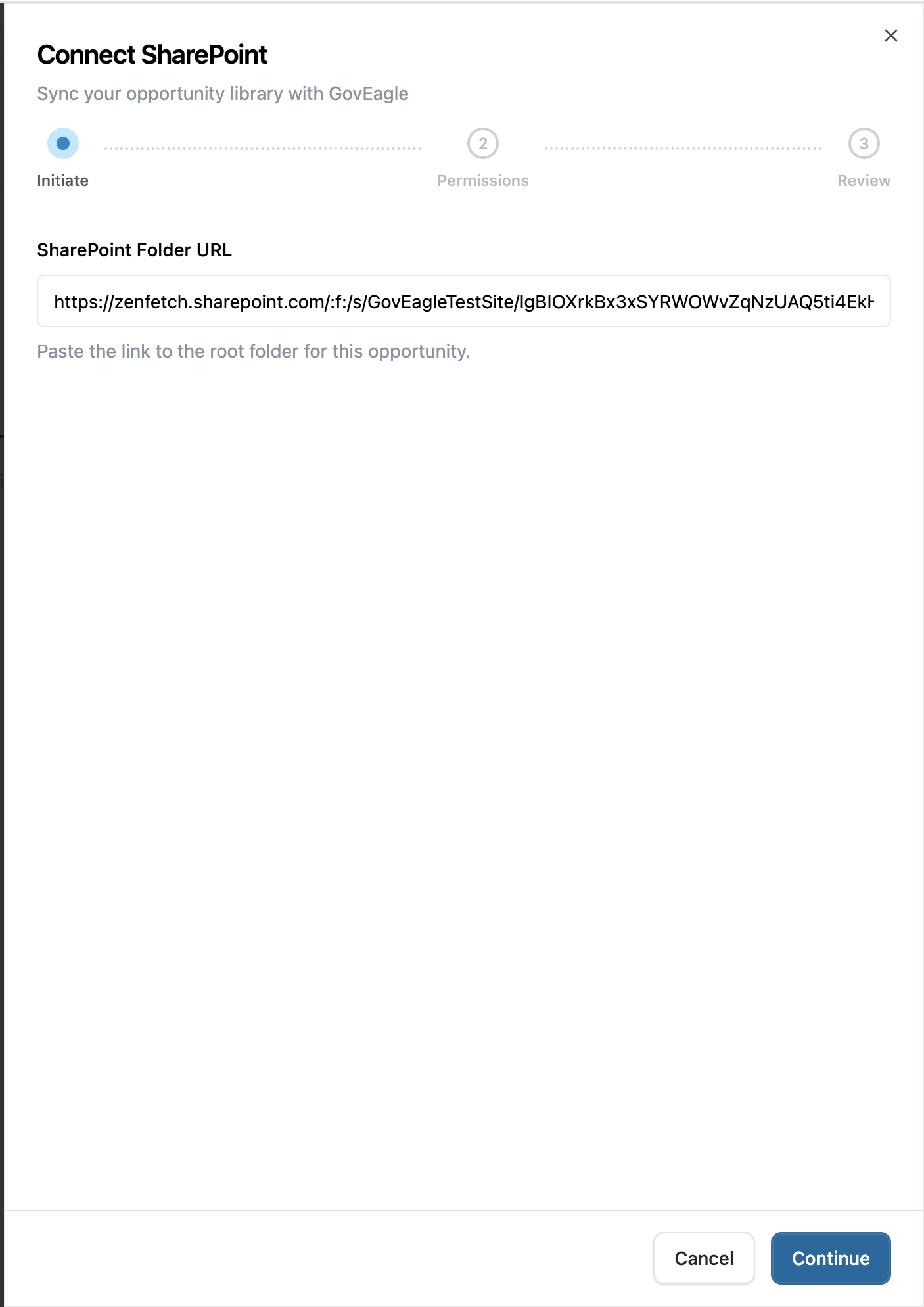
You will see an area where you can paste the URL of an opportunity-specific folder from your SharePoint.
.png)
Go to your SharePoint site that has the folder for the opportunity your setting up in GovEagle and click the Copy the link button.
.png)
Go back to GovEagle and paste in your SharePoint URL. Then click Continue.
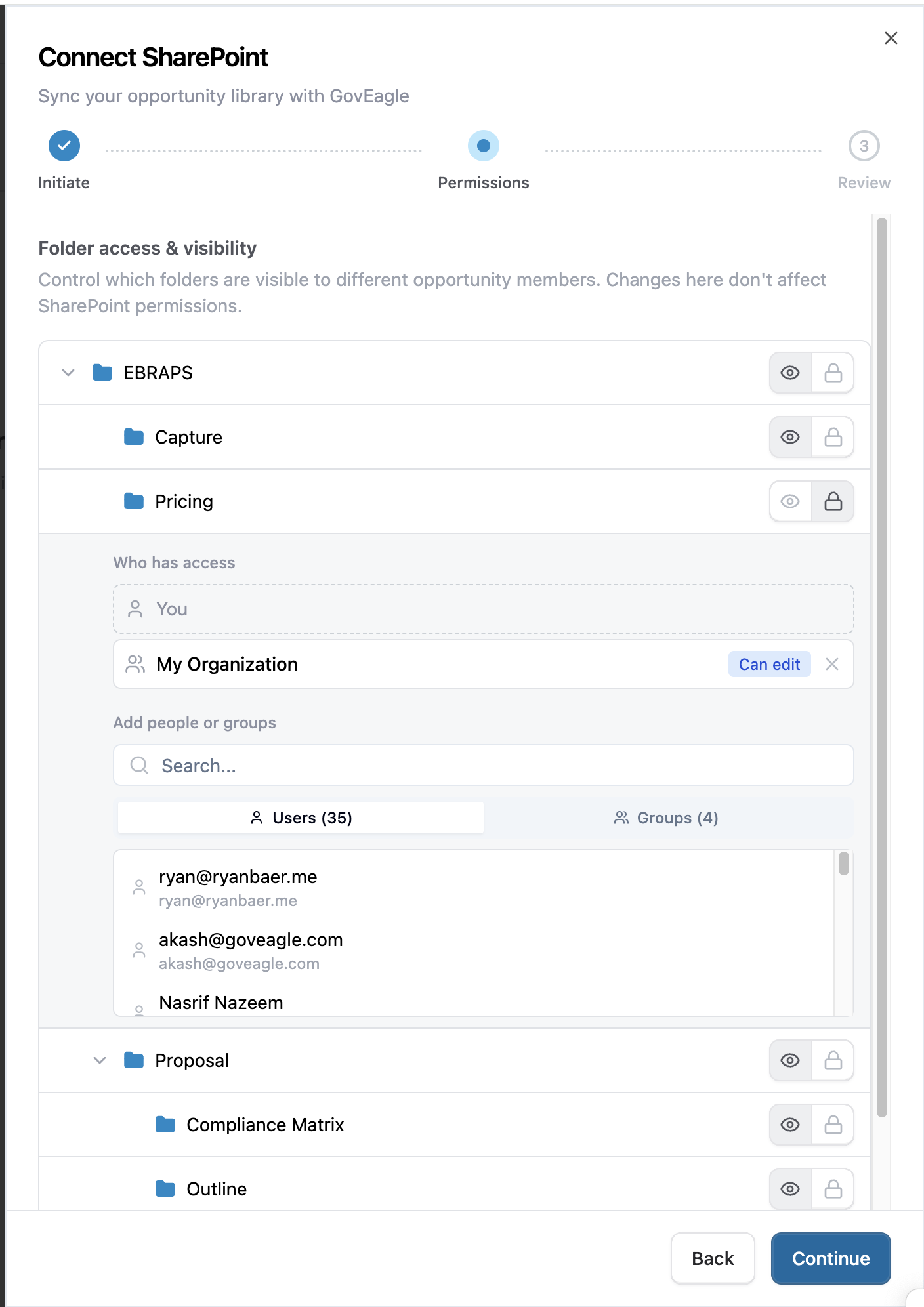
6. Select your desired permissions for each folder. The 'eye' icon means all users can see the folder contents. Then click Continue.
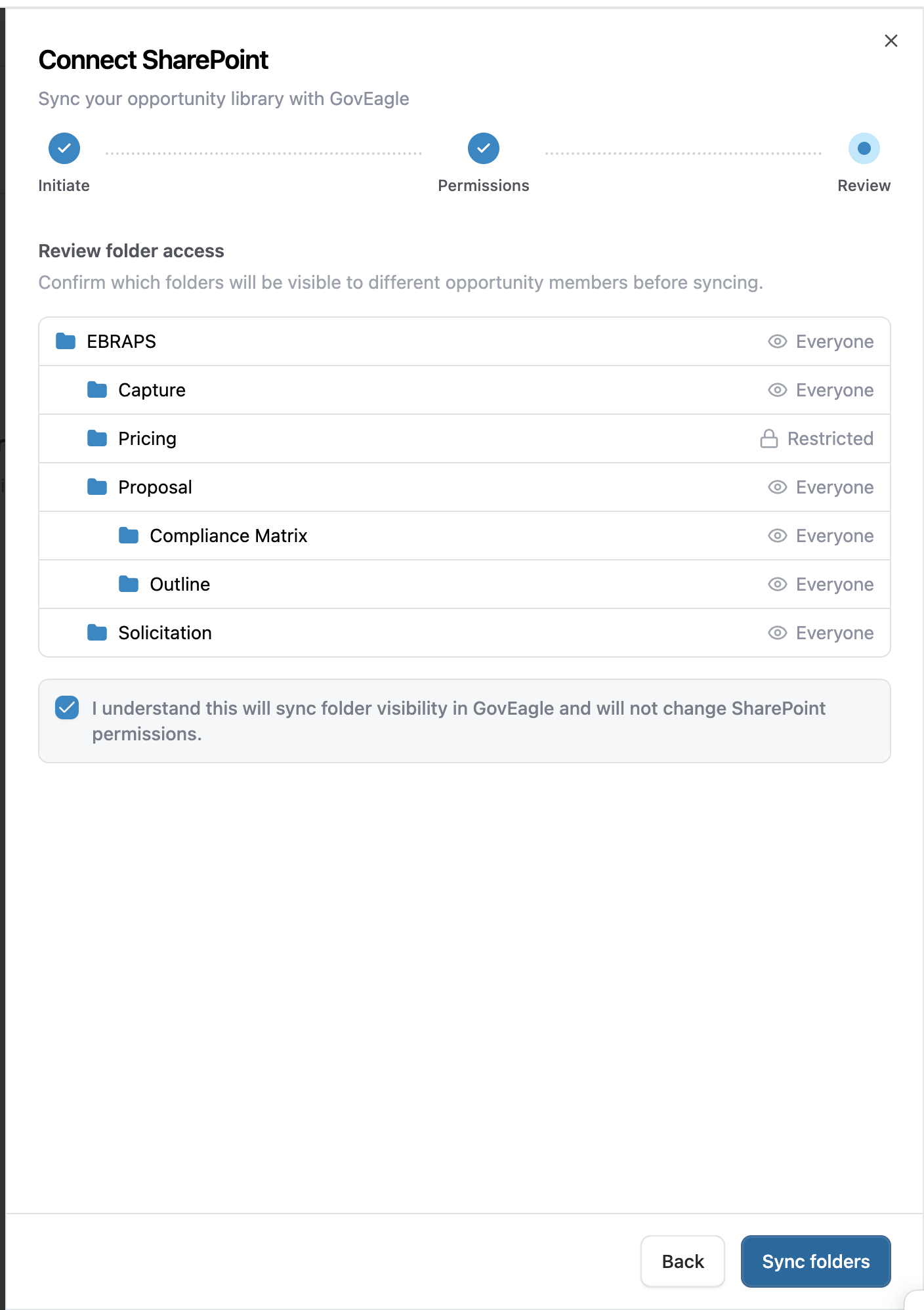
Click the check box confirming you understand that by syncing to your opportunity-specific SharePoint folder with GovEagle, you will not change the SharePoint permissions. Then click the Sync Folders button.
Managing Assets
Your organization can define asset templates — pre-built Office documents (Word, Excel, or PowerPoint) that serve as starting points for common proposal deliverables like Technical Approaches, Past Performance volumes, or Management Plans.
To create an asset template:
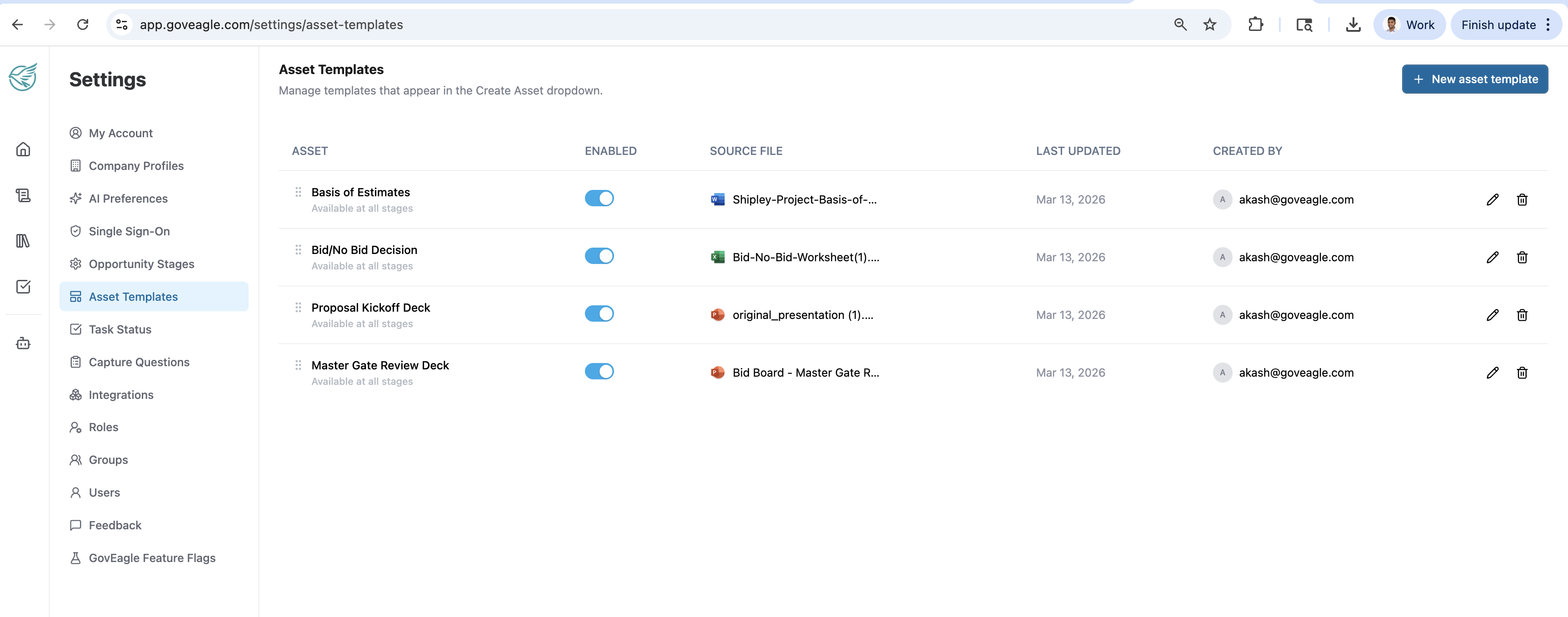
Navigate to 'Asset Templates' on the settings tab.
Click + New asset template
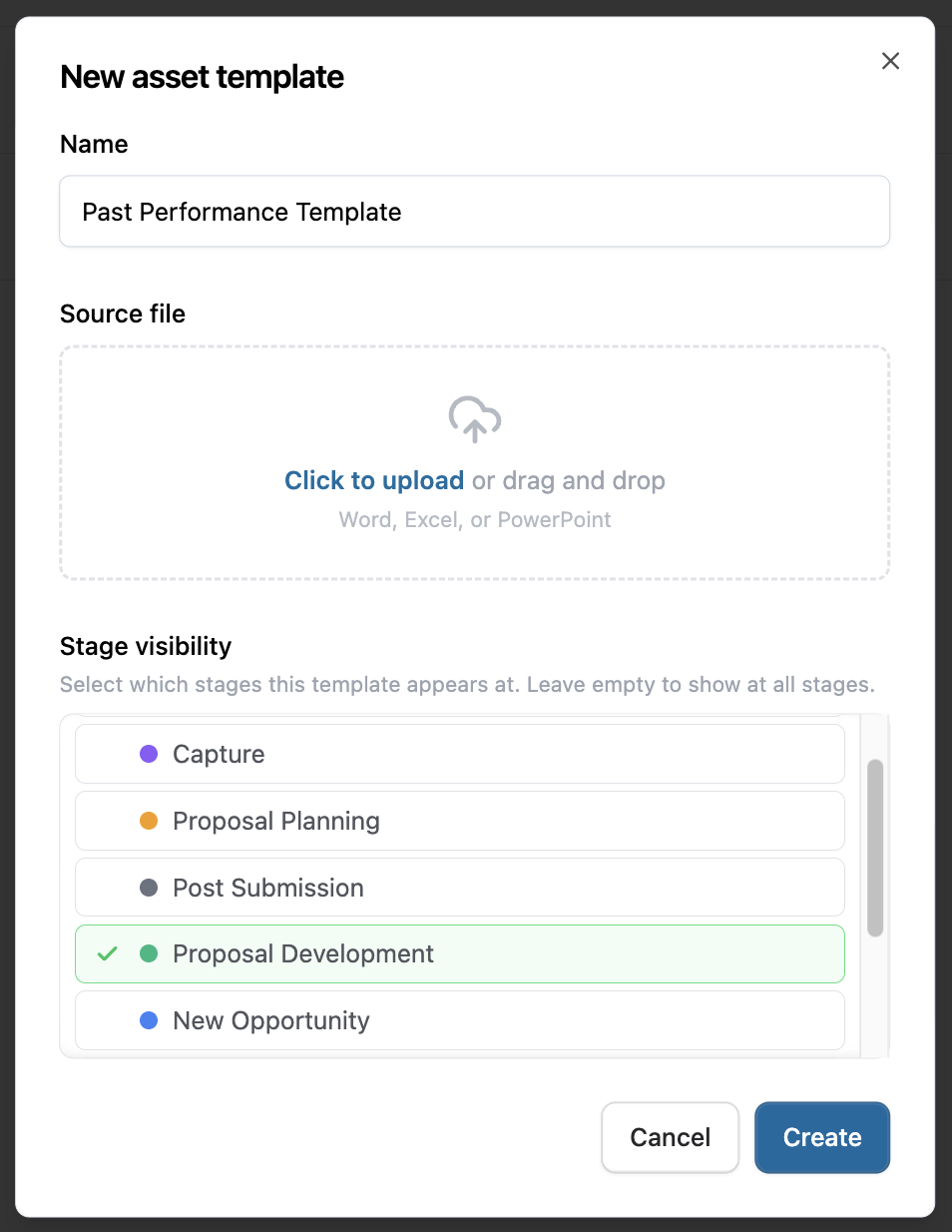
Upload a file and optional select which stages you want them visible for.
Navigate back to your opportunity and Create or Upload the asset.
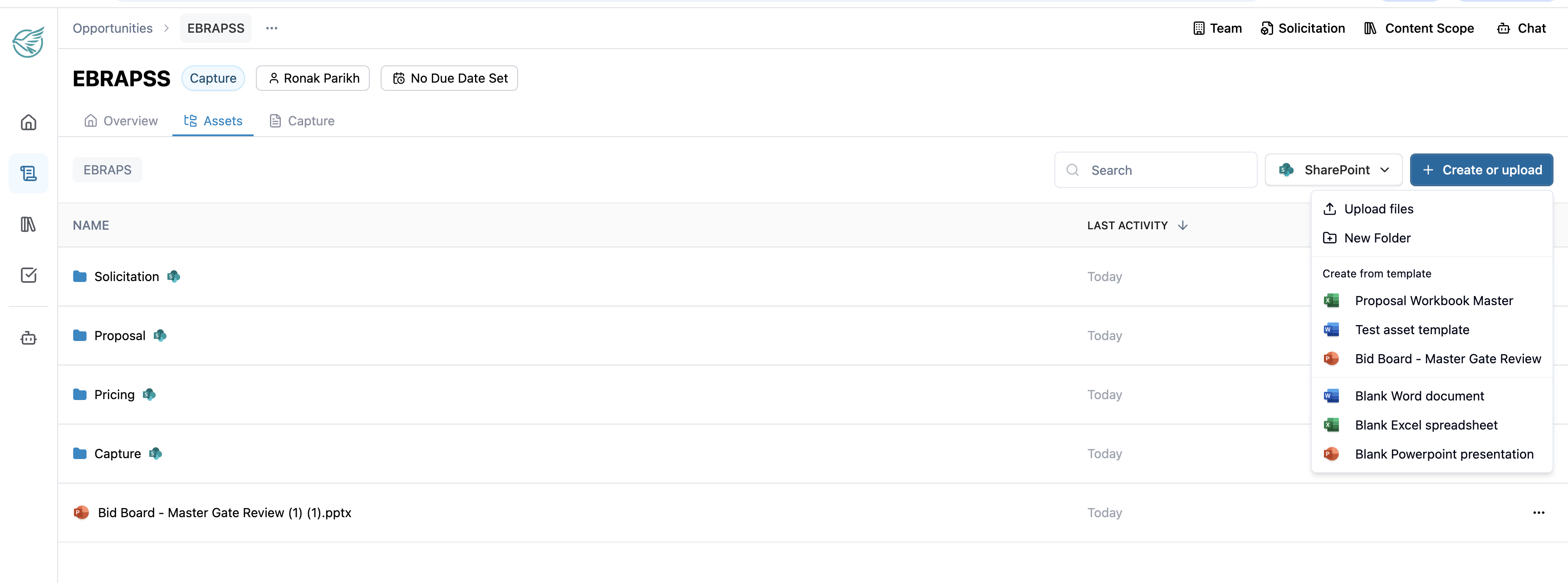
Note: You can also create blank Office documents directly:
Blank Word document (.docx)
Blank Excel spreadsheet (.xlsx)
Blank PowerPoint presentation (.pptx)
Note: If your SharePoint connection is read-only, new documents will be downloaded to your computer instead of being created in the folder. A notice will inform you when this happens.
.png)
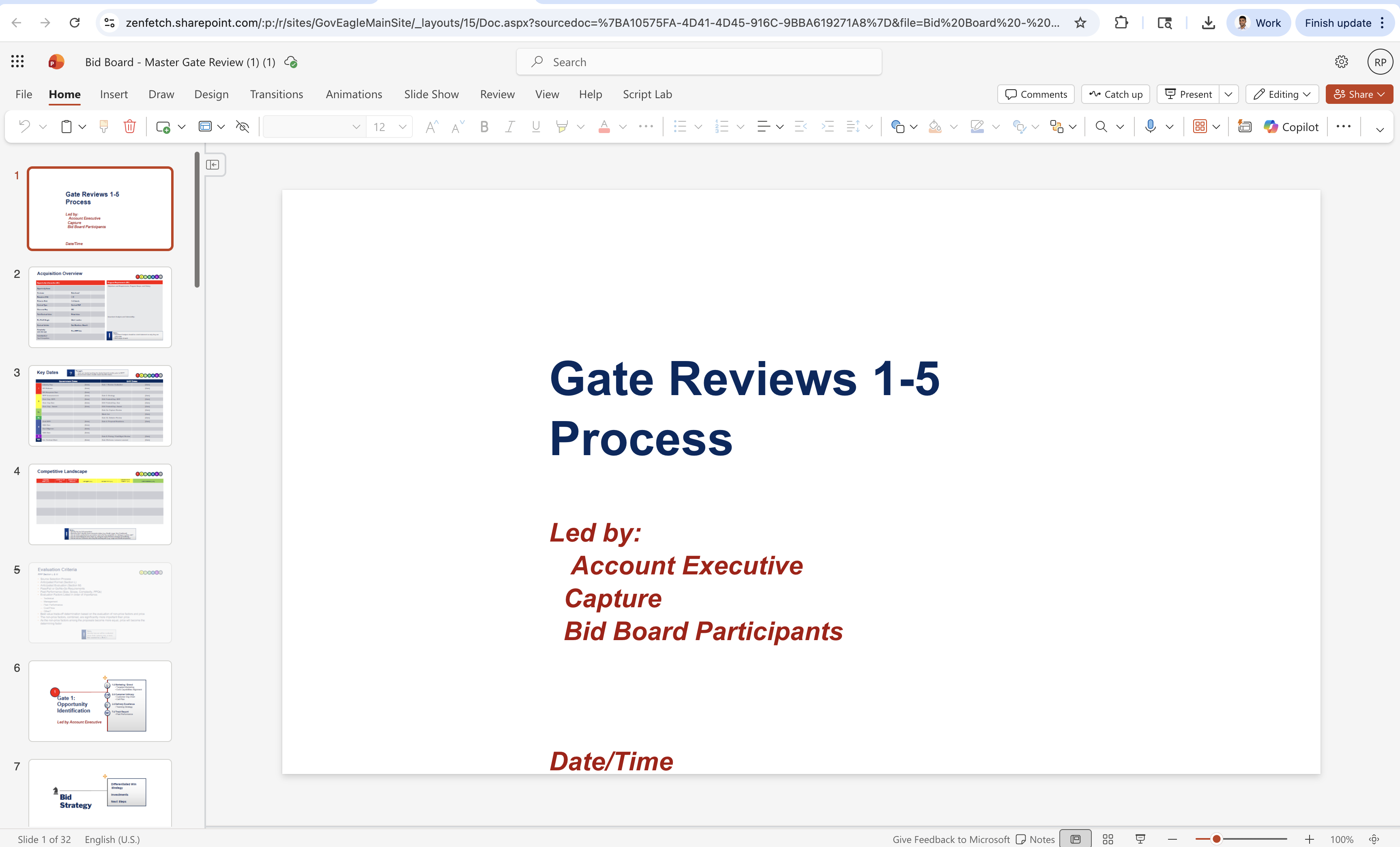
Click on SharePoint links directly opens up your document inside SharePoint